FTAPI Outlook Add-in
Please always use the latest version of the FTAPI Outlook Add-in.
Current version: 4.8.8
FTAPI administrators receive a notification once a week about users who are using an outdated version.
Changelog
Installation files
The package listed here contains an .msi file that can be used for both manual installation and software deployment.
| Outlook Add-in: Latest version | Link |
|---|---|
| FTAPI Outlook Add-in version 4.8.8 → Windows msi installer 64-bit |
The Full_Installer contains the FTAPI Outlook Add-in as well as Microsoft .NET Framework 4.8, Visual Studio 2010 Tools for Office Runtime, and WebView2. This installer should only be used for manual GUI installations. The three packages cannot be installed during software deployment (an .msi installation cannot call another .msi installation).
The Small_Installer contains only the FTAPI Outlook Add-in and is suitable for installation via software deployment.
Please note that Outlook must be closed when installing the FTAPI Outlook Add-in.
The installation parameters for the FTAPI Outlook Add-in can be found here as a PDF file for download:
System requirements
The following Outlook versions are supported:
- Classic Outlook 2016 or newer. FTAPI does not provide support for older Outlook versions.
- FTAPI also offers an add-in for the new Outlook. You can find more details about this here.
Software deployment
If you want to distribute the FTAPI Outlook Add-in via software deployment (dedicated application, GPOs, etc.), you should ensure that the Small_Installer is used. Since MSI packages cannot call each other during a quiet installation from a technical perspective, the Full_Installer cannot be used for software deployment.
Therefore, it is necessary to distribute the requirements needed for the correct functionality of the Outlook Add-in, which are included in the Full_Installer, in advance if they are not already installed. You can find the requirements in the following list:
| .NET Framework | VSTO 2010 | WebView 2 Runtime |
|---|---|---|
| At least .NET Framework 4.8 | VSTO 2010 | WebView 2 Runtime |
Rollout for individual users on a terminal server
If you are using a terminal server environment (e.g., Microsoft Terminal Server), you may want to activate the add-in only for certain users. This requires an adjustment to the registry.
Please proceed as follows:
- Perform the installation of the add-in for "All users"
- This will create the registry keys under the following path:
HKEY_LOCAL_MACHINE\SOFTWARE\Microsoft\Office\Outlook\Addins\FTAPI Outlook Add-In
For all users who should not receive the add-in, please roll out the following manually or via GPO:
- the key (folder):
HKEY_CURRENT_USER\Software\Microsoft\Office\Outlook\Addins\FTAPI Outlook Add-Inand in this new key (folder) the following values:- DWORD value (32bit); Name:
LoadBehavior; Value=0 - String; Name:
Description; Value=FTAPI Outlook Add-In - String; Name:
FriendlyName; Value=FTAPI Outlook Add-In - String; Name:
Manifest; Value={Path to FTAPIOutlookAddin2013.vsto|vstolocal}(by defaultC:\Program Files (x86)\FTAPI\Outlook Add-In\FTAPIOutlookAddin2013.vsto|vstolocal)
- DWORD value (32bit); Name:

The add-in now behaves as follows:
- Users who do not have the LoadBehavior entry under
HKEY_CURRENT_USER: Add-in starts with Outlook. - Users who have set the entry under
HKEY_CURRENT_USER: Add-in does not start with Outlook.
An overview of the possible LoadBehavior settings can be found here: Microsoft overview for LoadBehavior
Please note that you may need to delete the LoadBehavior key under HKEY_LOCAL_MACHINE again after an update.
Changing settings for multiple users
It may be necessary to adjust the settings of the initial installation subsequently. There are two ways to do this:
- Uninstall the FTAPI Outlook Add-in and then reinstall it with modified installation parameters
- Adjust the configuration file used by the FTAPI Outlook Add-in and distribute it, for example, via GPO
The configuration file user.config is created after the initial installation of the FTAPI Outlook Add-in upon the first start of Outlook in the user's local roaming profile (C:\Users\<Username>\AppData\Roaming\FTAPI\Outlook Add-In).
The file is in XML format and is structured as follows for each setting in the add-in:
<Setting name="Name of the setting" serializeAs="String">
<value>Value of the setting</value>
</Setting>
An example:
You want to change the file size up to which files should be automatically archived after sending the email from 5 to 10 MB.
Step 1:
Open the user.config file
Step 2:
Search the file for the setting ArchiveDownloadedAttachmentMaxSizeMB
Step 3:
Change the value of the setting from 5 to 10
Step 4:
Save the user.config file
The next time Outlook starts, the setting will be changed from 5 to 10 MB. The file can then be distributed centrally to different users in its modified state, for example via a group policy.
Related articles
Example setup of a GPO to activate the FTAPI Outlook Add-in
Best practices for configuration
The FTAPI Outlook Add-in is highly configurable. This makes it possible, for example, to make the add-in available to users in its full scope or to install it in such a way that users do not notice that they are sending emails with FTAPI.
Depending on the use case, it is therefore possible to configure the add-in using installation parameters so that the required functions are available to users and can be integrated into their daily work routine without extra effort.
We therefore recommend installing the add-in on 1-2 test machines as a first step and going through the individual functions and setting options.
This often leads to the following questions, for example:
- Should the users' session remain saved, or should they have to log in to FTAPI again every time Outlook starts?
- Should the files transmitted to FTAPI be re-attached to the email after sending so that they can potentially be captured by archiving software?
- Should users have the option to adjust settings in the FTAPI Outlook Add-in, or should these be locked?
The answers result in one or more basic configurations from which the corresponding installation parameters are derived.
The following set of standard installation parameters has become established among many of our customers and is expanded accordingly depending on the use case:
SAVEUSERDATA="Y" SERVER="URL of the FTAPI system" SETADDINALWAYSENABLED="Y"
SAVEUSERDATA="Y"This ensures that the users' session is retained even after restarting OutlookSERVER="URL of the FTAPI system"This specifies the URL of the FTAPI system to which users connectSETADDINALWAYSENABLED="Y"This ensures that the add-in remains activated even if Outlook starts slowly
Customizing Outlook Add-in buttons
The text and description for both the download and SubmitBox buttons, which are inserted into the body of an email sent with FTAPI, can be customized.
You can find the detailed instructions for this here as a download.
Outlook Add-in settings
A wide variety of setting options are available in the FTAPI Outlook Add-in.
You can access these settings via the Outlook menu bar "FTAPI" and then via the "Settings" option.

Automatic sending rules
In this overview, you can store automatic sending rules.
Example: This setting activates automatic sending with FTAPI starting from a file size of 1 MB. As soon as the user wants to send a file with a size of 1 MB or more, this email is converted into an FTAPI delivery.
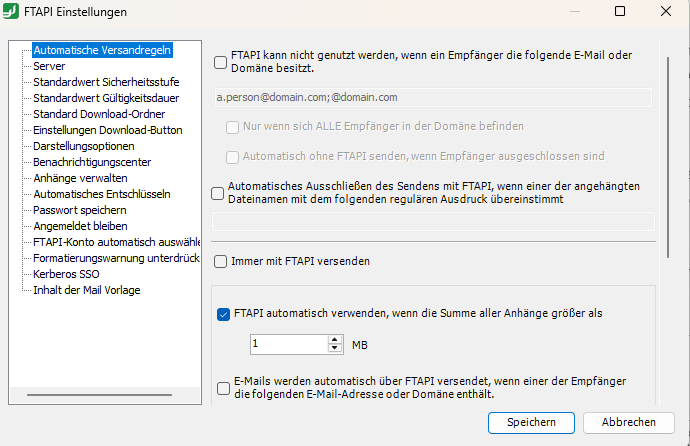
Fig.: Automatic sending rules 1
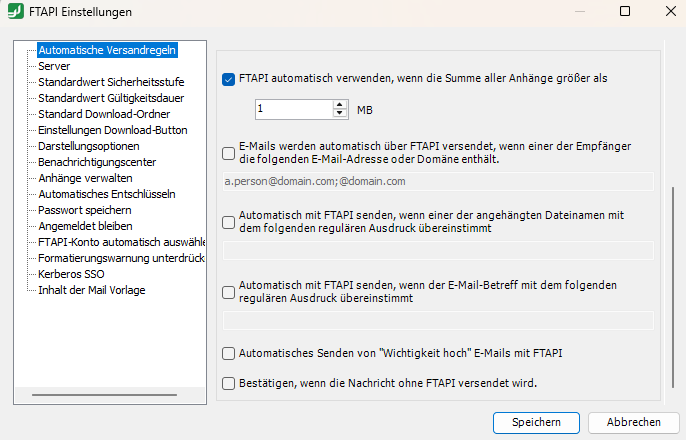
Fig.: Automatic sending rules 2
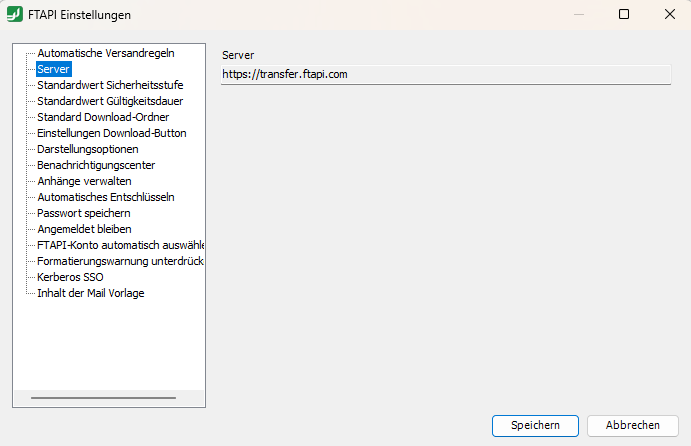
Server
Here you can see which server you are logged into. If this is the wrong server, you can log out and log in to the desired server.
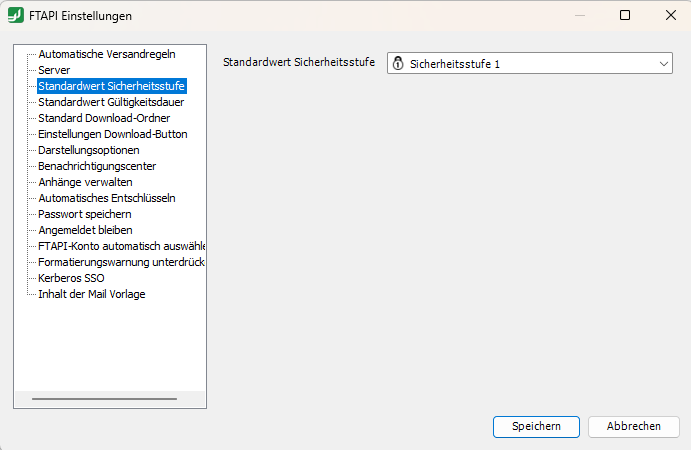
Default security level
You can specify a default security level. This is automatically selected for every delivery. If you ever want to use a different level, you can manually change this for each delivery at any time.
Default validity period
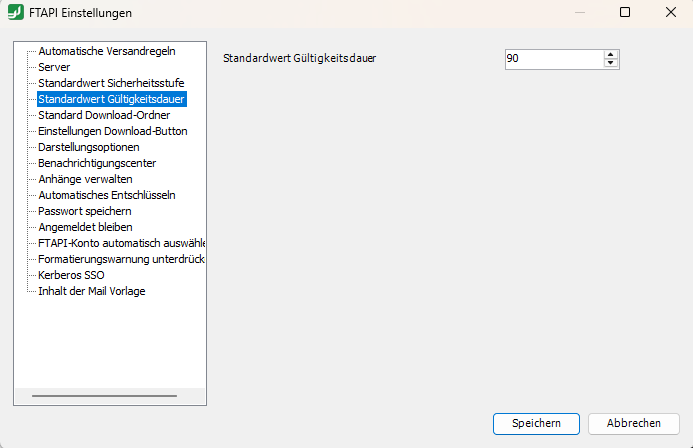
If an individual expiration date is set on your FTAPI server, you can make a general setting. This is used for all new deliveries, but can also be set individually for each delivery. If a fixed server-side expiration date is set, you cannot change it.
Default download folder
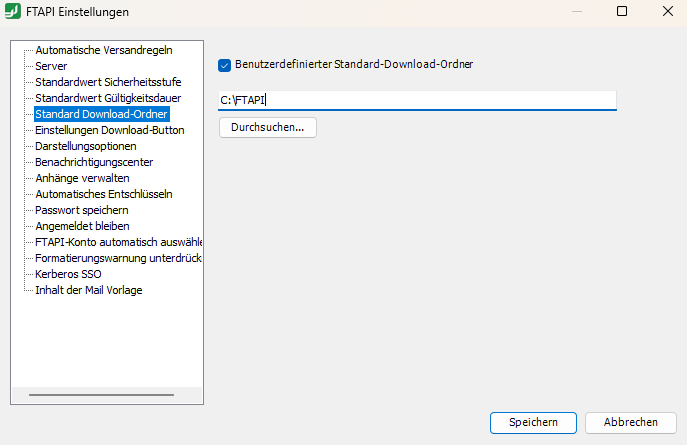
You can specify a path where files are saved by the download in the Outlook Add-in. The default path is C:\Users\<Username>\Downloads.
Download button settings
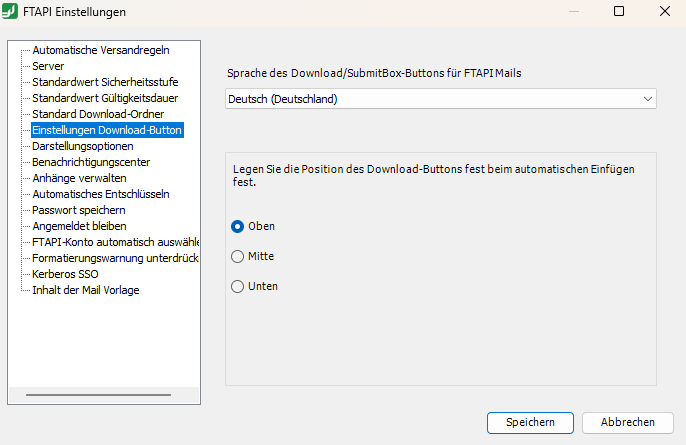
You can determine whether the text of the FTAPI download button inserted into the email is in German or English. It is also possible to determine the position of the download button ("Top" corresponds to the beginning of the email, "Middle" corresponds to the space between the email body and signature, "Bottom" corresponds to the end of the email).
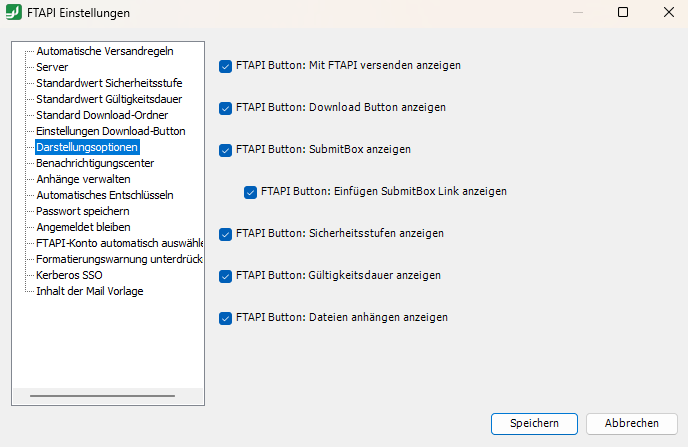
Display options
You can determine which FTAPI buttons are displayed in the Outlook "New Email" menu bar.
Notification center
You can determine the priority with which notifications are handled in the notification center.
If the priority is set to "High", the notification center opens automatically as soon as a new notification of the corresponding type is available and displays it.
If the priority is set to "Low", the notification of the corresponding type is located in the notification center. However, this does not open automatically and must be opened manually via the menu.
If the priority is set to "None", no notification is generated in the notification center for the corresponding type.
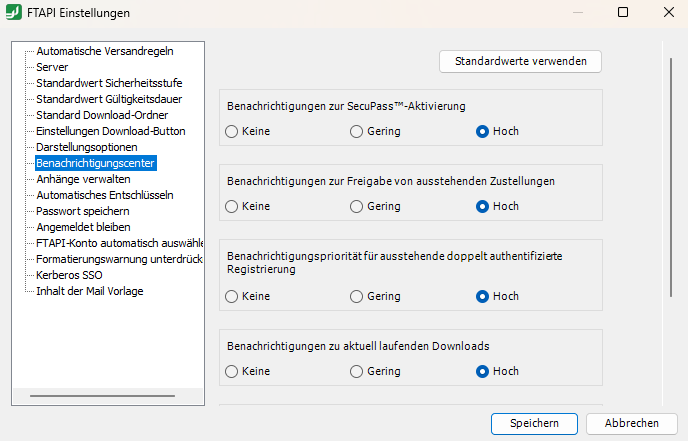
Fig.: Notification center 1
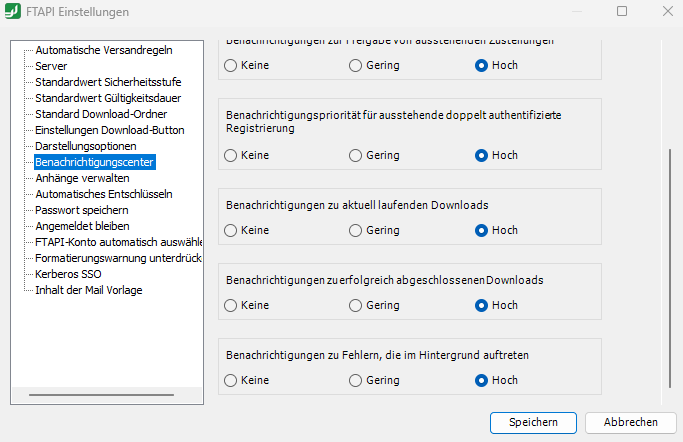
Fig.: Notification center 2
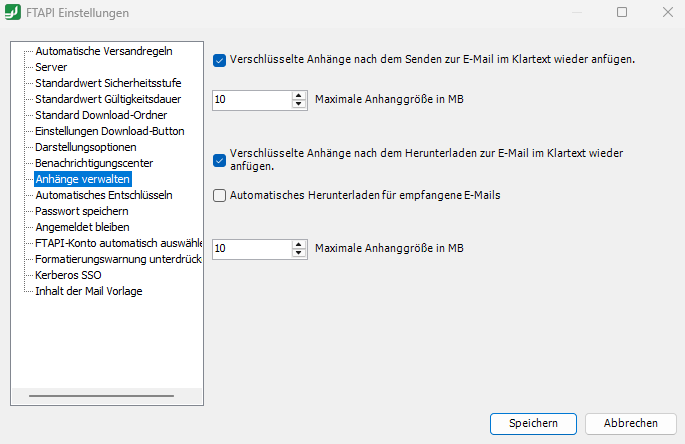
Manage attachments
You can determine whether and, if so, up to what size files are attached to the email unencrypted after the end of the sending or download process.
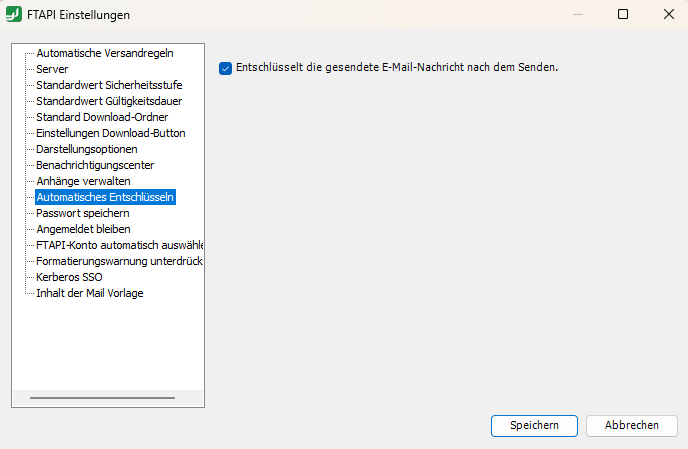
Automatic decryption
You can determine whether sent messages are decrypted after sending.
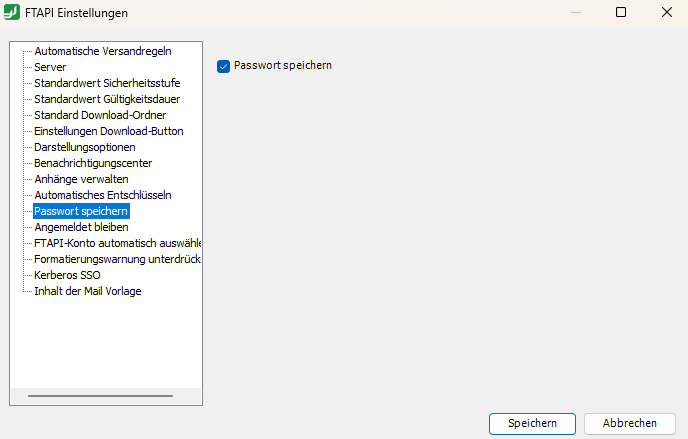
Save password
Here you can determine whether the password remains saved.
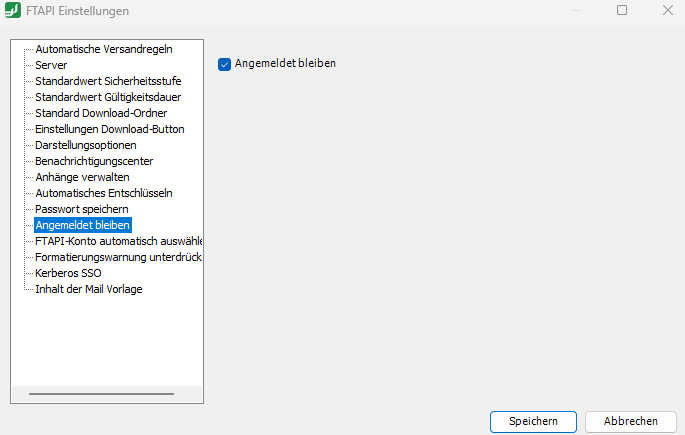
Stay logged in
Here you determine whether you want to be logged in automatically when restarting Outlook.
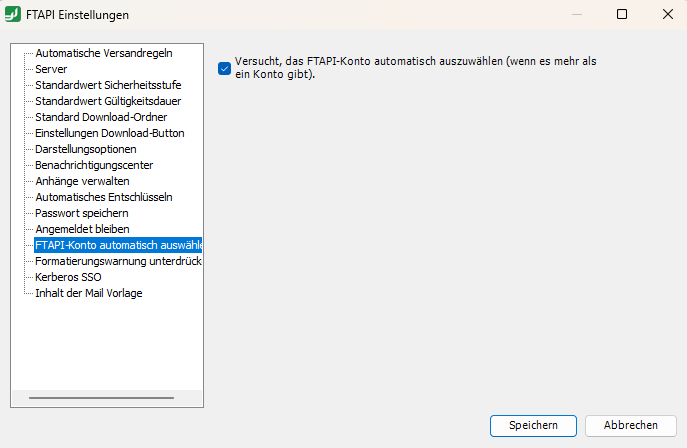
Automatically select FTAPI account
Here you determine whether an FTAPI user account should be automatically selected for sending an email (if more than one user account is available).
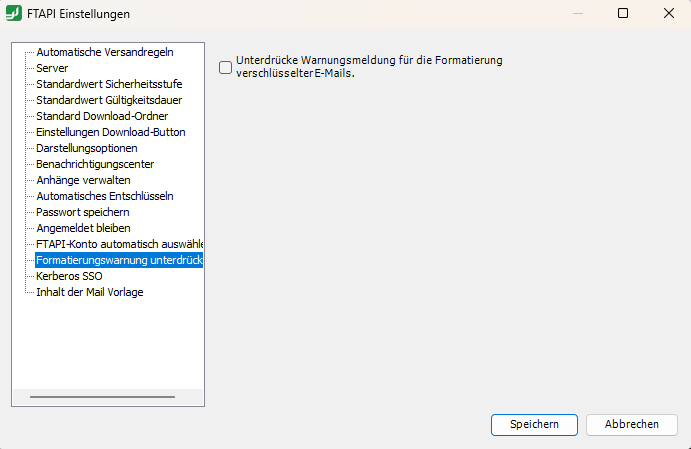
Suppress formatting warning
At level 4, all formatting within the text area is removed (incl. inline attachments). A warning is displayed to the user, which can be deactivated with this setting.
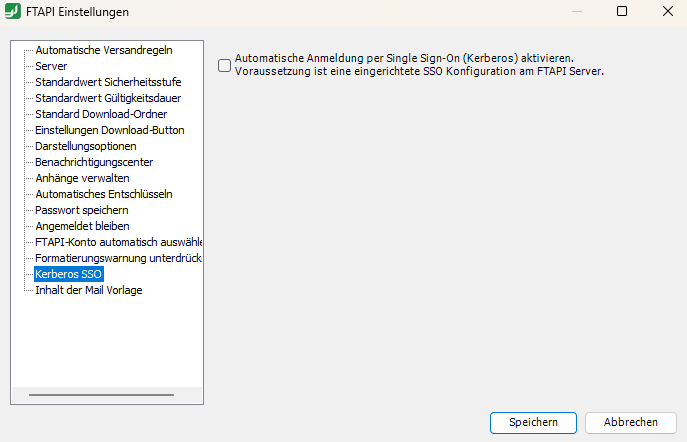
Kerberos Single-Sign-On
Here you can determine whether Single Sign-On is activated for the Outlook Add-in.
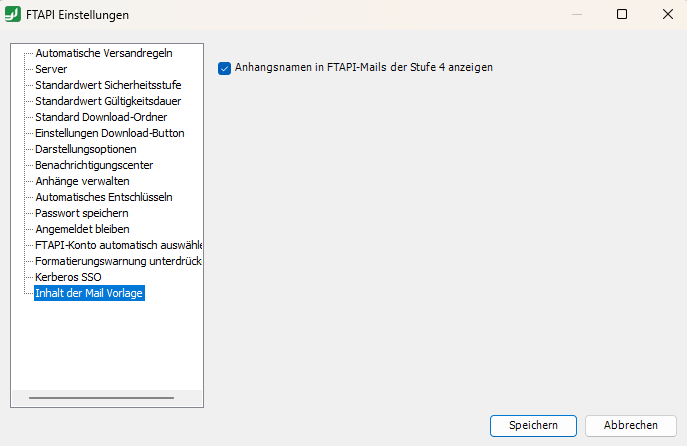
Mail template content
Here you determine for sending with level 4 whether the name of the file should be readable for the recipient before decryption, or whether this should also remain hidden.