
🎓 Group Settings
Note:
|
The consistent implementation of these principles contributes significantly to securing your environment and meeting common compliance requirements.
Every user is assigned to a group when created, which contains the corresponding permissions and licenses.
In the group configuration, the rights and licenses of the corresponding users can be defined. In addition, security settings, automatic deletion periods, and cleanups can also be stored for the group.
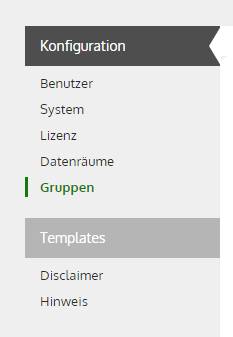
In the navigation, the group settings can be found under the "Administration" tab, then select the "Groups" option on the left under "Configuration".
Basic Details & Members
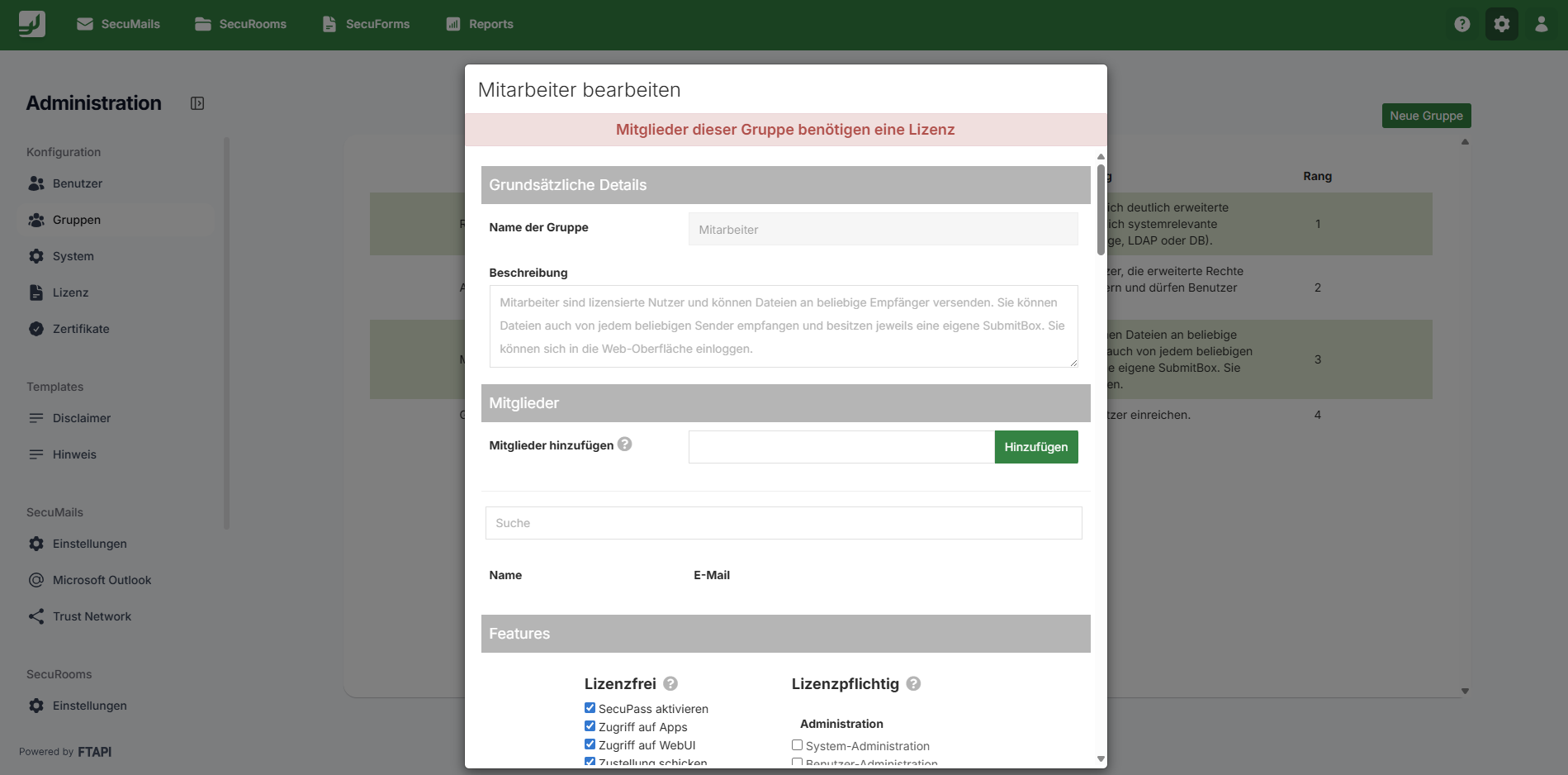
In the "Basic Details" area, the name of the group can be edited and a description for the group can be added.
Under "Members", you can see which users are in this group and users can be added manually to the group by entering their email address or username.
Features
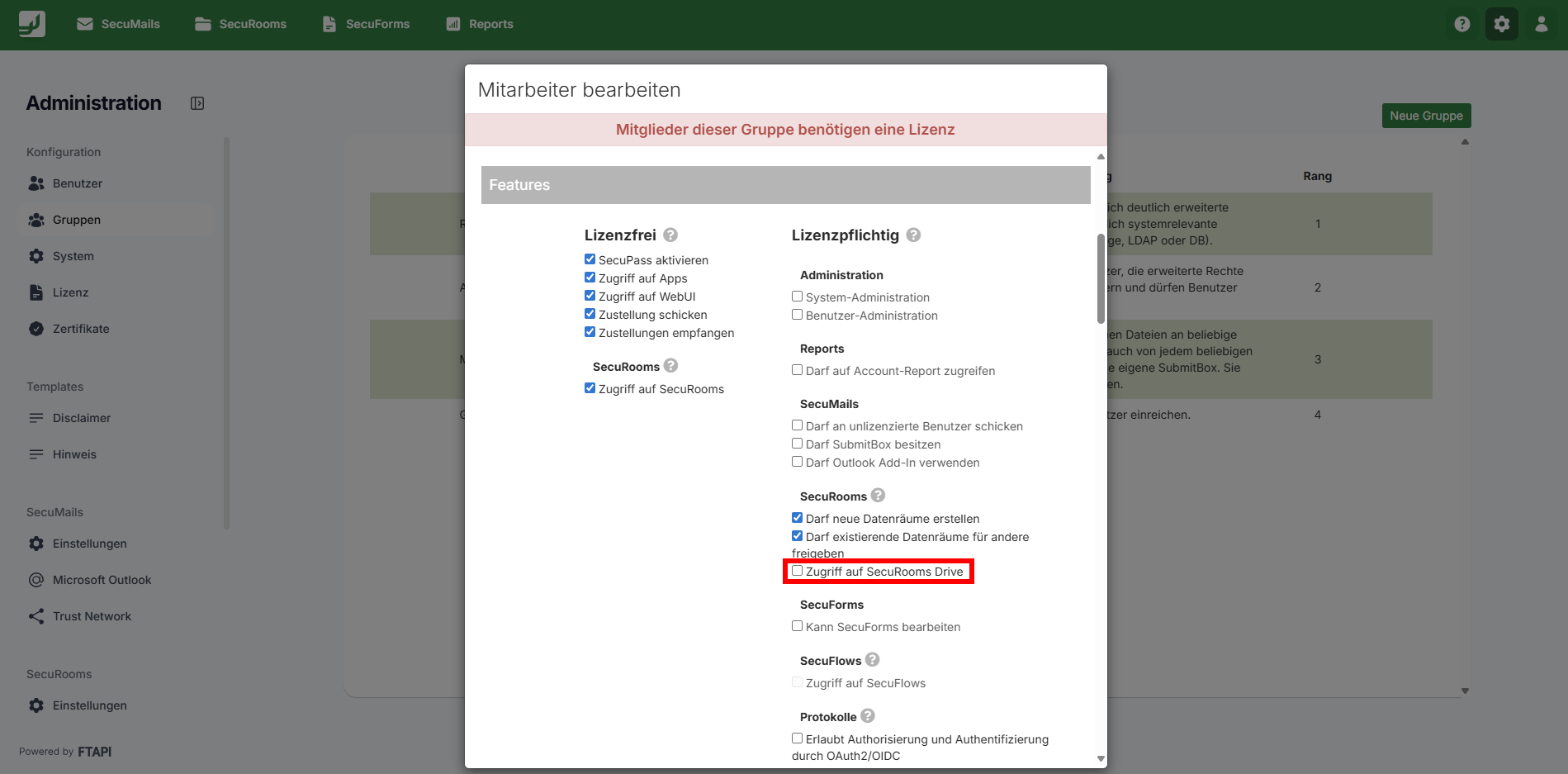
In the Features area, it is determined which products and features are enabled for the group and its users.
A distinction is made between license-free and license-required features.
Note: If license-required features are assigned to the group, a license will be due for every user added to the group.
Restrictions
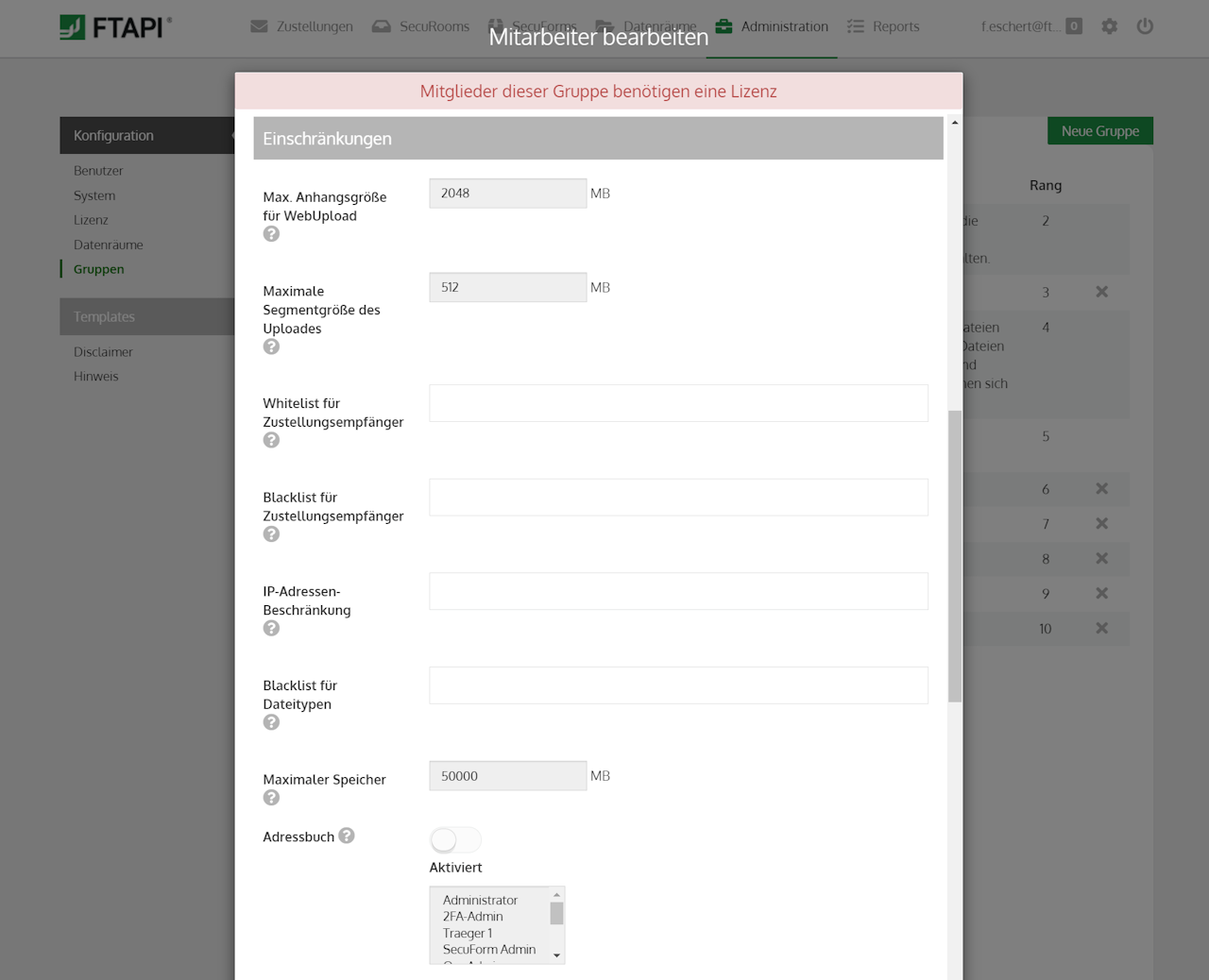
In the „Restrictions" area you can define group-specific restrictions. Three of these fields control who members of the group may pass data to and which files they may upload. All three apply to deliveries and to SecuRooms.
Max. attachment size for WebUpload: Maximum total size of all files that can be sent as a delivery via the FTAPI web interface.
Maximum segment size of the upload: Maximum size of segments.
Group Whitelist: Members of this group may only send deliveries to the recipients and domains listed here. The same list applies when inviting people to a data room or folder: only the addresses and domains listed here can be invited. To add a domain to the whitelist, use *@company.com.
Group Blacklist: Members of this group may not send deliveries to the recipients and domains listed here, and cannot invite those addresses to a data room or folder.
If both fields are filled, the whitelist defines the allowed set and the blacklist removes further addresses from it.
If a member invites an address the policy does not allow, the invitation is rejected. The message names the address concerned. What users see in that case is described in ❓ SecuRooms: Frequently Asked Questions (FAQ) on usage.
Allowed IP ranges: Permitted IP address range for users of this group.
File Type Blacklist: Users may not send the file types listed here as a delivery, and these file types are not accepted for SecuForms and SubmitBox submissions or SecuRooms uploads. The check uses the file name extension and is not case-sensitive. A rejected upload appears in the „Transfers" panel with the message „Prohibited file type, not uploaded".
FTAPI Blacklist example:
*.ace,.ade,*.adp,*.apk,*.appx,*.appxbundle,*.arj,*.bat,*.bz2,*.cab,*.chm,*.cmd,*.com,*.cpio,*.cpl,*.diagcab,*.diagcfg,*.diagpack,*.dll,*.dmg,*.doc,*.docm,*.ex,*.ex_,*.exe,*.flv,*.hta,*.img,*.ins,*.io,*.iso,*.isp,*.jar,*.jnlp,*.js,*.jse,*.jsxbin,*.lha,*.lib,*.lnk,*.lzh,*.lzma,*.mde,*.mht,*.msc,*.msi,*.msix,*.msixbundle,*.mslz,*.msp,*.mst,*.nsh,*.one,*.onepkg,*.onetoc2,*.pif,*.ppt,*.pptm,*.ps1,*.rtf,*.scr,*.sct,*.shb,*.smzip,*.swf,*.sys,*.tar,*.udf,*.vb,*.vbe,*.vbs,*.vhd,*.vmdk,*.vxd,*.wsc,*.wim,*.wsf,*.wsh,*.xll,*.xlm,*.xls,*.xlsm,*.xz,*.z
Maximum storage: Max. storage quota per member of this group.
Address book: If enabled, possible recipients (= users registered in the system) are suggested to the users of the group.
Restriction of user administration access: Only relevant for groups where the "User Administration" feature is enabled. Restricts administration to the selected user groups.
Change email address: If enabled, users of this group can change their email address.
Delete deliveries in inbox/outbox:
If enabled, users of this group can delete deliveries.
Cleanup
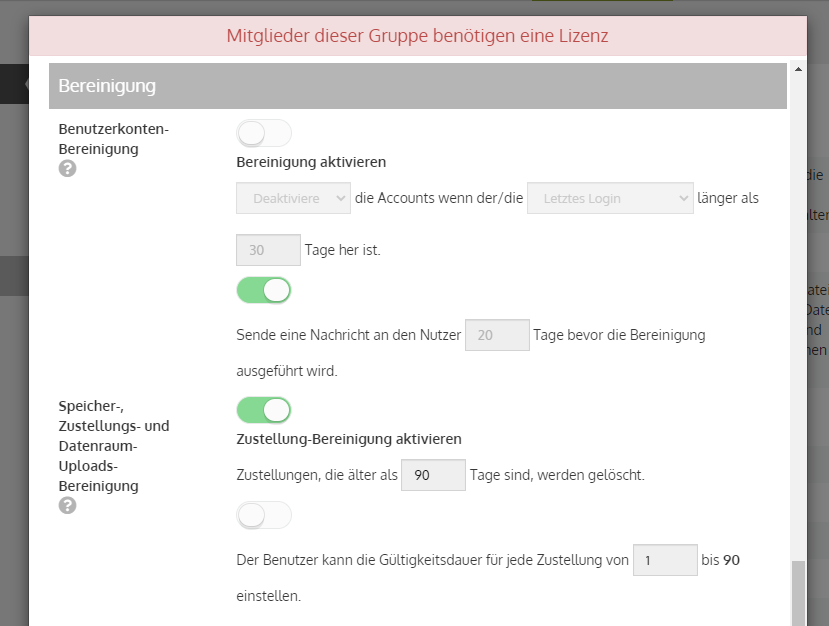
In this area, automated cleanups (= cleanup jobs) can be set.
- User account cleanup:
If enabled, the user account is deactivated or deleted after X days. Furthermore, it can be set whether users receive a notification about deactivation/deletion in advance. - Storage, delivery, and data room upload cleanup:
If enabled, the delivery is deleted after a defined period X. Furthermore, it can be set that users can individually configure the validity period per delivery.
To set up automated cleanup for individual groups, cleanup must first be enabled in the system settings. To the article.
Security Level
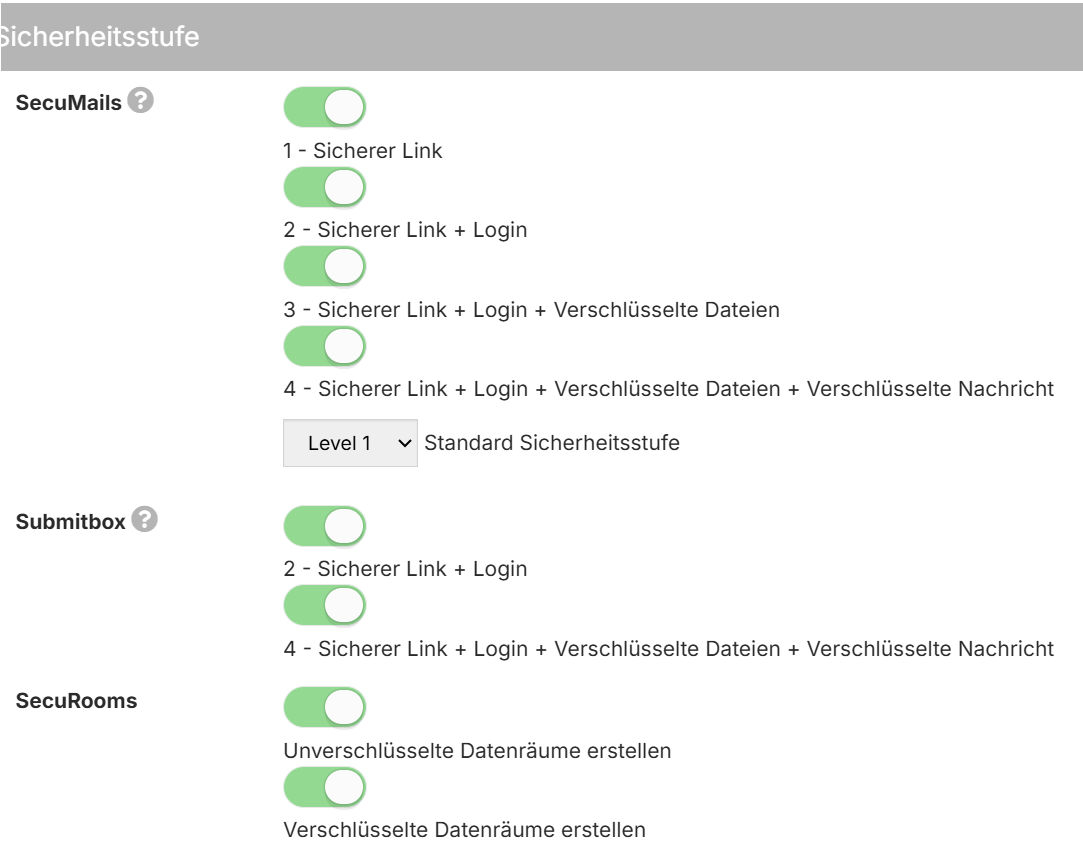
In this area, you can define which security levels for SecuMails, the SubmitBox, and SecuRooms the members of a group can use.
- SecuMails:
Enabled security levels are available for selection when sending deliveries. You can also set a default security level: This will be automatically preselected in the web interface and can be adjusted by the user if necessary. - SubmitBox:
Enabled security levels are permitted for receiving submissions. - SecuRooms:
Enabled security levels determine which types of data rooms may be created (unencrypted, encrypted, both).
Two-Factor Authentication
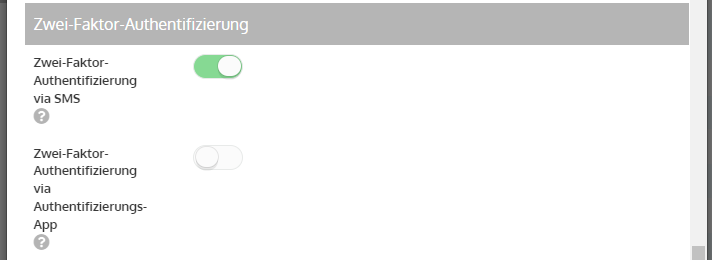
In this area, the security add-on Two-Factor Authentication can be managed.
- Two-Factor Authentication via SMS:
If enabled, users of this group must verify themselves via a second factor when logging in. The second factor is a one-time code that the user receives via SMS and enters in the login mask for authentication. - Two-Factor Authentication via App:
If enabled, users of this group must verify themselves via a second factor when logging in. The second factor is a one-time code that the user retrieves via an authentication app and enters in the login mask for authentication.
Account Verification
In this area, the security add-on account verification via email can be managed.
- Account verification via email:
If enabled, users must verify themselves when logging in by entering a security code that is sent to the email address of the user account.
Note: The add-on is located under Two-Factor Authentication. More details.
Double-authenticated registration
In this area, the security add-on Double-authenticated registration can be managed.
- Double-authenticated registration:
If enabled, users of this group must verify themselves via a second factor during self-registration in the system. The second factor is a one-time code that the user receives via SMS and enters for authentication.
"Group Settings" section completed!
Congratulations, the "Group Settings" section has been successfully completed!
< Previous chapter To the overview Next chapter >