📋FTAPI Gateway: License Management
A valid license is required to operate the Gateway. If no valid license is installed, access to the Gateway user interface will be restricted and certain functions will remain disabled until a license is added.
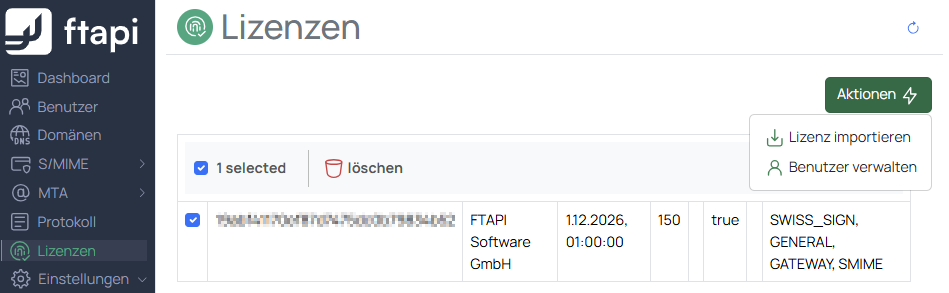
You can add a license via the page Licenses -> Actions -> Import license. After uploading the license file provided by your vendor or support team, the system will validate it and indicate whether it has been accepted.
Licenses can be issued for an unlimited or a fixed number of users. If your license covers a limited number of users, you must specify which senders are authorized to use encryption. Configure these licensed users on the page Licenses -> Actions -> Manage users.
Important note: If a sender is not licensed and attempts to send an encrypted message, the Gateway will not apply encryption to that message.
The actual outcome for the message (e.g., sending without encryption or handling via your fallback policy) depends on your encryption and delivery settings.
Automatically assign licenses
To simplify administration, the global setting Automatically assign license is enabled by default.
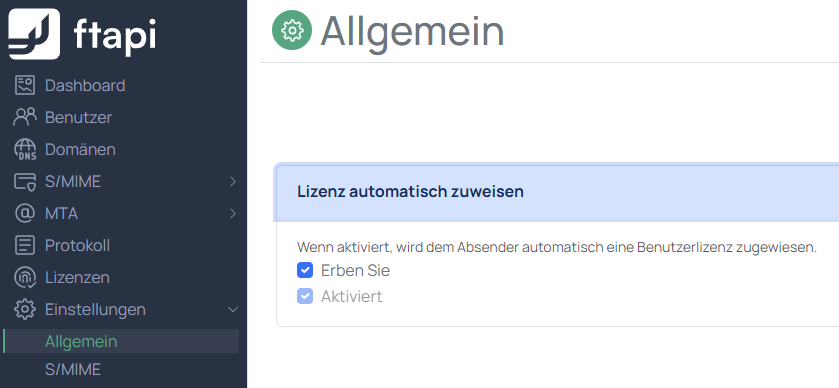
If this option is enabled and user licenses are still available, the Gateway automatically assigns a license to a sender as soon as they trigger encryption for the first time. If all licenses are already occupied, no further senders can be automatically licensed; in this case, you must free up licenses by removing them from inactive users or install additional licenses.
By adjusting this feature, this automation can be disabled. In this case, a license must be assigned to users manually. Add the email address of the user to be licensed to the list under Licenses -> Actions -> Manage users.