📋 Terms of Use
You can determine whether the recipient of a delivery must accept a terms of use agreement before starting the download. Only when the recipient agrees to the conditions you have set can they start the download. To do this, they simply need to click the "I agree" checkbox.
This allows you to easily establish legal certainty. Both the time of consent and the fingerprint of the corresponding disclaimer text are recorded and can be retrieved for later purposes.
Download Disclaimer
Activates the display of the download disclaimer for every download.
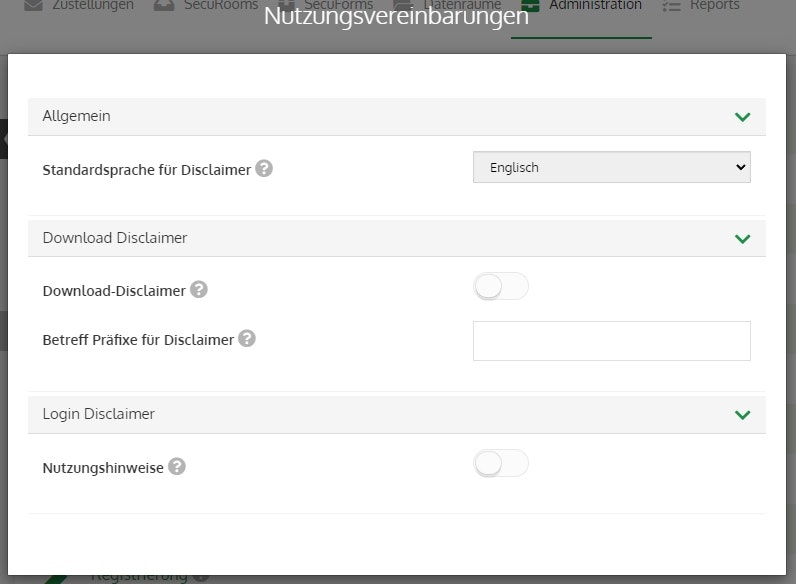
Subject Prefixes for Disclaimers
If you check the box (set to true) for the Download Disclaimer value, the download disclaimer will be displayed to the recipient for every delivery without exception. However, this is not always desired, as you may only want to require a disclaimer for certain deliveries and not for others.
For this purpose, you can use the Subject Prefixes for Disclaimers entry, which is empty by default. If you specify at least one prefix here, the subject of every delivery will be checked against this prefix, and the download disclaimer will only be displayed if the subject starts (exactly) with this prefix.
You can also define multiple prefixes by separating them with a comma. In this case, the disclaimer will only be displayed if the subject starts with one of these prefixes.
An example:
Suppose your prefix setting is as follows:
[RELEASE],[UPDATE]
The following subject lines would result in the download disclaimer being displayed during the download:
[UPDATE] Your Software 1.1 Update
[RELEASE] Your Software 2.0 Release
Conversely, the following subject lines would result in the download disclaimer not being displayed during the download:
Your Software 1.1 Update
Your Software 2.0 Release
Usage Notes
Activates the display of the login disclaimer at every first login.
Default Language for Disclaimers
Select the language in which a disclaimer should be displayed if the user has not yet explicitly chosen a language.
Configuration of Disclaimers
To activate this function, you must check the box for Download Disclaimer in the configuration.
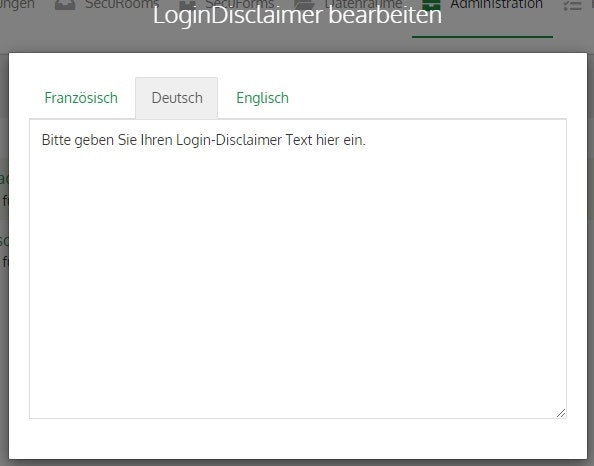
You can easily change this via the configuration menu: Templates > Disclaimer