
❓ Security: How does two-factor authentication (2FA) work at FTAPI?
Two-factor authentication at FTAPI
Protect your users' accounts from malicious third-party access. To do this, add an additional authentication level during login—in addition to entering a password—known as two-factor authentication (2FA). When activated, users must log in using two different components, for example, a password and a code provided via their smartphone. This additional security during the login process is now often mandatory for sensitive accounts and access.
How does two-factor authentication work at FTAPI?
As soon as the security setting is activated, users are prompted to authenticate themselves via the second factor during login. Only after the second factor has been entered in the login mask can the user successfully log in to the FTAPI platform. The second factor is a one-time code that is:
- sent via SMS to the mobile phone
- generated via an authentication app
- or sent via email
2FA via SMS-TAN method
Two-factor authentication via the SMS-TAN method secures user logins with a second factor. After entering the username and password, the user is prompted to enter a security code. The user receives the additional security code via SMS.
Please note: There are two options for two-factor authentication via SMS:
- The administrator stores the user's phone number in the system.
- Via the self-service function, the user is prompted to store their number themselves during the next login.
Requirements: To use the SMS-TAN method, an SMS gateway is required on the customer side. If you do not have one yet, FTAPI will be happy to advise you on possible SMS gateway providers.
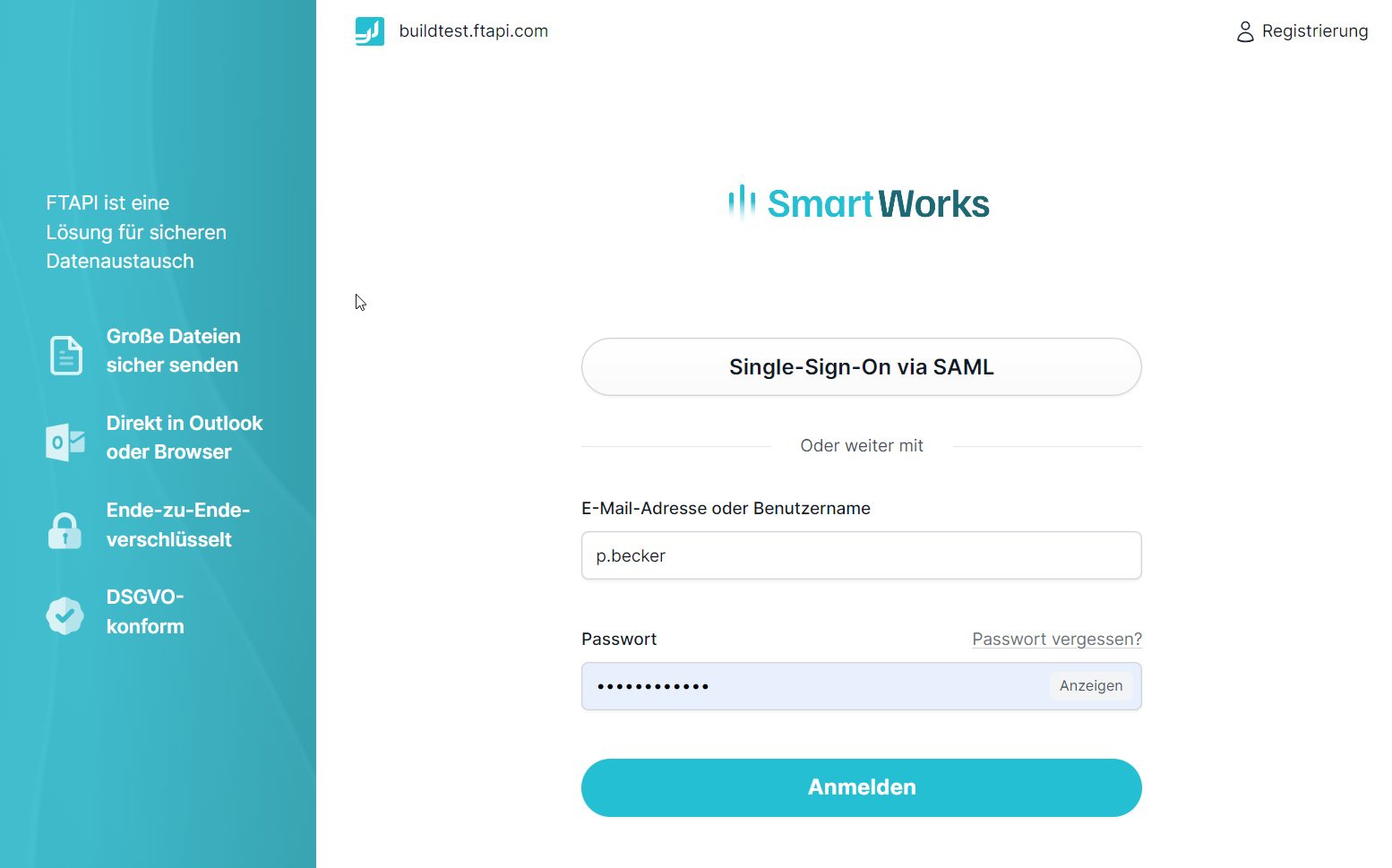
Figure 1: Logging in to the FTAPI system.
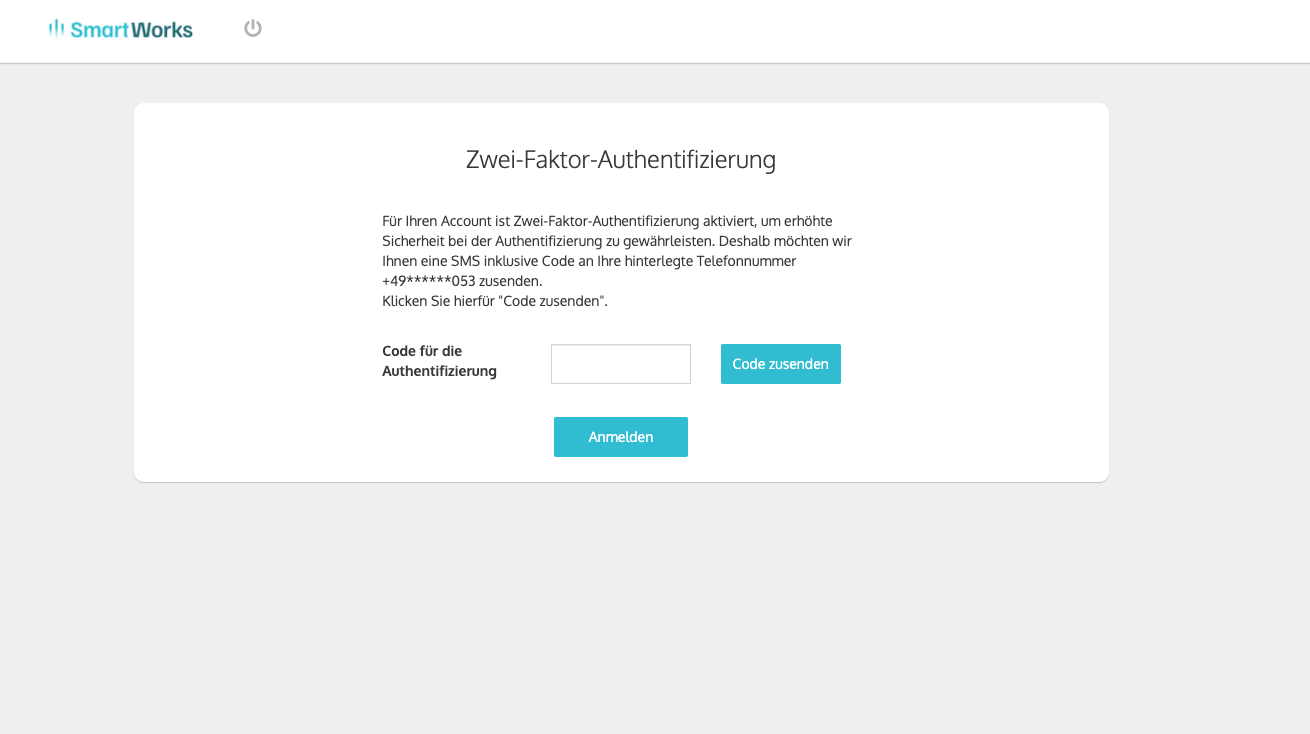
Figure 2: Prompt to enter the code.
2FA via authentication app
Two-factor authentication via an authentication app secures user logins with a second factor. After entering the username and password, the user is prompted to enter a security code. The user receives the additional security code via the authentication app.
Common apps (such as Google & Microsoft Authenticator) are available for this purpose.
Please note: The authentication app must be installed on the mobile phone by the user beforehand.
Advantage over the SMS-TAN method: The setup of two-factor authentication is performed by the users. The manual step (storing the phone number) is eliminated for admins.
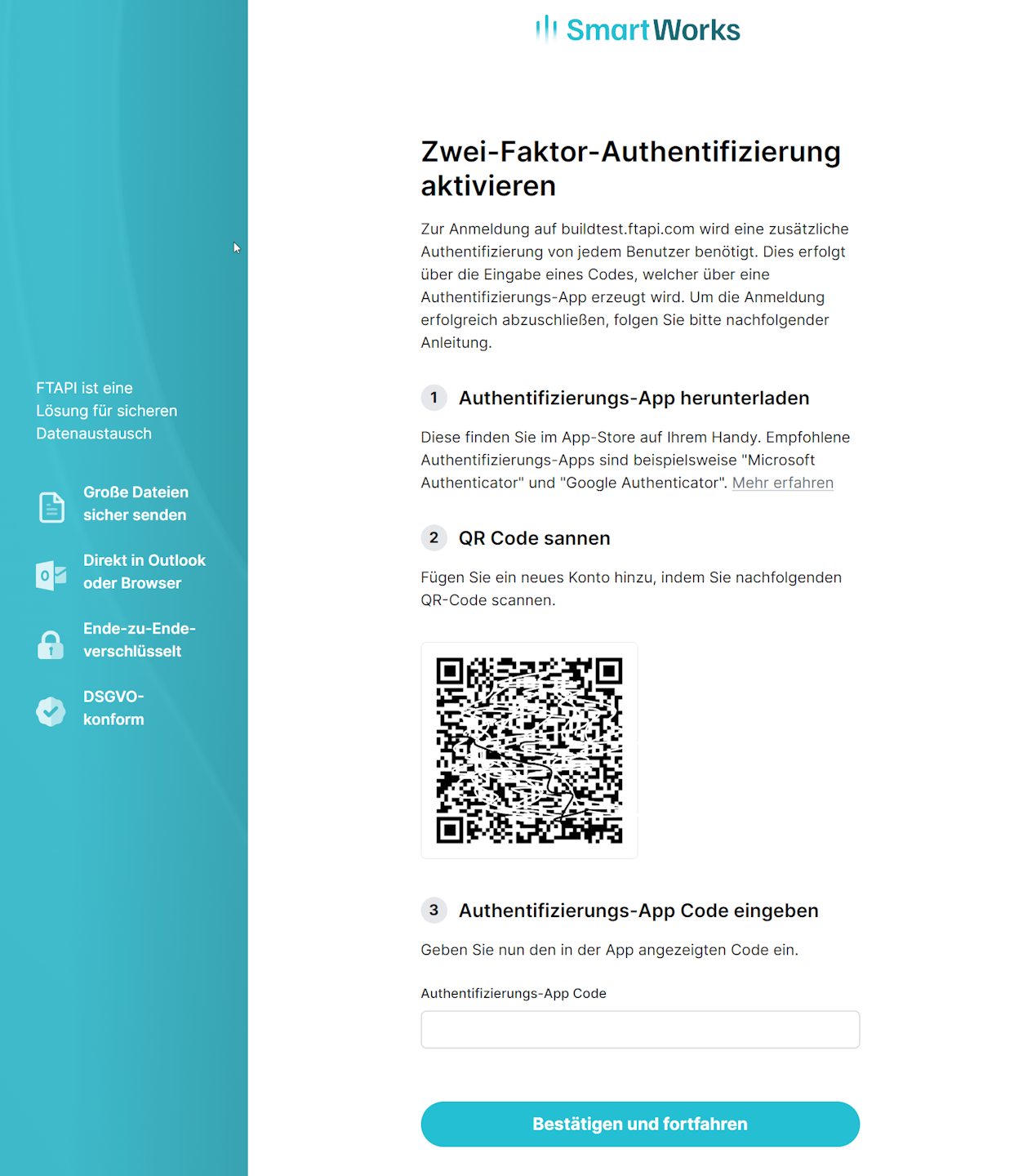
Figure 3: Activation of two-factor authentication via authentication app
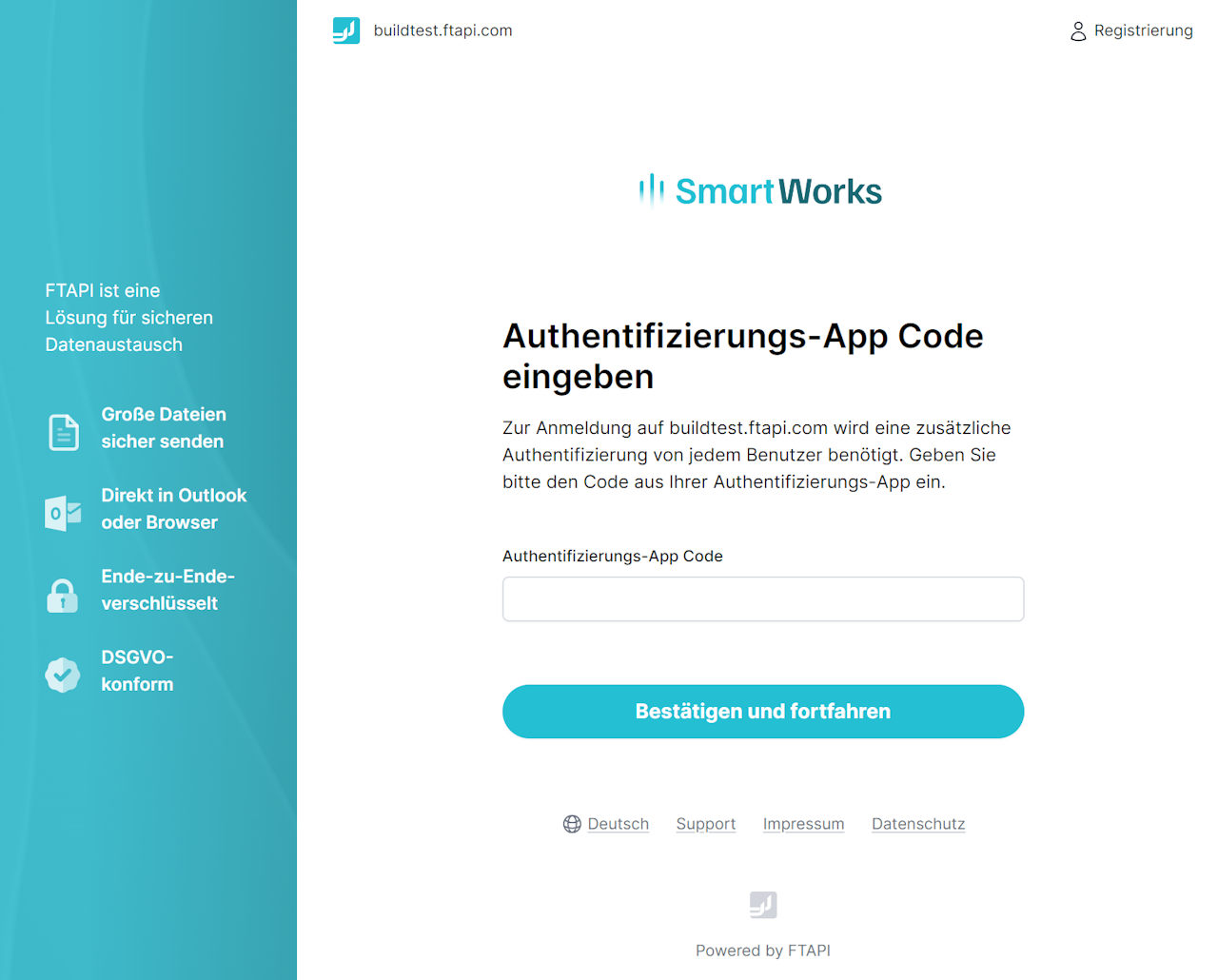
Figure 4: Prompt to enter the code.
2FA via email
Two-factor authentication via email secures user logins with a second factor. After entering the username and password, the user is prompted to enter a security code. The user receives the additional security code via email. The code is sent to the email address stored in the user account.
2FA in the FTAPI Outlook Add-In
When using the FTAPI Outlook Add-In, the following restrictions apply to two-factor authentication:
- 2FA via authentication app – is supported. After entering the username and password, the one-time code from the app is requested (e.g., Google or Microsoft Authenticator).
- 2FA via SMS-TAN – is not available in the Outlook Add-In.
- 2FA via email – is not available in the Outlook Add-In.
Please note: Two-factor authentication is a licensed feature of the FTAPI platform.