
📋 Outlook Add-In (classic): Adding and switching between multiple accounts (Multi-Account)
Multi-Account functionality for Outlook Add-In
Yes, the Outlook Add-In can be connected to multiple user accounts, even from different servers.
To do this, navigate to: FTAPI > User accounts > Add user account.
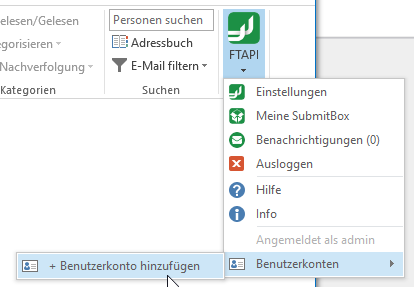
Figure 1: Add user account.
Select primary user account
Clicking on one of the added user accounts will automatically attempt to log in with it in the Outlook Add-In.
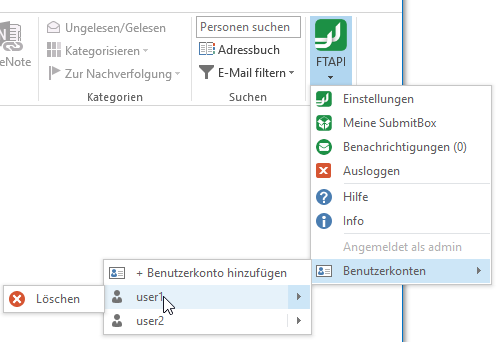
Figure 2: Select user account.
Select user account for sending emails
Clicking on the "Send with FTAPI" button opens a selection window where you can choose the user account to be used for sending the email.
If the email address associated with the user account matches the email address of the Outlook account from which the email is being sent, this user account will be used automatically.
This feature can be disabled in the Outlook Add-In settings (Automatically select FTAPI account) so that the selection window appears even in this case.
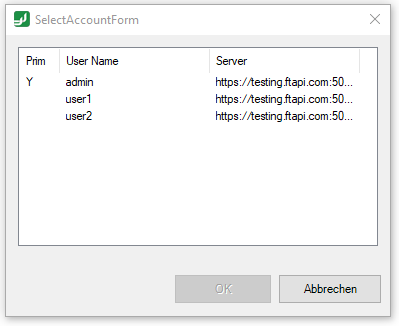
Figure 3: Select user account for sending emails.