
📋 Outlook Add-In (new): User Guide
New Outlook Add‑in: User Guide
Applies to: Outlook on the web and the desktop client for the new Outlook.
Note: This guide applies exclusively to the new Outlook. For the classic Outlook (desktop version), please find a separate guide in our Help Center.
Prerequisites
- FTAPI Add‑in for the new Outlook is deployed and enabled.
- You have an FTAPI account and know the server URL (e.g.,
meinaccount.ftapi.com).
Opening the FTAPI Add‑in
To open the add-in, you must first start a new email.

You can now access the add‑in in Outlook in two ways:
- Ribbon (Apps): In the top ribbon, select Apps → FTAPI SecuMails.
- Apps icon: Via the Apps icon in the toolbar → FTAPI SecuMails or FTAPI logo.
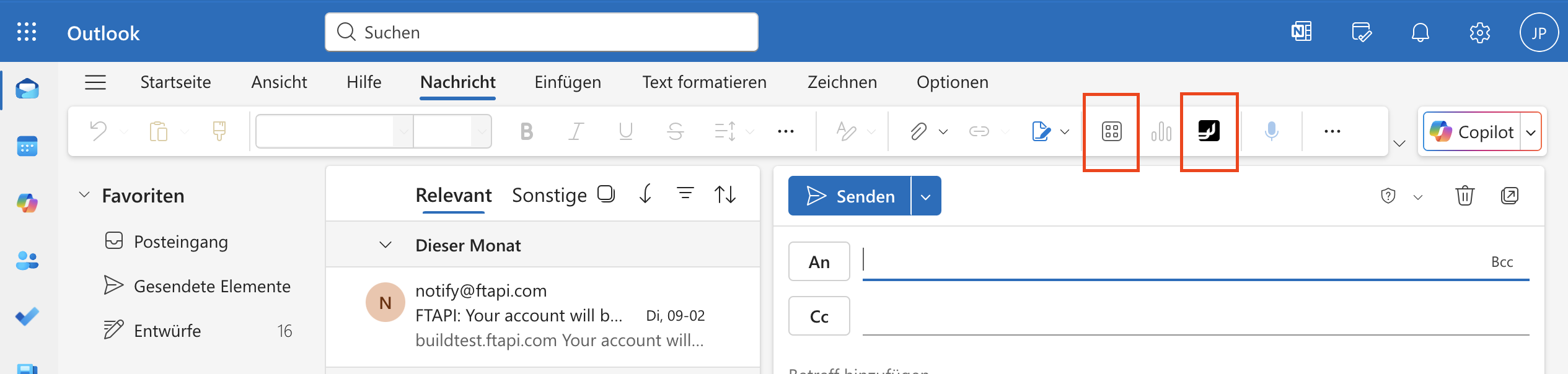
Opening the FTAPI Task Pane
Click Open FTAPI within the add‑in.

The Task Pane appears on the right. Here you can log in, upload files, and configure security options.
Logging in
Upon the first launch, enter your server URL once (e.g., meinaccount.ftapi.com).
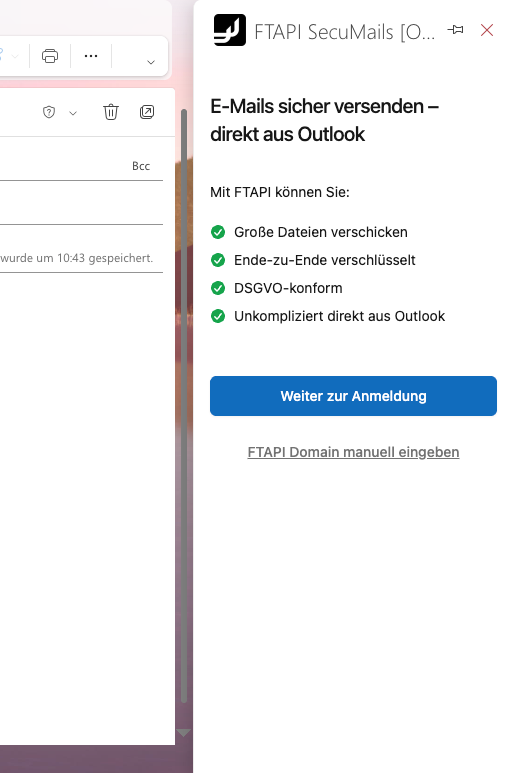
Log in – either via Single Sign‑On or with username & password.
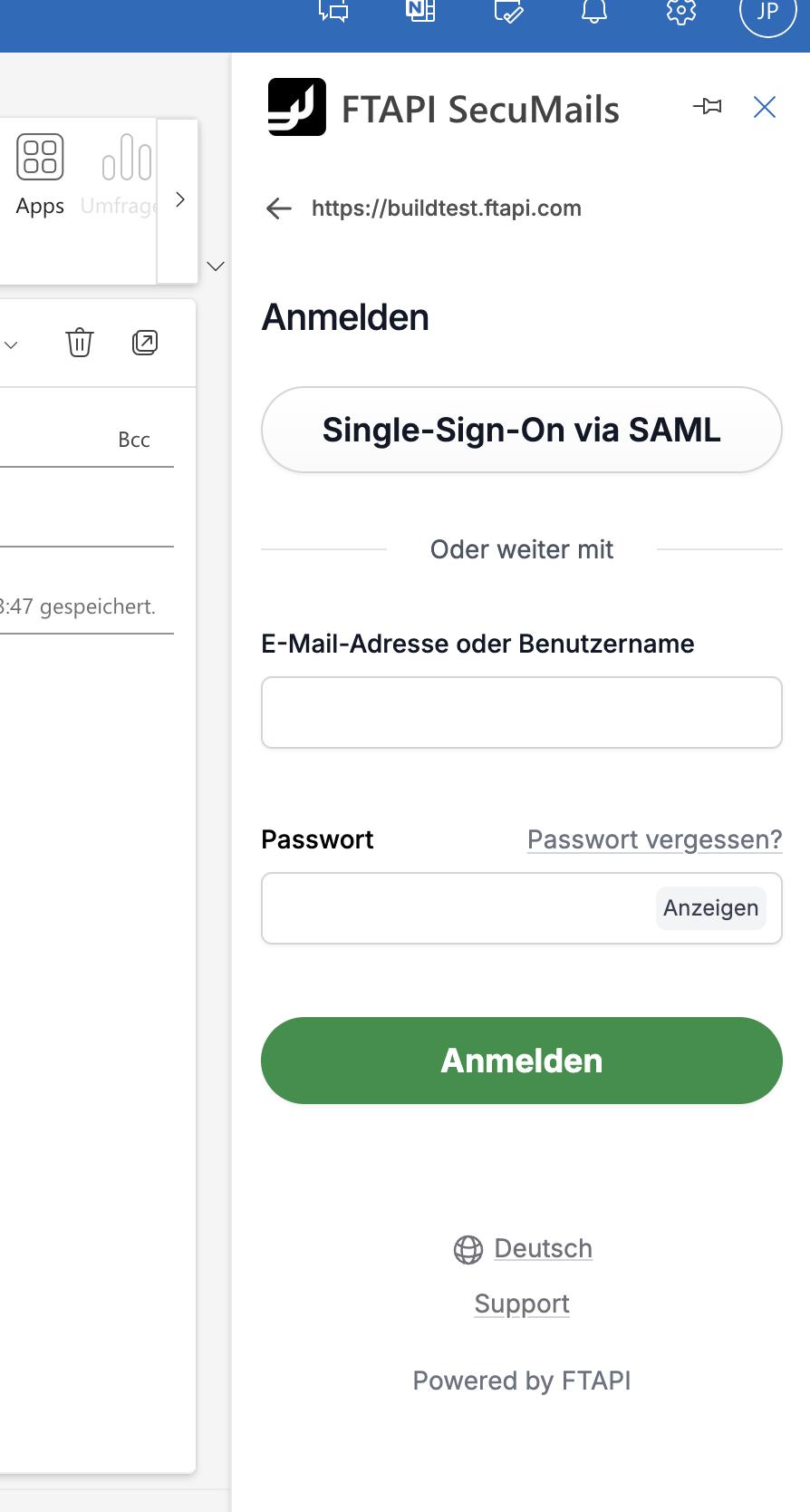
After the initial login, the session usually remains active. If the session expires, you will be automatically redirected to the login page.
Sending files
You have two options for sending attachments securely:
A) Upload in the Task Pane
Upload files to the task pane via drag & drop or browse files.
Files sent via the task pane are always sent via FTAPI.
Configurable in the task pane*:
- Security level
- Validity of the delivery (after the time expires, the recipient can no longer access/download the file)
- Language of the download button for recipients
*System administrators can pre-define the security level and validity for sending. Manual selection/adjustment is not possible in this case.
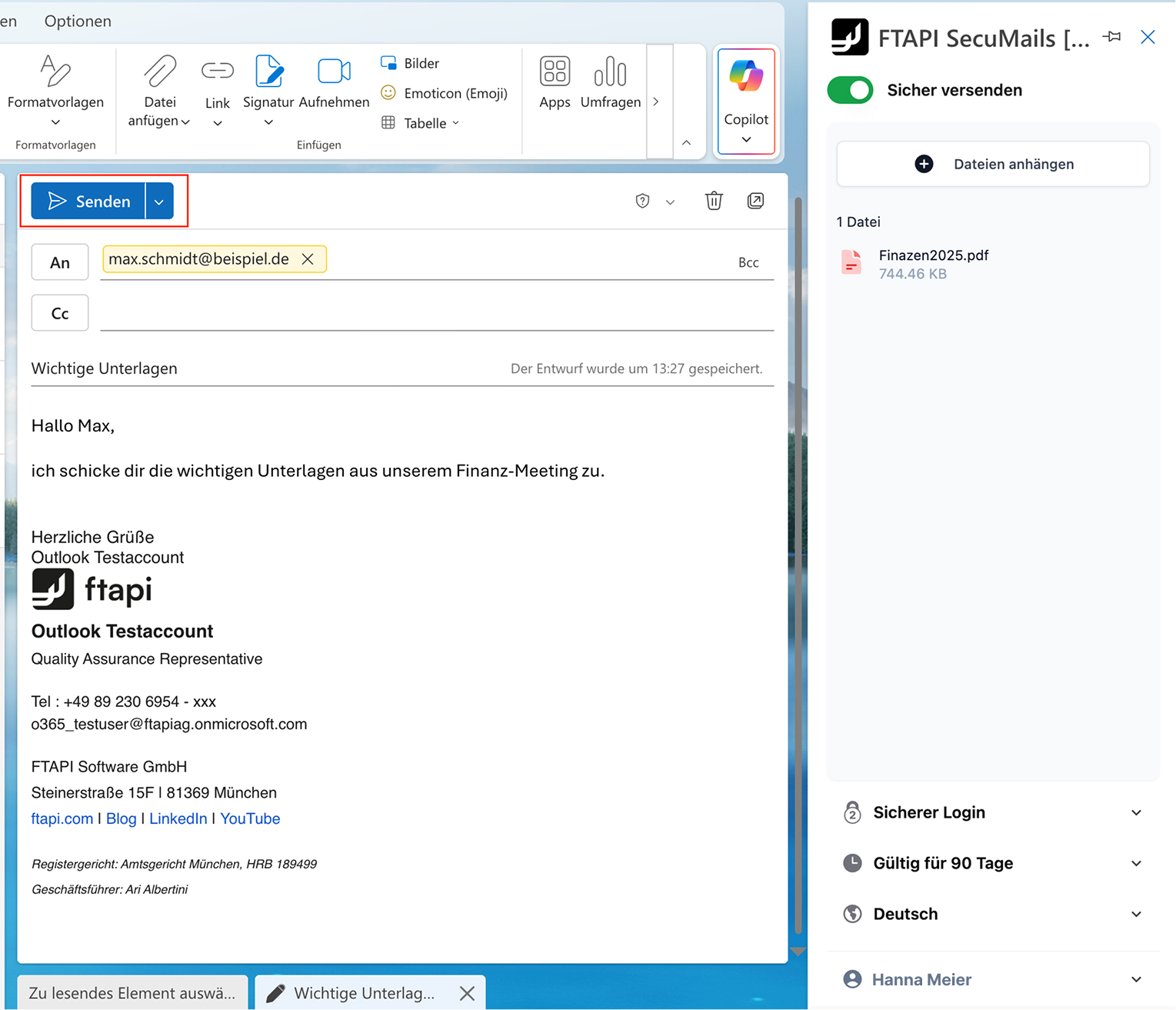
B) Attachments directly in Outlook
Attach files as usual via Attach file or drag & drop in Outlook. The file will be displayed as an attachment both in the email and in the FTAPI task pane.
The sending process uses the settings configured in the task pane (security level, validity).
Sending:
With the task pane open, use the regular Send button in Outlook.

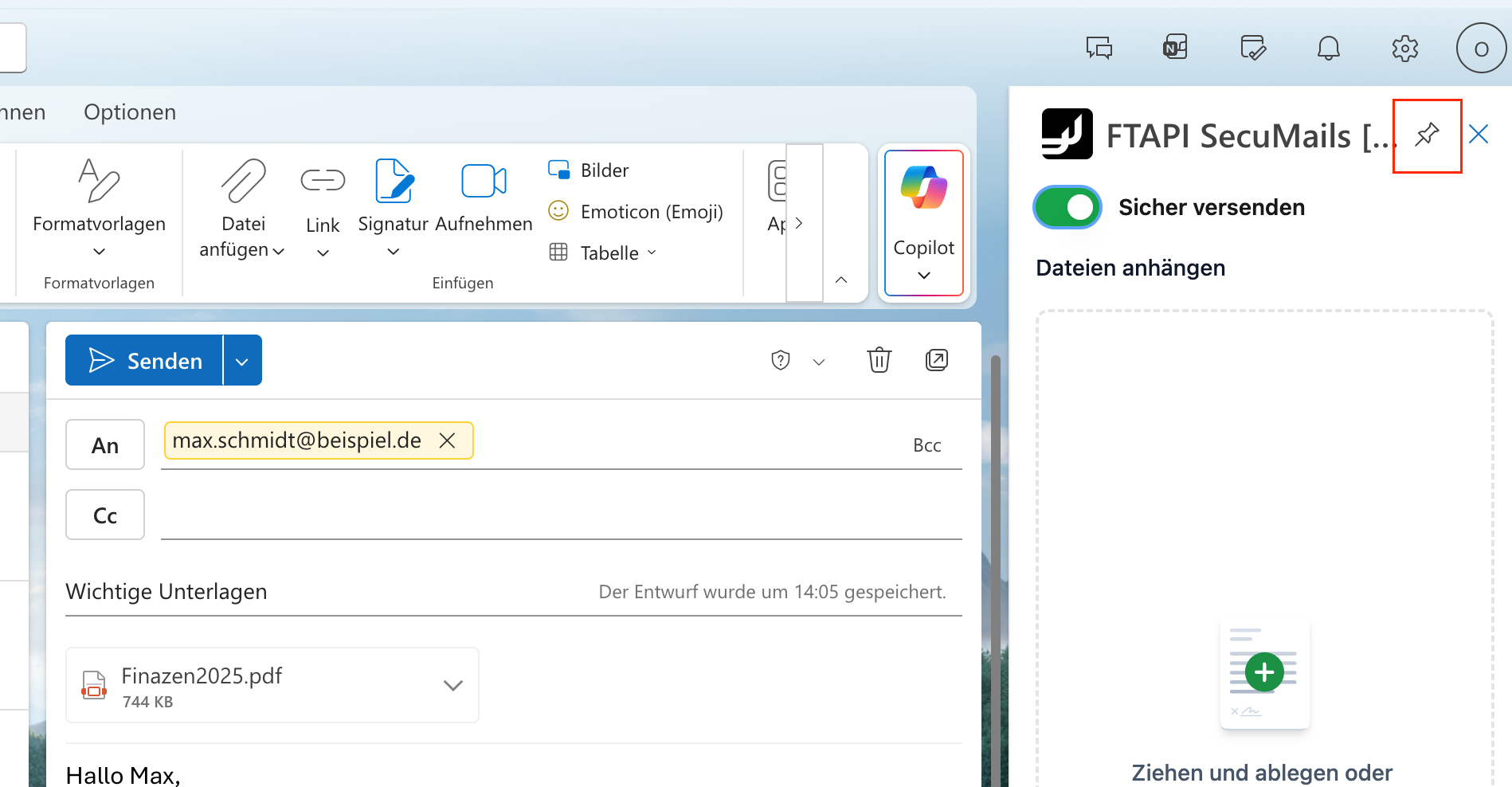
Pinning the FTAPI Add-In
If you frequently send emails via the FTAPI Add-In, you can pin the task pane for faster access. The task pane will then remain open automatically whenever you compose a new email.
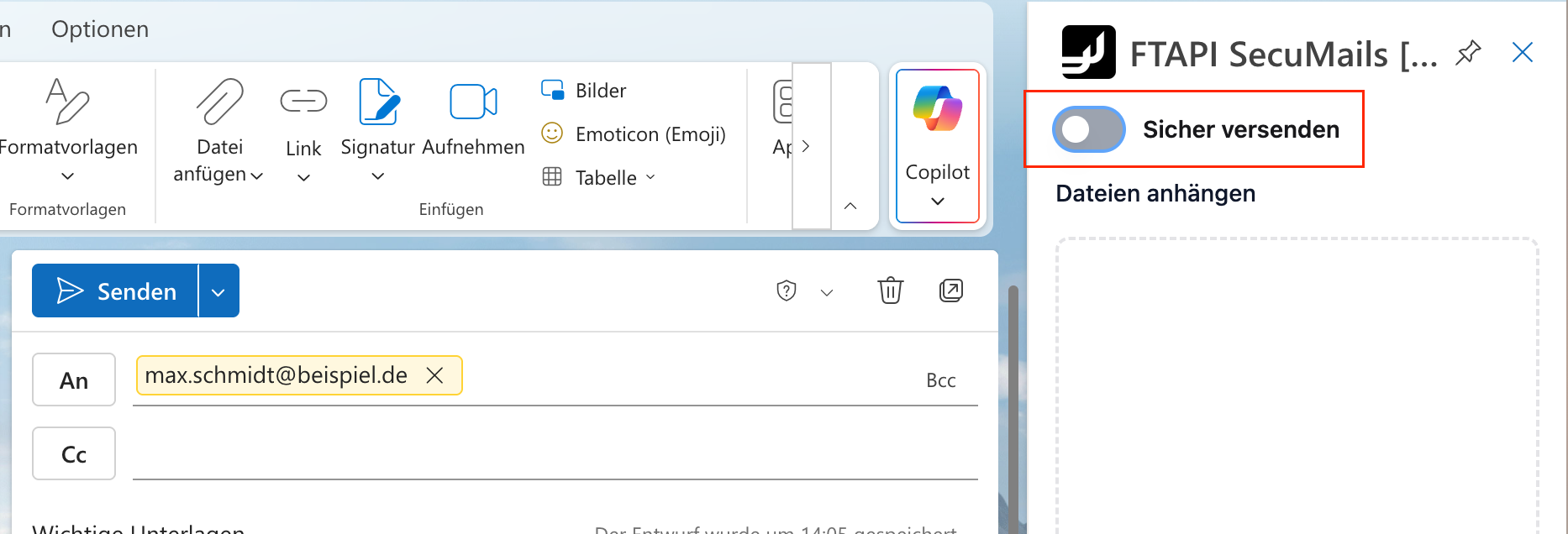
If you also want to send emails without FTAPI more often, simply deactivate the add-in using the "Send securely" switch. When this switch is deactivated, your emails will not be sent via FTAPI and the task pane will remain open.
Related articles
Configuring sending rules (new FTAPI Add-in)