
📋 Outlook Add-In (classic): Setting up software distribution via GPO
This guide provides administrators with a step-by-step walkthrough on how to distribute the FTAPI Outlook Add-In to clients in a Windows network using Group Policy Objects (GPO).
Preparation & Downloads
Before you begin the setup, ensure that you have provided the correct installer and all necessary dependencies on a central share.
- Installer: You must use the
Small_Installer(MSI) for software distribution. - Dependencies: .NET Framework 4.8+, VSTO 2010 Runtime, and WebView 2 must be pre-installed on the clients.
Setting up the Group Policy
The installation is performed via the computer configuration to make the add-in available system-wide.
1. Add package
Navigate in the Group Policy Management Editor to:
Computer Configuration > Policies > Software Settings > Software installation
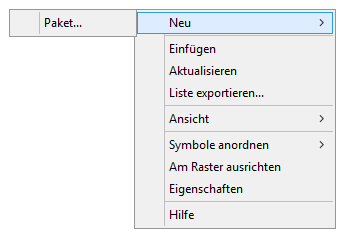
- Right-click: New > Package
2. Select installer
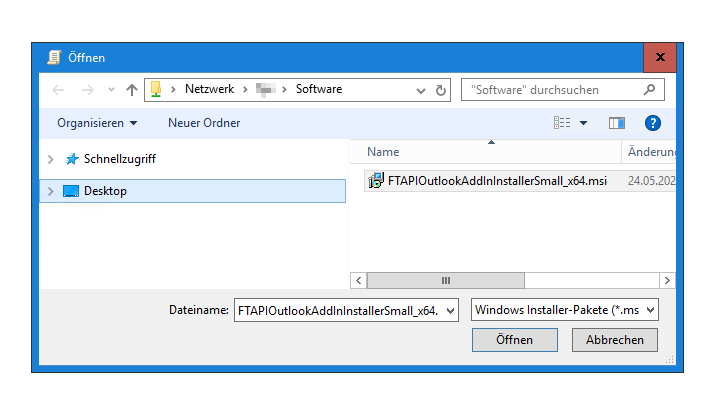
- You must select the MSI file via a UNC path (e.g.,
\Server\Software\FTAPI\FTAPIOutlookAddInInstallerSmall_x64.msi).
3. Define deployment method
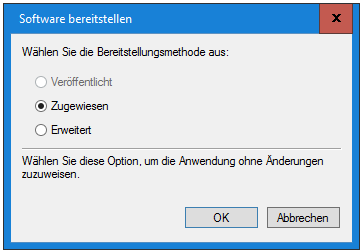
- In the dialog, select the option "Assigned". This ensures the add-in is automatically installed before login during the next computer restart.
4. Verification in the editor
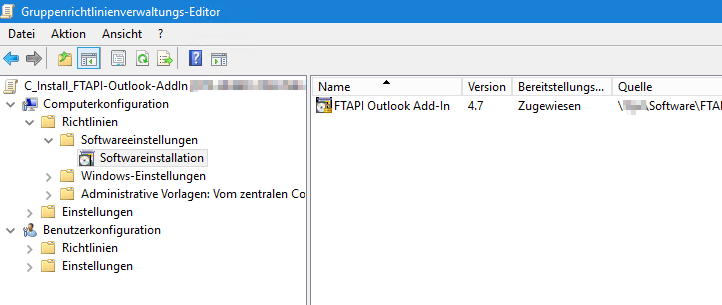
The package should now be correctly listed in the editor overview with the status "Assigned".
Related articles
📋 Outlook Add-In (classic): Downloads & System Requirements
📋 Outlook Add-In (classic): Installation parameters for administrators