
📋 Outlook Add-In (Classic): Installation parameters for administrators
General
You are welcome to download the current version of the FTAPI Outlook Add-In via this link. Please note that the choice between 32-bit and 64-bit depends on the operating system, not the Outlook version.
The minimum requirements for installation are Microsoft .NET Framework 4.8, Visual Studio 2010 Tools for Office Runtime, and WebView2. The downloaded archive contains two installation files. The larger installer includes the aforementioned tools, while the smaller one contains only the Outlook Add-In and is mandatory for silent installation.
Values are passed in quotation marks ("") (e.g.,"Y"or"1"). An empty input""is considered a missing value or "No".
General Parameters – Rollout and User Login
| Function | Parameter | Version | Input | Notes |
|---|---|---|---|---|
| Rollout to all users | ALLUSERS | "" or "1" | "": Installation in user context (default). "1": Installation per machine (system context). Ignored during upgrades, as a scope change is not technically supported. | |
| Installation path | INSTALLDIR | "" or "Path" | Default: "C:\Program Files\FTAPI\FTAPI Outlook AddIn". Ignored during upgrades, as the installer automatically adopts the path of the existing installation. Installation occurs in the already existing folder. | |
| Your server name | SERVER | "" or "URL" | Defines the default server (e.g., "test.com") to which the user is logged in. Corresponds to the registry key DefaultServerURL. | |
| Lock settings | LOCKSETTINGS | "" or "Y" | Completely disables the settings menu for the user; the user cannot make configuration changes (Registry key: DisableUserSettings). | |
| SAML Single-Sign-On | ENABLESAML | 4.5.1 | "" or "Y" | Enables SAML authentication. If ENABLESSO is set simultaneously, this parameter is ignored, as both methods cannot be active at the same time. |
| Save login data | SAVEUSERDATA | "" or "Y" | Permanently saves user data (registry key SaveUserData) when activated. | |
| No automatic login | NOAUTOLOGIN | "" or "Y" | If "Y", automatic login is disabled (registry key AutoLogin is set to 0). | |
| Default language | SELECTEDLANGUAGE | "", "de-DE", "en-US" | Sets the language of the Add-In interface and the initial default language of the download button. |
Locking user-side changes is also possible with manual installation. The configuration file can be found under C:\Users\[Username]\AppData\Roaming\FTAPI\Outlook Add-In. The parameter that must be added is:
<Setting name="DisableUserSettings" serializeAs="String"> <value>True</value> </Setting> Automatic Sending Rules
Exception criteria (blacklist) take precedence over inclusion criteria. For regular expressions (Regex), please use the following format:
- For individual filenames –
"*Report.*" - For multiple terms –
"*(Report|PCR|Test).*" - For individual domains –
"@test.com" - For multiple domains –
"@test.com;@test1337.com" - For file formats –
"(?i)\.jpg"
| Function | Parameter | Version | Input | Notes |
|---|---|---|---|---|
| Exclude recipients (blacklist) | RECIPIENTSEXCLUDEDDOMAINS | "" or "@domain" | FTAPI sending is not allowed if ANY recipient is on this list. Specific email addresses or entire domains can be specified. | |
| Exclude only if all on blacklist | EXCLUDEONLYIFALLRECIPIENTSINDOMAIN | 4.2 | "" or "Y" | If "Y", FTAPI is only blocked if ALL recipients are on the blacklist. If one recipient is not listed, sending via FTAPI is allowed. |
| Exclude filenames (Regex) | FILENAMESTOEXCLUDEREGEX | 4.5 | "" or "Regex" | Excludes files from FTAPI sending via Regex (e.g., "(?i)\.exe"). If a match occurs, sending proceeds normally via Outlook. A user-side click on FTAPI-Send will fail with a validation error. |
| Hide blacklist recipient warning | SUPPRESSEXCLUDEDRECIPIENTSWARNING | 4.4 | "" or "Y" | Suppresses the warning message when sending to blacklist recipients. The mail is sent normally via Outlook without a notification. |
| Always use FTAPI | USEFTAPI | "" or "Y" | Forces FTAPI sending for every email sent via the standard Outlook Send button (Registry key DefaultAlwaysSendWithFTAPI). | |
| Auto from file size | ATTACHSIZE | "" or "Number" (in MB) | Defines the total size of attachments (in megabytes) from which FTAPI is automatically used. Ignored if USEFTAPI is active. | |
| Target domains for auto FTAPI | DOMAINS | "" or "@domain" | Mails to these domains are automatically sent via FTAPI. Ignored if USEFTAPI is active. | |
| Include filenames (Regex) | FILENAMESTOINCLUDEREGEX | 4.5 | "" or "Regex" | Whitelist via Regex: If there is a match (e.g., "(?i)\.jpg"), the mail is automatically sent via FTAPI during normal sending. |
| Subject Regex for auto sending | SUBJECTSTOINCLUDEREGEX | 4.5 | "" or "Regex" | Checks the email subject. If there is a match (e.g., "(?i)^Secret"), the mail is automatically sent via FTAPI. |
| "Importance: High" via FTAPI | INCLUDEHIGHIMPORTANCE | 4.5 | "" or "Y" | Mails marked with "High Importance" in Outlook are automatically sent via FTAPI. |
| Suppress formatting warning (Level 4) | SUPPRESSFORMATTINGWARNING | 4.4 | "" or "Y" | Suppresses the warning about the loss of HTML formatting and inline attachments during encryption when sending at Level 4. |
| Require active confirmation | SECURITYCHECK | "" or "Y" | Warns the user during normal Outlook sending and asks if FTAPI should be used. Ignored if USEFTAPI is active. | |
| NEW: Ignore list Level 4 attachments | NONBLOCKINGATTACHMENTFILENAMES | 4.9.0 | "List" | Comma-separated list of filenames (e.g., image001.png,logo.jpg). Prevents signature elements from blocking sending at Level 4. |
Default Values and Settings
| Function | Parameter | Version | Input | Notes |
|---|---|---|---|---|
| Default security level | SECURITYLEVEL | "Number" | Defines the pre-selected security level. | |
| Default validity period | DEFAULTEXPIRATIONPERIOD | "Number" | Pre-selected validity in days for sent mails. | |
| Download button language | DEFAULTDOWNLOADBUTTONLANGUAGE | "de-DE"|"en-US" | Sets the default language of the button as well as the encryption and attachment texts in the mail. | |
| Position of the download button | DEFAULTDOWNLOADBUTTONLOCATION | 4.1.2 | "", "Top", "Middle", "Bottom" | The "Middle" setting attempts to insert the button above the signature. Since this can be slow in some Outlook configurations, "Top" (beginning) and "Bottom" (end) are available as alternatives. |
| Default download path | DEFAULTDOWNLOADDIRECTORY | "Path" | Default path for downloaded FTAPI attachments (default: C:\users\[Username]\Downloads). | |
| Disable main account selection | DISABLEAUTOFTAPIACCOUNTSELECTION | 4.2 | ""|"Y" | If multiple FTAPI accounts exist, the user is prompted to select the account every time if "Y" is set. |
Hiding Buttons and Values in the Email Mask
| Function | Parameter | Version | Input | Notes |
|---|---|---|---|---|
| Hide "Send with FTAPI" button | HIDESENDWITHFTAPIBUTTON | 4.2 | "Y" | Removes the button from the Outlook user interface. |
| Hide "SubmitBox" menu | HIDESUBMITBOXBUTTON | 4.2 | "Y" | Disables the entire dropdown menu for SubmitBoxes. Users can no longer generate links. |
| Hide "Insert SubmitBox link" | HIDEINSERTSUBMITBOXLINKBUTTON | 4.4 | "Y" | Hides only the option to insert the direct link to the SubmitBox. Individual delivery links remain available. Only works if HIDESUBMITBOXBUTTON is NOT set. |
| Hide security level selection | HIDESECURITYLEVELSELECTION | 4.2 | "Y" | User can no longer manually select the level; the default value is enforced. |
| Hide validity period selection | HIDEDAYSVALIDINPUT | 4.2 | "Y" | User can no longer manually select the days; the default value is enforced. |
| Hide manual download button | HIDEINSERTDOWNLOADBUTTON | "Y" | User no longer sees the button for manual placement; insertion occurs automatically. | |
| Hide FTAPI attachment button | SHOWFTAPIATTACHBUTTON | "N" | Disables the FTAPI button for attaching files (bypass of Outlook limit). | |
| Disable "Save as" | DISABLESAVEASBUTTON | 4.7.3 | "Y" | Removes "Save as" in the detail view. Attachments can only be saved in the default location. |
| Hide filenames in Level 4 | HIDEFILENAMESFORLEVEL4MAILS | 4.4 | "Y" | Hides the list of filenames in the mail text during end-to-end encryption. |
Decrypting and Archiving Documents in Outlook
Due to the FTAPI process, by default, only links are present in sent mails.
- Archive sent:
ARCHIVEUPLOADEDATTACHMENTMAXSIZEMB(limit in MB). Re-attaches files unencrypted to the mail in the "Sent" folder. - Archive received:
ARCHIVEDOWNLOADEDATTACHMENTMAXSIZEMB(limit in MB). Permanently saves downloaded attachments unencrypted to the mail in the inbox. - Automation (from v4.6.0):
AUTODOWNLOADANDARCHIVEATTACHMENT="Y"automatically downloads files below the limit after login. - Plain text display:
DECRYPTSENTMESSAGE="Y"automatically decrypts the text body of a sent Level 4 mail in the Sent folder. - Segmentation:
UNENCRYPTEDSEGMENTSIZEBYTES(Level 1/2, default 25MB / 26214400 bytes) andENCRYPTEDSEGMENTSIZEBYTES(Level 3/4, default 5MB / 5242880 bytes). - This also applies to encrypted texts in security level 4.
Notification in Outlook (Notification Center)
Priority levels: HIGH (pop-up opens immediately), LOW (stored in the center, no pop-up), NONE (disabled).
| Function | Parameter | Version | Input | Notes |
|---|---|---|---|---|
| SecuPass initial registration | NOTIFICATIONSECUPASSMISSINGPRIORITY | 4.2 | HIGH|LOW|NONE | Controls the notification for missing SecuPass registration. |
| E2EE mail release | NOTIFICATIONPENDINGMAILSTORELEASEPRIORITY | 4.2 | HIGH|LOW|NONE | Notification about mails that must be manually released. |
| Pending 2FA | NOTIFICATIONPENDINGTFAENTRIESPRIORITY | 4.5 | HIGH|LOW|NONE | Notification about pending two-factor confirmations. |
| Ongoing downloads | NOTIFICATIONDOWNLOADINGPRIORITY | 4.2 | HIGH|LOW|NONE | Progress display during download. |
| Download completed | NOTIFICATIONDOWNLOADCOMPLETEDPRIORITY | 4.2 | HIGH|LOW|NONE | Confirmation after download is finished. |
| Background error | NOTIFICATIONBACKGROUNDERRORPRIORITY | 4.2 | HIGH|LOW|NONE | Notification for errors (e.g., archive storage). Remain in the logs if NONE is set. |
Other Technical Settings
| Function | Parameter | Version | Input | Notes |
|---|---|---|---|---|
| Conditional Access (SAML) | ENABLECONDITIONALACCESS | 4.7.6 | "Y" | Required if SAML requires "Conditional Access" (error message: "You can't get there from here"). |
| Kerberos SSO (Windows) | ENABLESSO | "Y" | Login via Windows credentials (Kerberos). Takes precedence over ENABLESAML. | |
| Batch size SecuPass | SECUPASSCHANGEBATCHSIZE | 4.4 | "Number" | Default: 500. Writing keys to the DB can be slow. 0 writes everything immediately (risk: timeout). |
| Resiliency (Always active) | SETADDINALWAYSENABLED | 4.5 | "Y"|"N" | Prevents deactivation by Outlook during slow startup. Default from 4.6.2. Applies only per user (HKCU). Further info at Microsoft Docs. |
| Server polling interval | SESSIONPOLLINTERVALSECS | 4.2 | "Number" | Default 300 sec (5 min). Keeps the session active. Value 0 disables polling. |
| HTTP request timeout | REQUESTTIMEOUTSECS | "Number" | Default 100 sec. Increasing for slow connections is recommended to avoid "TaskCancelled" errors. | |
| Timeout before post-processing | TIMEOUTPOSTPROCESSINGAFTERSENT | 4.7.3 | "Number" | Default 3 sec. Delay after sending before decryption or archiving. |
Registry Keys and MSI Internals
The installer writes configurations to the registry. User installations use HKEY_CURRENT_USER, system installations (ALLUSERS=1) use HKEY_LOCAL_MACHINE.
- Path for installer parameters:
SOFTWARE\FTAPI\Outlook Plug-in - Add-In registration (Path:
SOFTWARE\Microsoft\Office\Outlook\Addins\FTAPI Outlook Add-In):-
Description&FriendlyName: "FTAPI Outlook Add-In" -
LoadBehavior: 3 (Load at startup). Details at Microsoft MSDN. -
Manifest: Path to the.vsto|vstolocal
-
- Upgrade behavior: If parameters are passed, the
user.configis deleted and rewritten. Without parameters, old settings are retained.
Special Features for Special Environments
- Network shares (UNC): When installing on paths like
\\server\share, the path must be classified as "Trusted". Otherwise, VSTO 4.0 blocks the start.- Documentation on VSTO security: Microsoft MSDN
- Instructions for Trusted Locations: Microsoft Support
Instructions: MST Transform Files with SuperOrca
To permanently embed MSI parameters for GPO distributions, use the tool SuperOrca:
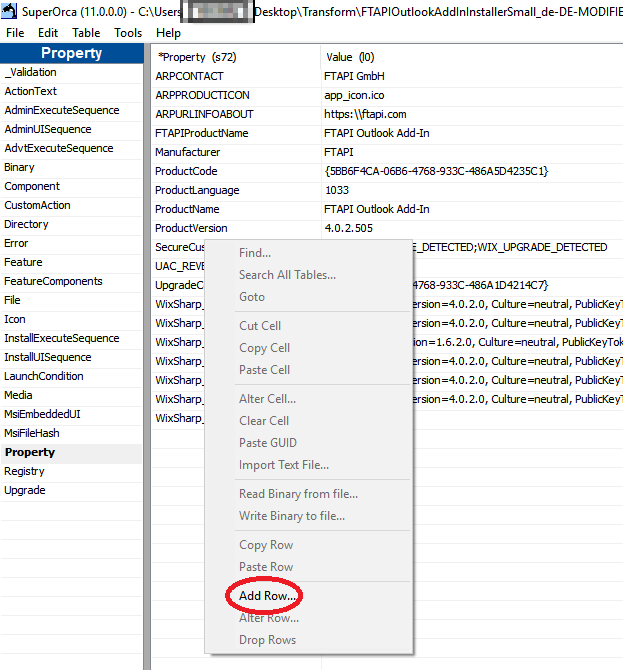
- Start SuperOrca and open the MSI copy, navigate to "Property".
- Right-click -> "Add Row...".
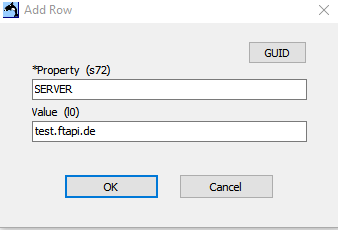
- Enter property name (e.g.,
SERVER) and value (e.g.,"ftapi.example.de"). - Repeat for all desired parameters (ALLUSERS, USEFTAPI, etc.).
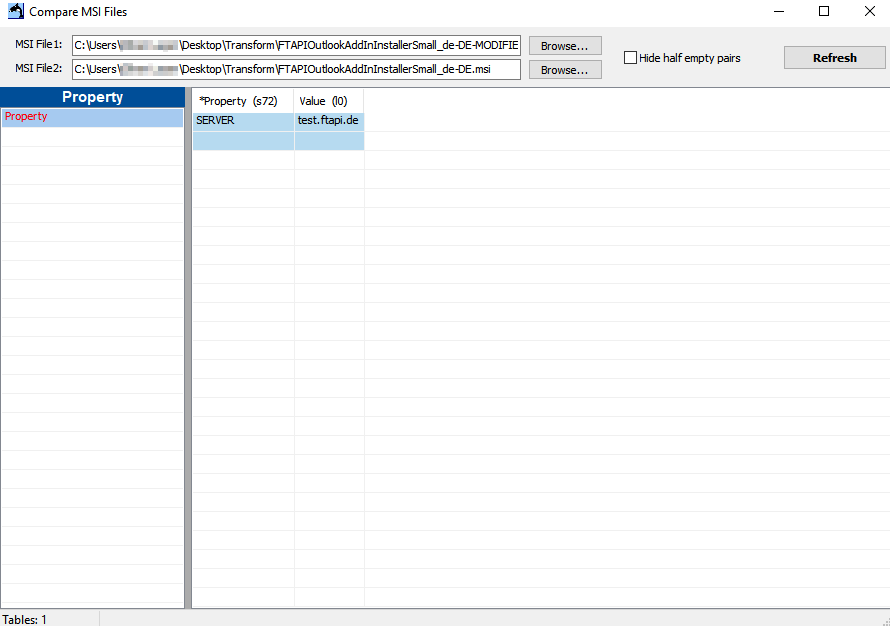
- Menu: Tools -> Compare MSI files (select original MSI as MSI File 2).
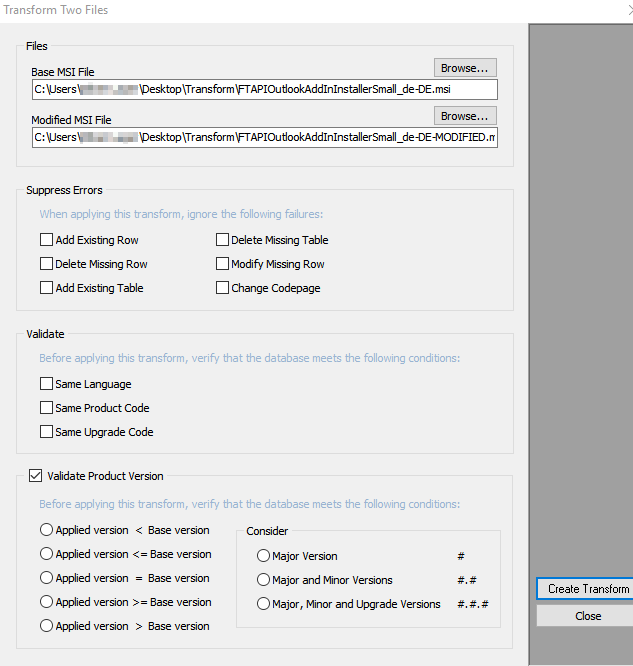
- Menu: Tools -> Transform two files (Base = Original, Modified = your copy).
- Click "Create Transform" and save as a
.mstfile.
Examples for Default Settings (Best Practice)
Security & Privacy
- Automatic FTAPI sending (TLS guarantee):
USEFTAPI="Y" - Download proof via Level 2:
SECURITYLEVEL="2"
User-Friendliness (Simplicity)
- Hide "Send with FTAPI" button:
HIDESENDWITHFTAPIBUTTON="Y" - Place download button automatically:
HIDEINSERTDOWNLOADBUTTON="Y",DEFAULTDOWNLOADBUTTONLOCATION="Middle" - Reduce UI elements:
HIDESUBMITBOXBUTTON="Y",HIDEDAYSVALIDINPUT="Y" - Suppress warning for Level 4:
SUPPRESSFORMATTINGWARNING="Y"
Internal Processes
- Local archiving (up to 20 MB):
ARCHIVEUPLOADEDATTACHMENTMAXSIZEMB="20",ARCHIVEDOWNLOADEDATTACHMENTMAXSIZEMB="20",DECRYPTSENTMESSAGE="Y" - Manual account change for multi-mailboxes:
DISABLEAUTOFTAPIACCOUNTSELECTION="Y"
Complete rollout command (Best Practice):
Installer.msi SERVER="subdomain.domain.com" ALLUSERS="1" USEFTAPI="Y" SECURITYLEVEL="2" HIDESENDWITHFTAPIBUTTON="Y" HIDEINSERTDOWNLOADBUTTON="Y" DEFAULTDOWNLOADBUTTONLOCATION="Middle" HIDESUBMITBOXBUTTON="Y" HIDEDAYSVALIDINPUT="Y" SUPPRESSFORMATTINGWARNING="Y" ARCHIVEUPLOADEDATTACHMENTMAXSIZEMB="20" ARCHIVEDOWNLOADEDATTACHMENTMAXSIZEMB="20" DECRYPTSENTMESSAGE="Y" /q