📋 Transfers
Here you can configure all relevant settings for transfers.
General
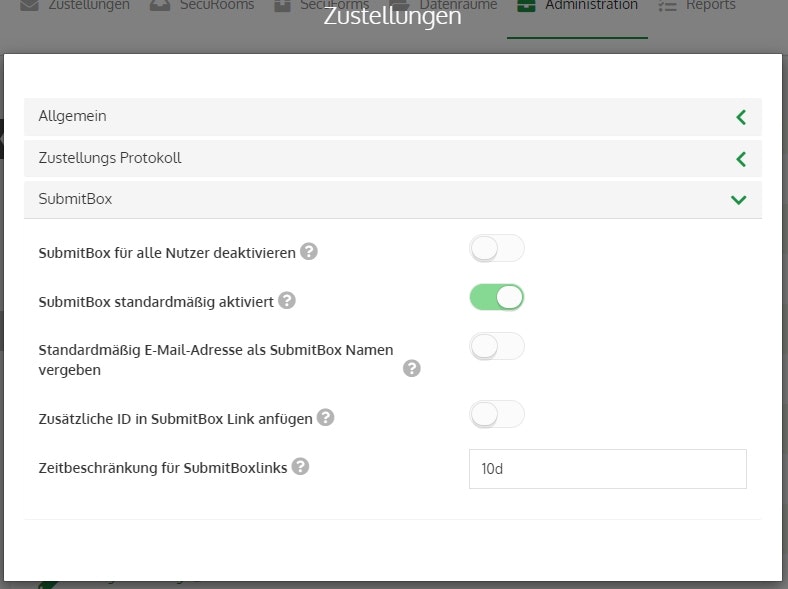
Allow transfers without attachments
If this option is disabled, it is not possible to send transfers without a file attachment. Instead, the sender is prompted to attach a file to their transfer.
Even if sending without an attachment is allowed, a warning is displayed for every transfer if it is sent without files.
Allow anonymous level 1 download
If this option is enabled, level 1 transfers can be retrieved from the Outlook Add-In without entering an email address. The receipt confirmation will then list "Anonymous user" as the recipient.
Email addresses as CC for all transfers
This option can be used to forward all transfers sent by all users to one (or more) additional email addresses.
Warning!
If you enable this setting, every transfer sent by all users including the files will be forwarded to this email address (and possibly also to the associated user), who can unrestrictedly read and download them.
Transfer Log
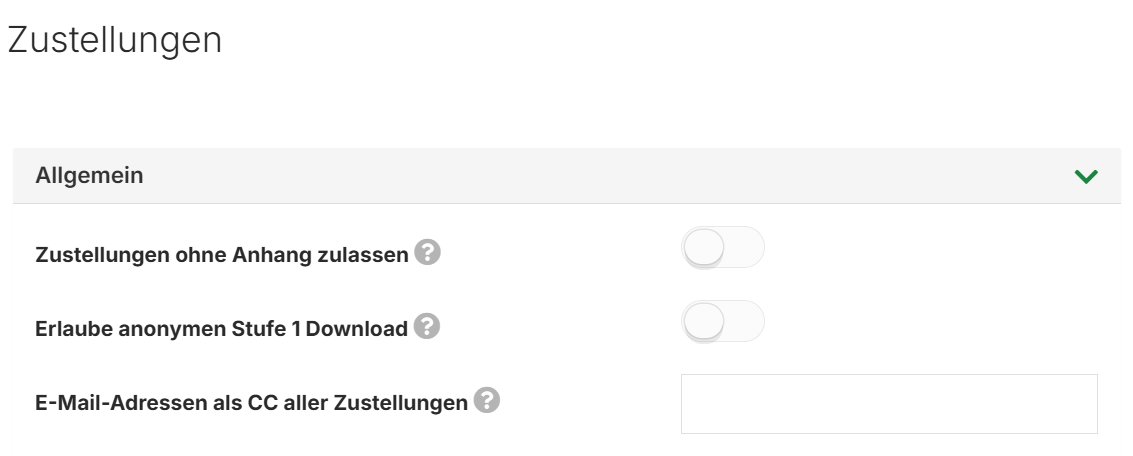
Enable IP address logging
If enabled, the IP address of the respective user is saved for every download performed.
Administrators can retrieve this information via the "Transfers Download Report" report.
Deletion interval (in days)
The defined threshold after which the oldest entries (= IP address logging) are deleted.
SubmitBox
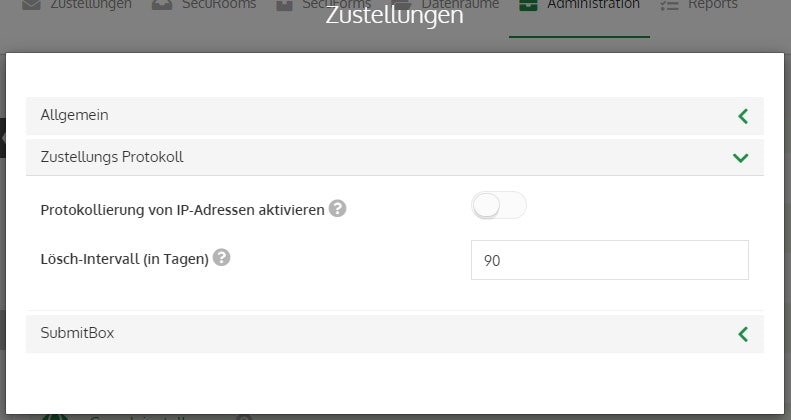
Disable SubmitBox for all users
With this setting, SubmitBoxes can be completely disabled.
Enable SubmitBox by default
If this option is enabled, the SubmitBox is automatically activated for all newly created users.
Please note that this option has no effect if all SubmitBoxes have been disabled.
Use email address as SubmitBox name by default
By default, a user's username is selected as the link for their SubmitBox. Alternatively, you can specify here that the email address should be used instead of the username.
SubmitBox ticket link timeout
Defines how long a SubmitBox ticket is valid. The default value is 10 days.