
❓ Outlook Add-In (classic): Does not start despite activation (Disabled items)
The problem: Outlook Add-In does not start despite activation
It can happen that the FTAPI Outlook Add-In does not start, even though it has been correctly marked for activation in the Outlook options.
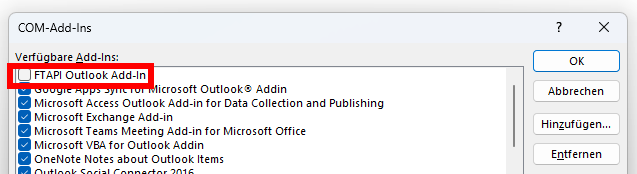
If an administrator or user checks the box for activation, but it is unchecked again after restarting Outlook, the cause is often a specific protection function in Outlook.
This behavior indicates that Outlook has not only classified the Add-In as "inactive" but has placed it on an internal blocklist to ensure application stability.
Cause: The difference between "inactive" and "disabled"
- Inactive Add-Ins: An Add-In is "inactive" if it has not been selected by Outlook to start. This can happen due to the user or an administrative setting (e.g., via the registry value
LoadBehavior = 0). In this case, the Add-In can be easily reactivated by checking the box in the COM Add-In options. - Disabled Add-Ins: An Add-In is "disabled" by Outlook if it is classified as problematic (e.g., due to long loading times). In this case, it is placed on a separate blocklist. Simply checking the box in the options is not enough here, as Outlook specifically blocks the activation.
Solution 1: Reactivate a disabled Add-In in Outlook
If an Add-In has been blocked by Outlook, it must first be removed from the list of disabled items. This is the first and most important step for troubleshooting.
Note: Perform these steps before making changes to the registry or group policies.
- In Outlook, open the path:
File>Options>Add-Ins. - At the bottom of the dialog, select "Disabled Items" from the "Manage" drop-down menu and click "Go...".
- Search for the "FTAPI Outlook Add-In" in the displayed list.
- Select the entry and click "Enable".
- Close all dialogs and restart Outlook. The Add-In should now be functional again or at least be able to be activated normally via the COM Add-In list.
Solution 2: Prevent future blocking via GPO
To prevent Outlook from automatically blocking the Add-In again in the future, administrators can create a Group Policy (GPO) that sets a specific registry entry.
This entry instructs Outlook never to place the FTAPI Outlook Add-In on the blocklist, even if it slows down the startup process.
- Path:
HKEY_CURRENT_USER\Software\Microsoft\Office\[Your Office Version]\Outlook\Resiliency\DoNotDisableAddinList - Name:
FTAPI Outlook Add-In - Type:
REG_DWORD - Value:
1
This registry entry can be distributed manually, via script, or centrally via a GPO. It corresponds to the effect of the installation parameter SETADDINALWAYSENABLED="Y".