
📋 Outlook Add-In (new): Rollout via Microsoft 365 Admin Center
This article is a guide for administrators on the centralized and group-based deployment of the FTAPI Outlook Add-In via the Microsoft App Store (Centralized Deployment).
Prerequisites for the rollout
Roles & Rights
- Global Administrator or Exchange Administrator.
Technical requirements
- Exchange Online mailbox for the target users.
- Supported Outlook clients (current channel recommended):
- Outlook for Windows (Microsoft 365 Apps, modern version)
- Outlook on the web (OWA)
Network
- Access to Microsoft 365 services and to the endpoints of the FTAPI Add-In (according to corporate firewall/proxy policies).
License
- Valid Microsoft 365 licenses for the target users (Exchange Online included).
- FTAPI SecuMails license including Outlook Add-on
Important note: Deployment via the Marketplace will automatically update the Outlook Add-In in the future. This means that manual package maintenance is no longer necessary.
Centralized deployment via the Microsoft 365 Admin Center
Step 1: Sign in and open the section
- Sign in to admin.microsoft.com with your admin account.
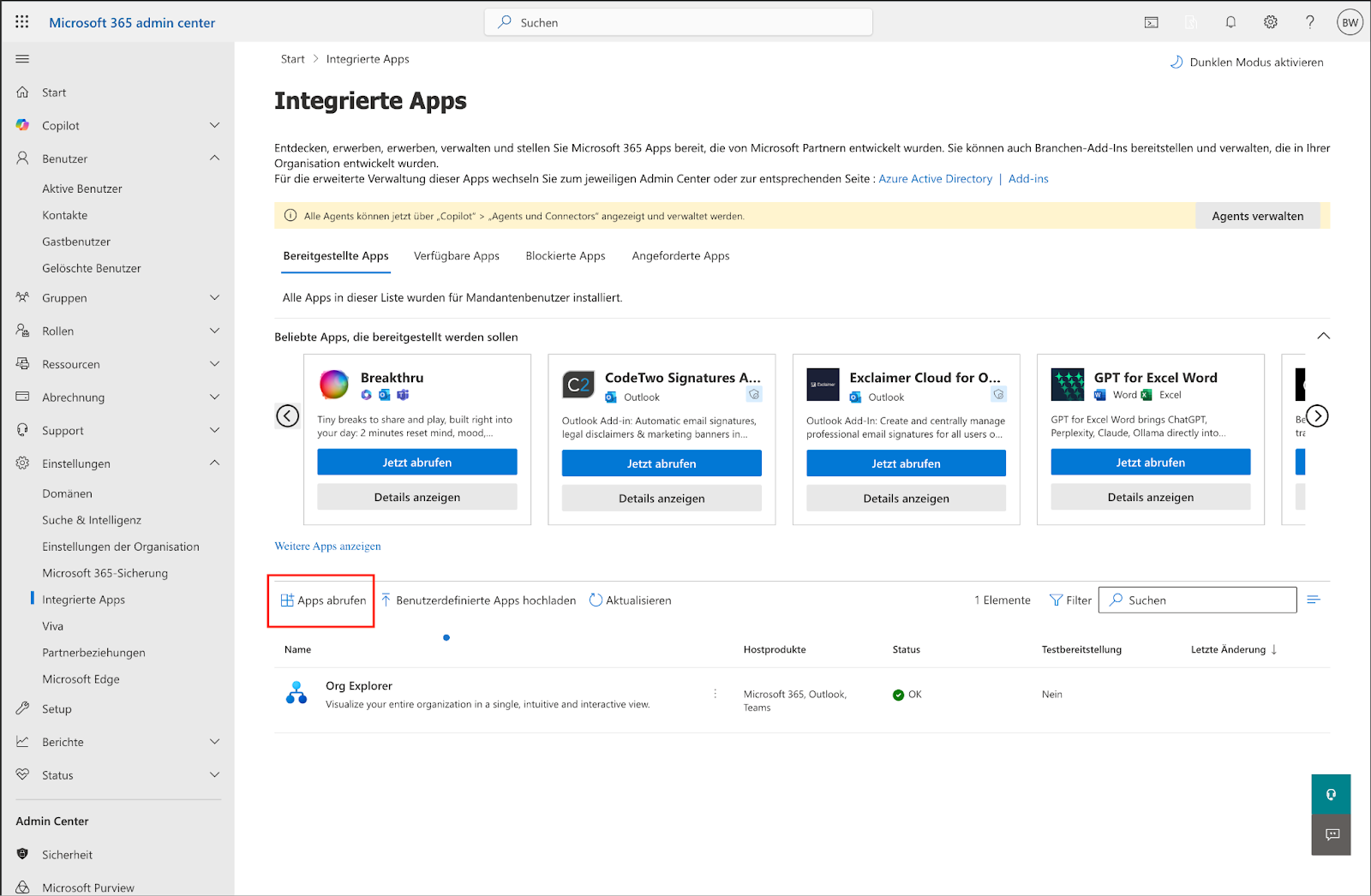
- Navigate to Settings → Integrated apps (Alternatively: Setup → Install apps).
Step 2: Search for the app in the Marketplace
- Click on Get apps.
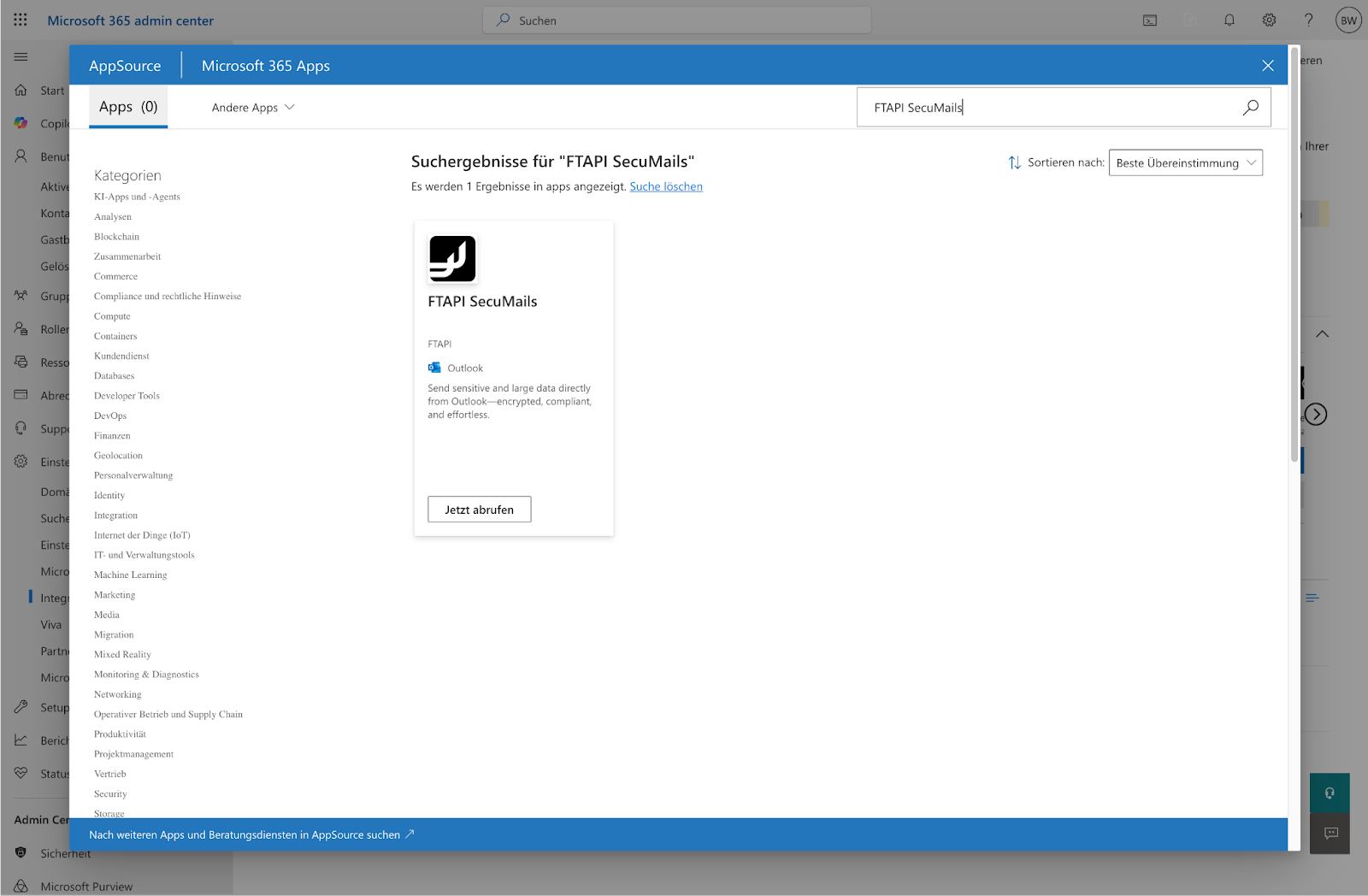
- Search for “FTAPI SecuMails” or use the direct link: FTAPI SecuMails in the Microsoft Marketplace
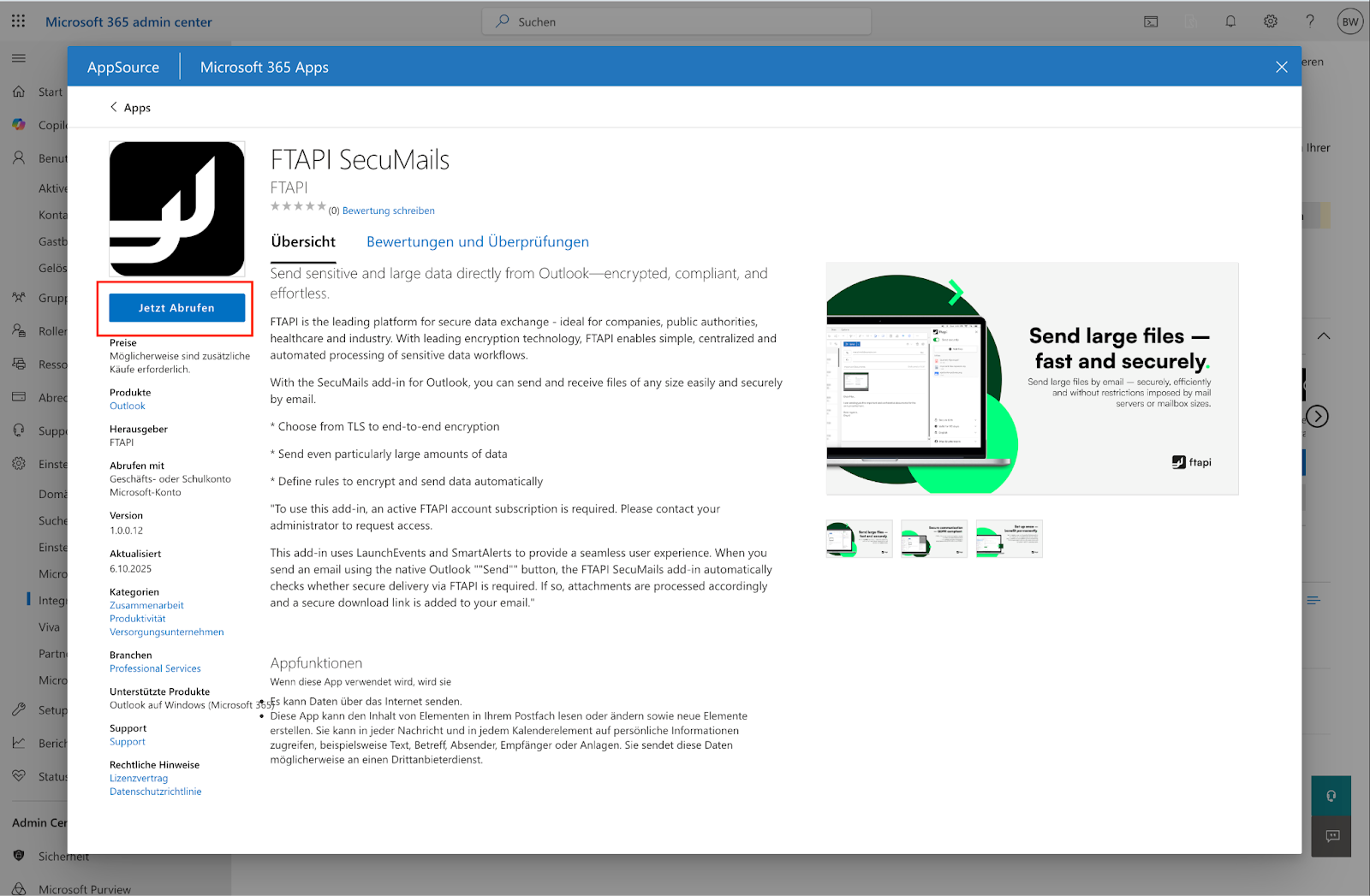
- Select the app and click on Get it now.
Step 3: Configure deployment
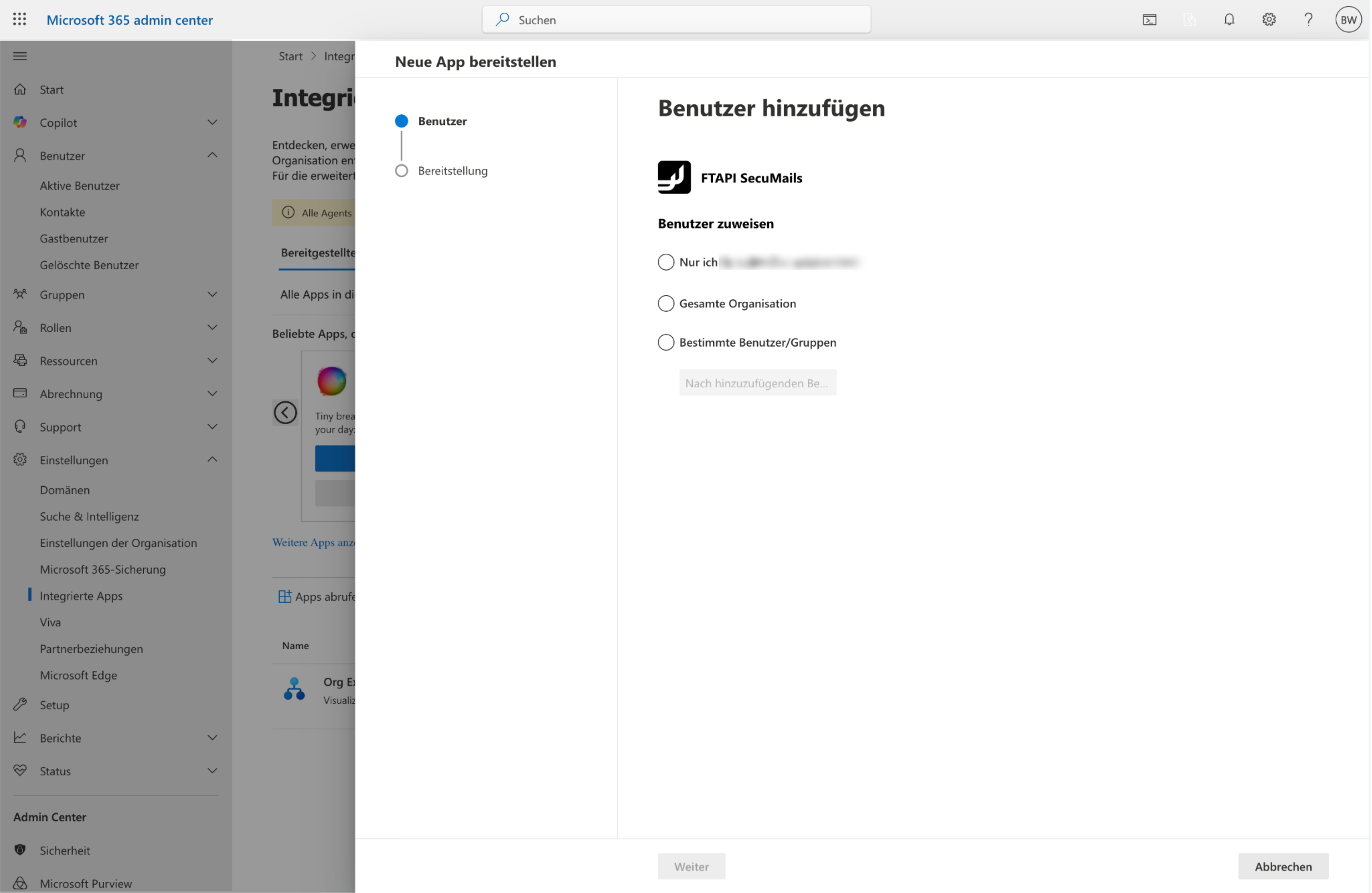
- Who has access? Select the scope:
- Entire organization (Tenant-wide)
- Specific users/groups (e.g., pilot group, department, security group)
- Just me (for testing)
- Select groups/users:
- Supported are, among others, Microsoft 365 groups, mail-enabled security groups, distribution lists, and individual users.
- Review permissions and confirm with Next.
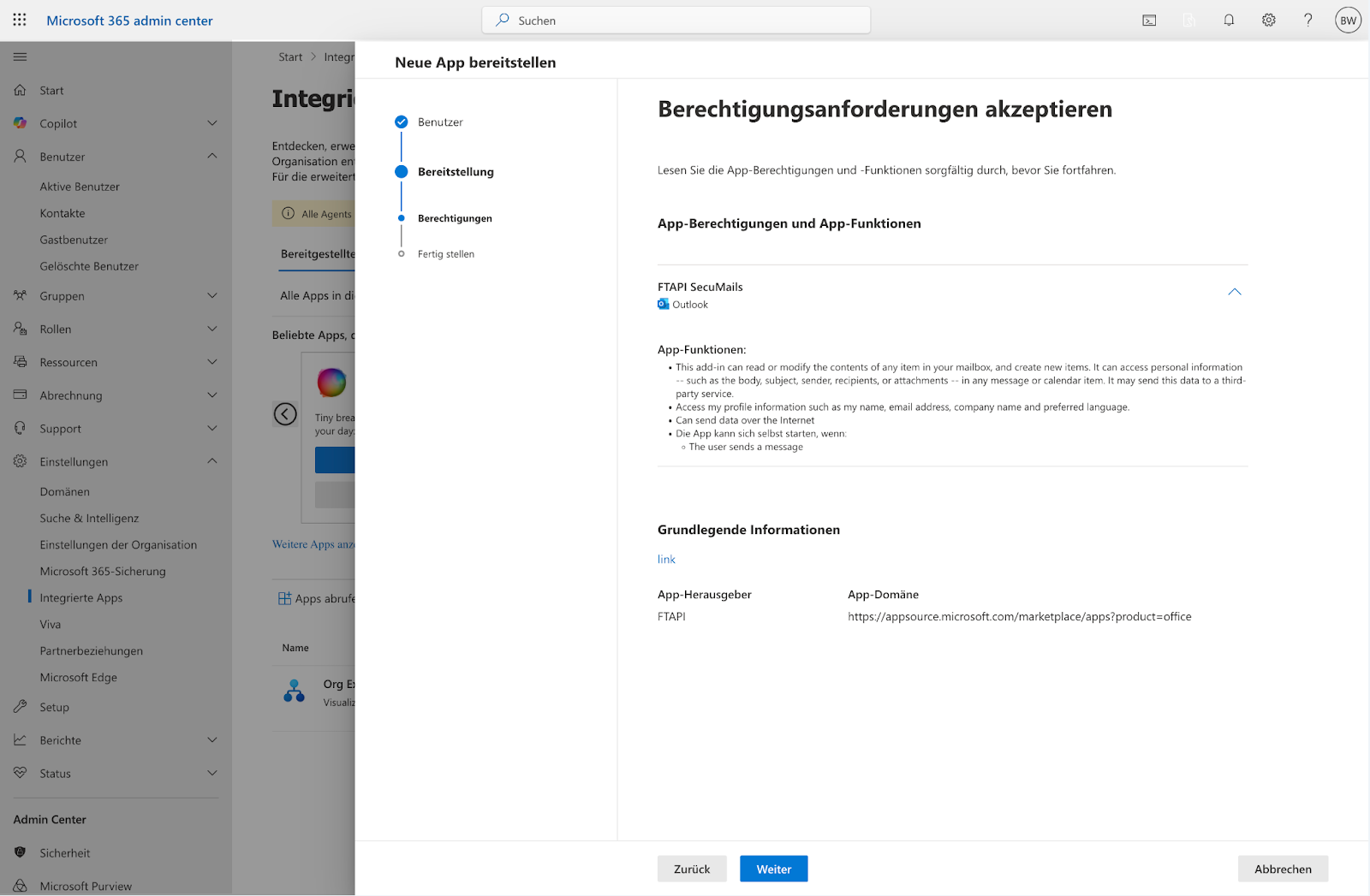
- Review overview and click Finish deployment.
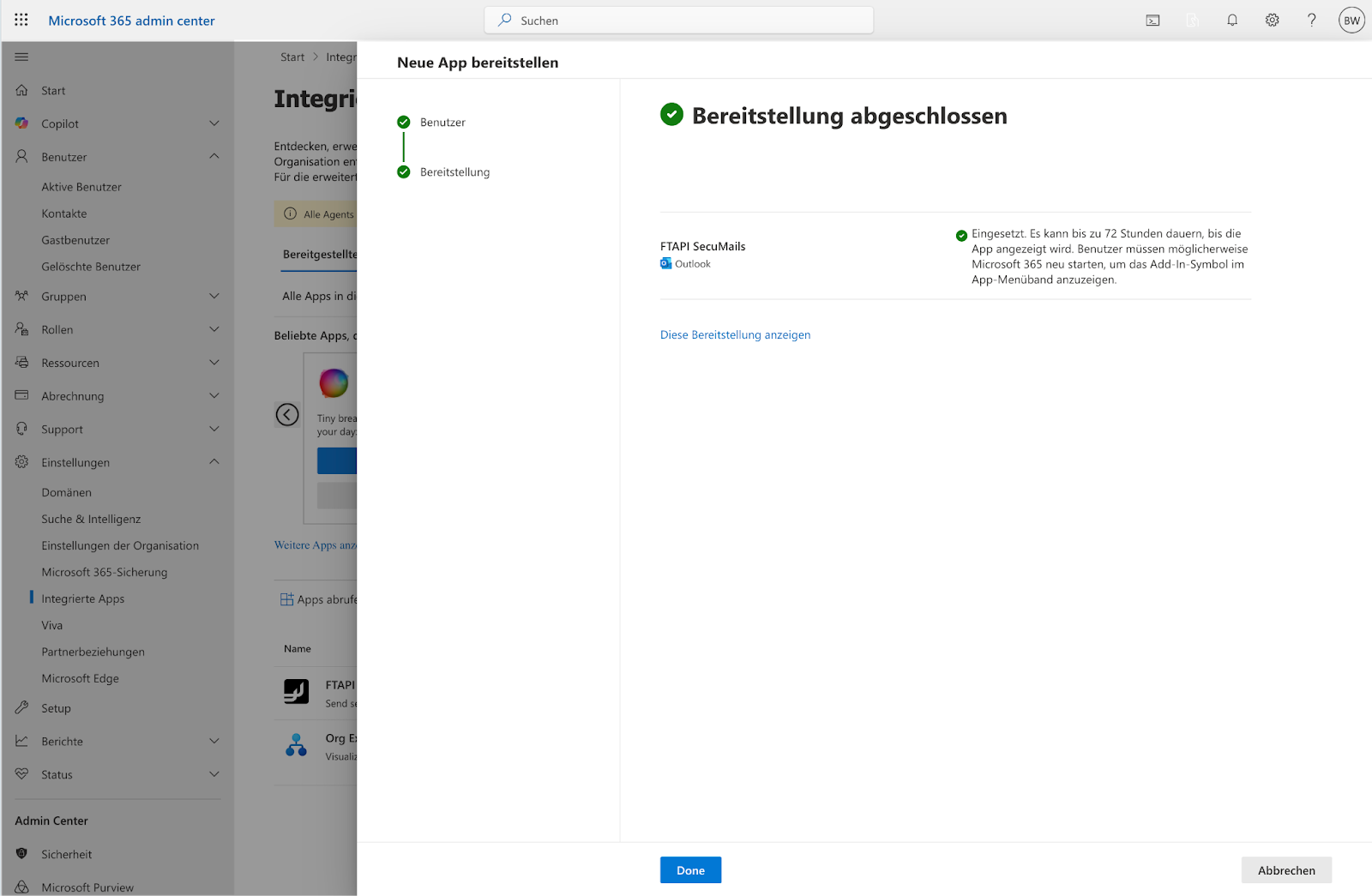
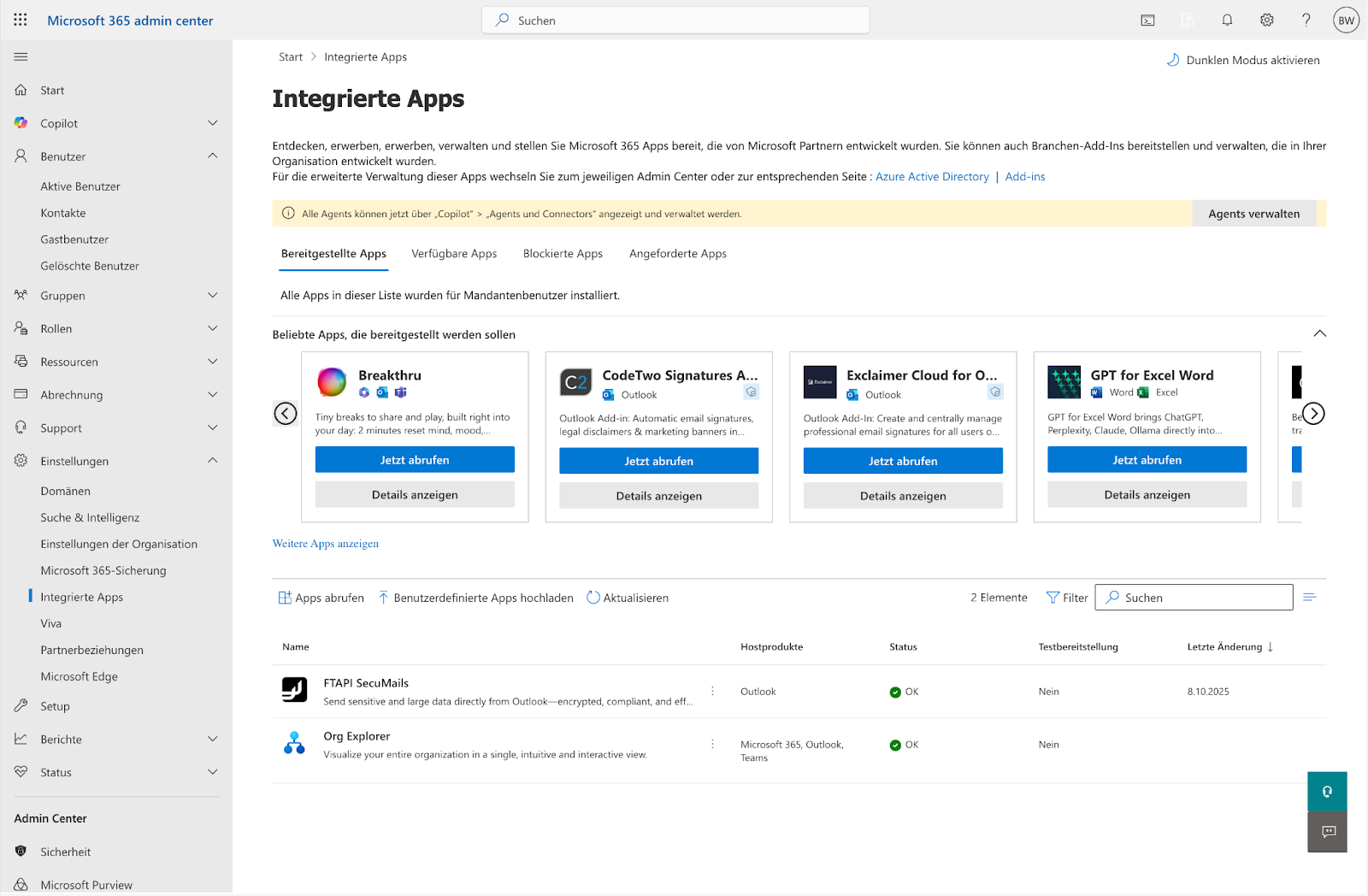
Step 4: Check deployment status
- After submitting, the Admin Center shows the Status (e.g., “Deployment in progress” → “Deployed”).
- The distribution can take up to 24 hours.
Step 5: Verification (Client view)
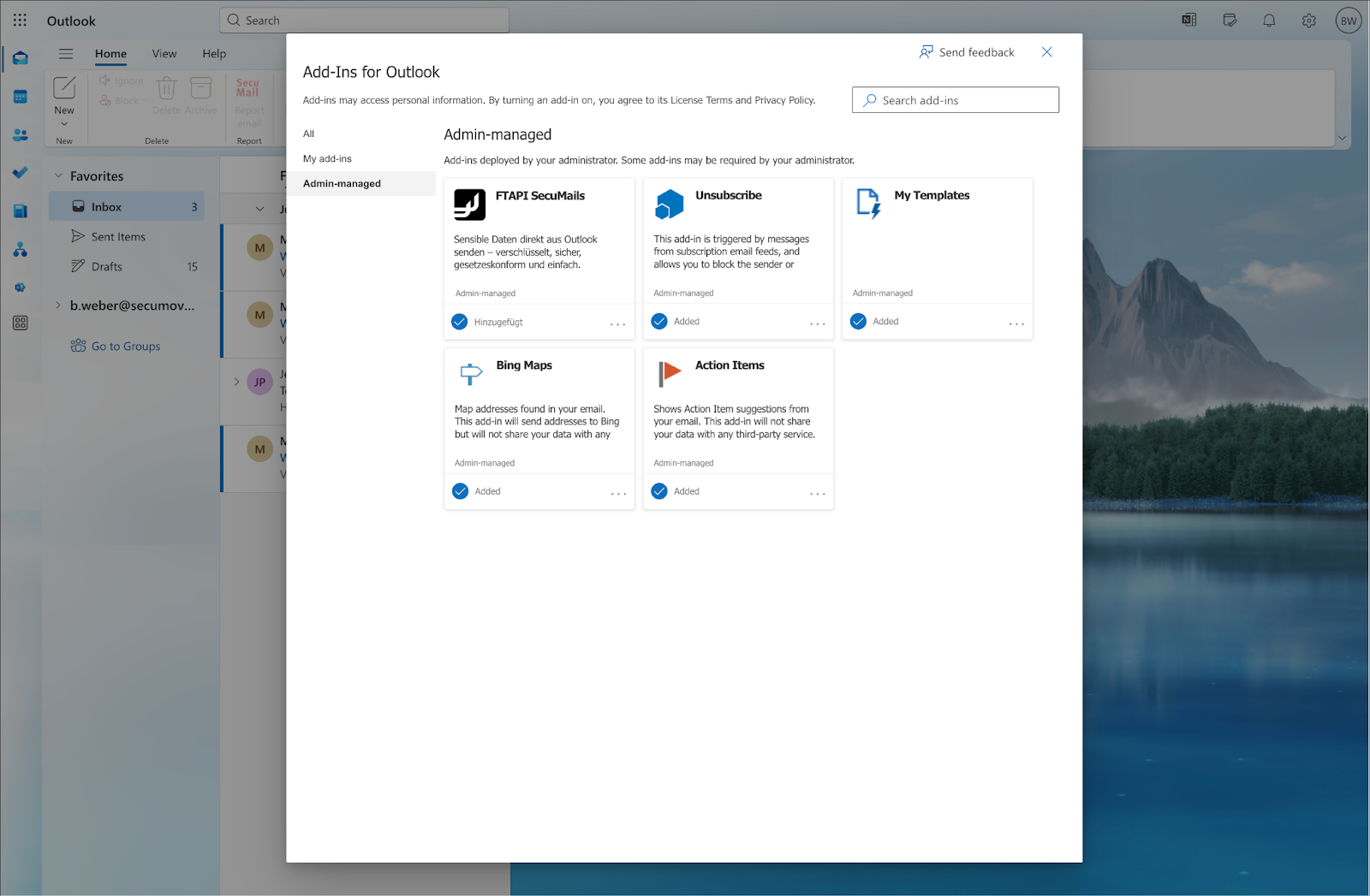
Outlook on the web: https://outlook.office.com/mail/inclientstore
Under “My add-ins”, the Outlook Add-In should appear under “Admin-managed”.
Related articles
📋 Outlook Add-In (new): User guide
📋 Outlook Add-In (new): Configure automatic sending rules