
📋 My Account: Changing personal data, password, and SecuPass
Changing personal data
In this article, you will learn where and how to change your personal data in your FTAPI account.
First, log in to the FTAPI web interface. Then click the user icon in the top right corner and select the My Account section.

Changing your password
Click the Change password button to set a new password for your account.
Enter your current password in the input mask and then set your new password. Please observe any password policies that may be in place. These are shown when you move the mouse pointer over the question mark.
Changing details
In the Details section, you can also adjust the following information: first name, last name, company, phone number, position, and signature. Click the Save button to apply your changes.
Changing your SecuPass
In the SecuPass Status section, you can see whether you have already set a SecuPass. Using the Change SecuPass button, you can change your SecuPass after entering your current one.
SubmitBox settings
In the SubmitBox settings section, you can see whether your SubmitBox is activated. Use the slider to deactivate or activate it. Please note: an administrative preset may be in place, so you may not be able to deactivate or activate the SubmitBox yourself.
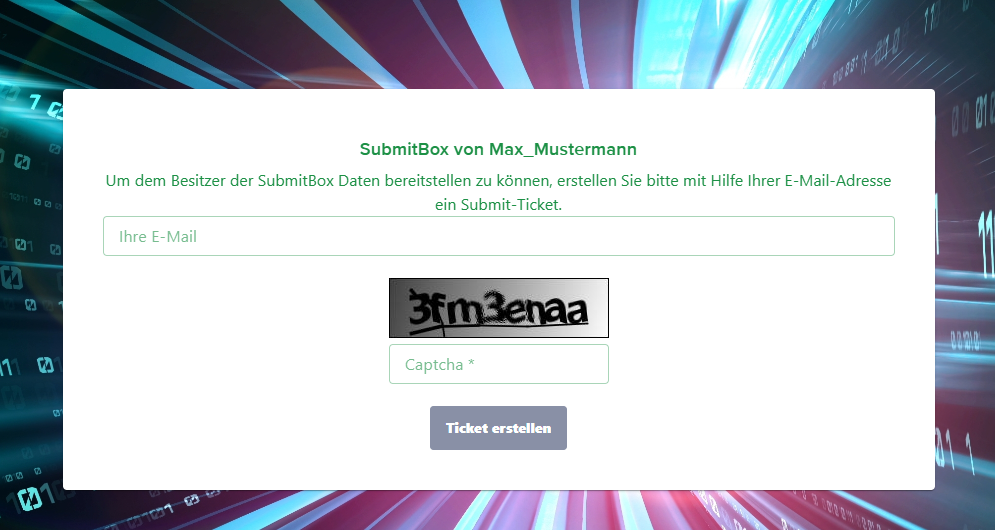
Use the Name field to set the heading for your SubmitBox. By default, the user name is used. Umlauts, spaces, and special characters are not allowed. Instead of spaces, you can use underscores. For example, entering Max_Mustermann results in the heading "SubmitBox of Max_Mustermann".
Related articles
How do I activate SecuPass for FTAPI SecuMails?
SecuPass forgotten: Regaining access to your delivery
The SecuPass technology