
📋 SecuForms: Translating form fields and adjusting languages
How languages work
By default, the base language for SecuForms is English. This means that the labels created in the "Custom Fields" tab are initially written in English.
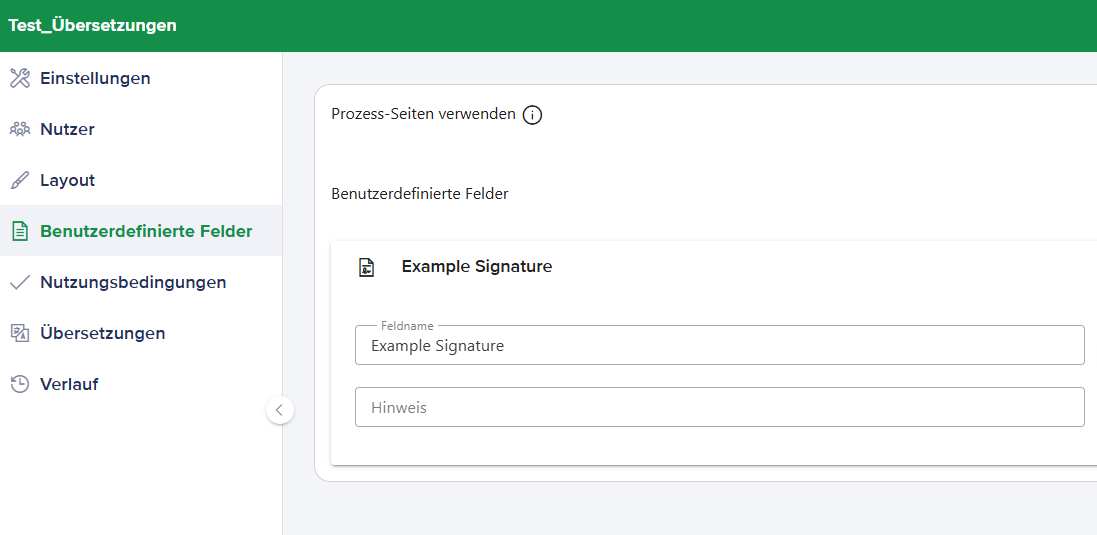
To automatically display the correct language (German or French) to your users based on their browser settings, you can store specific localizations in the "Translations" tab. This adjustment is made directly in the JSON code of the form.
Adjusting translations (JSON)
Translating field labels is done by directly editing the configuration file (JSON). Follow these steps:
- Open your SecuForm and switch to the Translations tab.
- You will now see the JSON code that describes the structure of your form.
- Edit the desired target language (German or French).
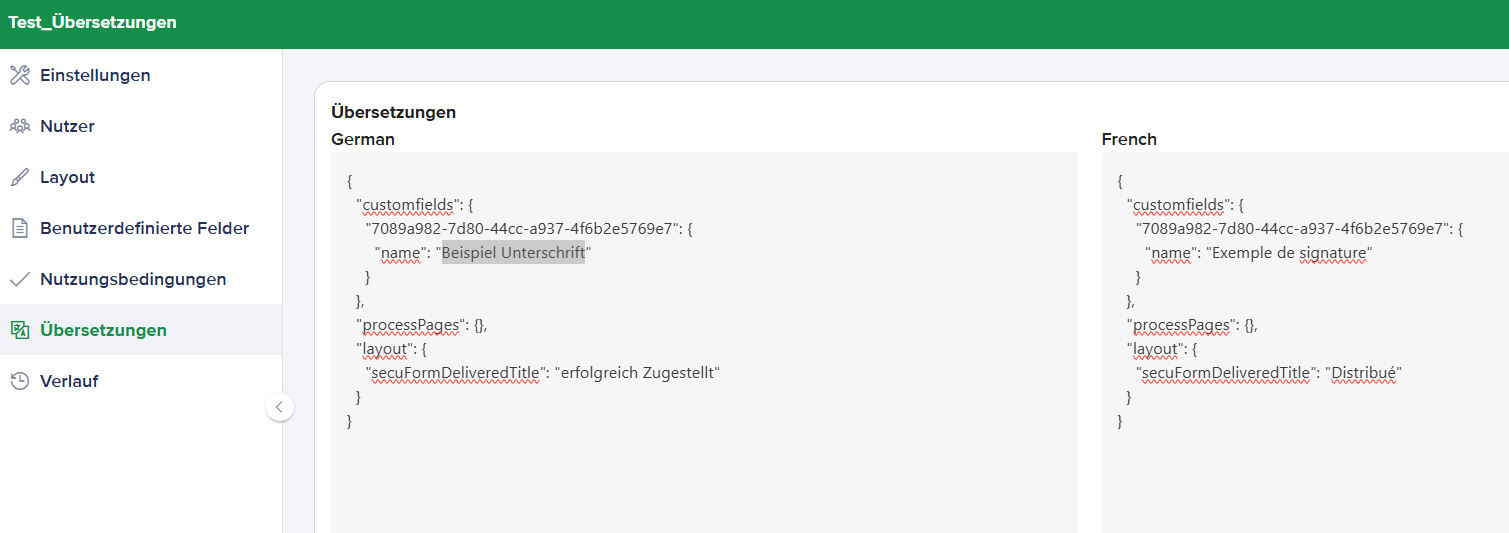
Important: Edit the JSON code with great care. Do not delete any brackets
{ }, commas,, or quotation marks", otherwise the form will no longer function.
Changing the label (name)
To change the displayed label, you must adjust the text after the "name": entry for the desired field.
How to proceed:
- Find the line
"name": "...". - Delete only the text between the two quotation marks.
- Enter the desired translation exactly in this spot.
Example
You want to translate the field "Example Signature" into German ("Beispiel Unterschrift").
Before (English/Original):
{ "id": "7089a982-7d80-44cc-a937-4f6b2e5769e7", "name": "Example Signature" }After (German/Edited):
{ "id": "7089a982-7d80-44cc-a937-4f6b2e5769e7", "name": "Beispiel Unterschrift" }Repeat this process for all fields you wish to translate, and then click Save.
Related articles
📋 SecuForms: Create online form, configure layout and recipients
📋 SubmitBox: Adjust global template, layout and form fields