
FTAPI SecuRooms Drive
ℹ️ System requirements: FTAPI version 4.68.0 or higher
Version 1.1.0
⚠️ Changed system requirement: FTAPI version 4.68.0 or higher
SecuRooms Drive 1.1.0 transfers files through the FTAPI platform's new upload API and therefore requires FTAPI version 4.68.0 or higher. Version 4.63.0 was sufficient so far.
As a cloud customer you do not need to do anything: your FTAPI instance is updated automatically and already meets the requirement. If you run FTAPI on-premises, check the version of your instance and update it before you roll out SecuRooms Drive 1.1.0 to the workstations.
All future SecuRooms Drive versions require this or a higher FTAPI version.
New
- Large files arrive even on an unstable connection, without anyone restarting the upload: If the connection drops during an upload, SecuRooms Drive pauses the transfer and continues it as soon as the FTAPI instance is reachable again, from the point where it was interrupted. Parts that were already transferred are not uploaded again. Short interruptions are handled by SecuRooms Drive in the background. The transfer list shows whether an upload is paused or currently being retried.
- You see right away when the connection to FTAPI has dropped: SecuRooms Drive continuously checks whether the connected FTAPI instance is reachable and shows this in the application. If the server cannot be reached, your users see it directly in SecuRooms Drive instead of wondering why a file does not arrive in the data room.
- Transfers you no longer need do not have to run to the end: Running uploads and downloads can now be cancelled, for example when a very large file has ended up in the synchronised folder by mistake. SecuRooms Drive cleans up afterwards: no incomplete file remains locally, no open upload session remains on the server. The remaining transfers in the queue continue.
- SecuRooms Drive works behind your corporate proxy without setup on every single machine: SecuRooms Drive picks up the proxy settings automatically from the Windows internet settings, and in most cases no configuration is needed. To make SecuRooms Drive use a specific proxy, set it machine-wide by group policy or during MSI setup. Per-workstation environment variables are no longer required for this. How to set the proxy is described in the article 📋 SecuRooms Drive: Proxy settings.
Fixed
- Moved files end up in the right place on the workstation too: When a file or folder is moved in SecuRooms, SecuRooms Drive applies the change locally on the next sync. The folder structure on the workstation stays identical to the data room, without unlinking and relinking the account.
- A new file version stays one file: When you upload a new version of a file in SecuRooms, that version is applied locally in SecuRooms Drive as well. The file itself stays the same, and no additional file marked as a conflict is created.
- Saved Excel files appear as a new version instead of an extra file in the data room: When an .xlsx file in the synchronised folder is saved, SecuRooms Drive transfers the new version of the workbook. It now recognises the temporary files Excel creates while saving and no longer uploads them to the data room. Which files are excluded from synchronisation is described in the article 📋 SecuRooms Drive: User guide.
- Deleted files stay deleted, even when the upload failed earlier: When users delete a file that could not be transferred to the data room before, SecuRooms Drive removes it locally and completes the operation. The file does not reappear in the folder, and no conflict notification about a supposedly failed deletion on the server is shown.
- The message when moving between data rooms now says what the actual reason is: When a user drags a file or folder locally from one data room into another, the message names the actual reason: files and folders cannot be moved across data room boundaries. The text no longer refers to data rooms that cannot be moved.
Version 1.0.0
New
- Redesigned interface with the familiar look of the SecuRooms products: Login, main view, sync selection, and settings have been fully reworked and now look and feel like the rest of the SecuRooms applications. This helps your users find their way around more quickly.
- Settings are now organized into clear tabs for Account, General, and Advanced, so every option is easy to locate.
- The sync selection always clearly shows which state it is in (loading, no selection, error).
- Instead of a blank area, the main view now shows a clear message when no uploads are currently running.
- Error and system messages follow a consistent structure, so users immediately understand what to do when a problem occurs.
- Data rooms with identical names remain clearly distinguishable: If two data rooms share the same name on the server, the client creates them locally as separate folders and adds a number to the second one (e.g. "Project X" and "Project X_1"). Both data rooms are therefore synchronized in full. The folder names stay stable across restarts and reinstallations on the same account, and a notice in the data room selection points out any name collision.
- Uploads complete reliably even during brief interruptions: If an upload fails for a temporary reason, such as a short network interruption, the client automatically retries the transfer up to three times. Your users no longer have to re-upload the affected files manually, and individual network dropouts have no consequences. While a retry is in progress, this is shown in the upload list (display "Attempt n/3"). Only if all attempts fail is the upload marked as failed.
- Restart synchronization with a single click: The synchronization can now be triggered directly from the menu in the Windows notification area (system tray). If individual files get stuck, users can resolve this themselves without having to restart the client entirely.
- Protection against interrupted uploads when quitting: If you close the client or disconnect the account while uploads are still running or queued, a notice now appears showing the number of affected uploads along with the option to cancel. This way, transfers that have already started are no longer lost unnoticed. With no uploads running, the behavior remains unchanged.
- Open the affected folder directly from synchronization errors: If an error occurs during synchronization, the affected path in the error view can now be clicked and opens directly in the Windows File Explorer. Your users immediately see which files are affected and can decide for themselves how to handle them.
Fixed
- Files rejected by the server are labeled correctly: Files that were rejected by the server due to a file type check initially appeared as uploaded and were only removed in the next sync cycle. Such files are now shown as not transferred right away.
- Local files are fully cleaned up when disconnecting the account: When disconnecting the account, local files that had not yet been uploaded to storage were left behind. These files are now removed reliably.
- Failed uploads disappear from the list when switching accounts: After switching the user account, failed uploads remained visible in the upload window. The list is now reset correctly when switching accounts.
- Switching accounts via the Windows notification guides you through the data room selection: When the account was disconnected via the Windows notification, the client skipped the data room selection and synchronized all data rooms. Switching accounts now reliably guides you through selecting the data rooms to synchronize.
- Replacing a file no longer triggers excessive uploads: When replacing a file, a large number of uploads was triggered. The process now transfers only the file that actually changed.
- Files with long paths can be downloaded: Files whose path was longer than 256 characters could not be downloaded. The download now works even with long path and folder names.
- The server address is processed more reliably when connecting: When establishing the server connection, the client automatically adds a missing "https://" prefix and shows an understandable message for an incorrect address. Typos during entry therefore lead to failed connections less often.
- Hidden system files are no longer uploaded: When dragging folders into the sync folder, hidden system files (desktop.ini) were uploaded along with them. These files now stay local and no longer end up in the data room.
Installation notes
If an earlier version of SecuRooms Drive is installed, it must be fully uninstalled before installing version 1.0.0. The reason is a cleanup of the client's installation paths.
Version 0.7.1
New
- Access to SecuRooms Drive can now be controlled independently of SecuRooms permissions
Previously, only users with the group permissionsCan create new data roomsorCan share existing data rooms with otherscould use SecuRooms Drive. This limited its use in scenarios where employees need to synchronize files without being allowed to create or share data rooms. With the new group permissionAccess to SecuRooms Drive, Drive access can now be assigned specifically and independently. Admins can thus provide, for example, clerks or external employees with Drive access without having to grant them further SecuRooms rights.
A SecuRooms license is still required.
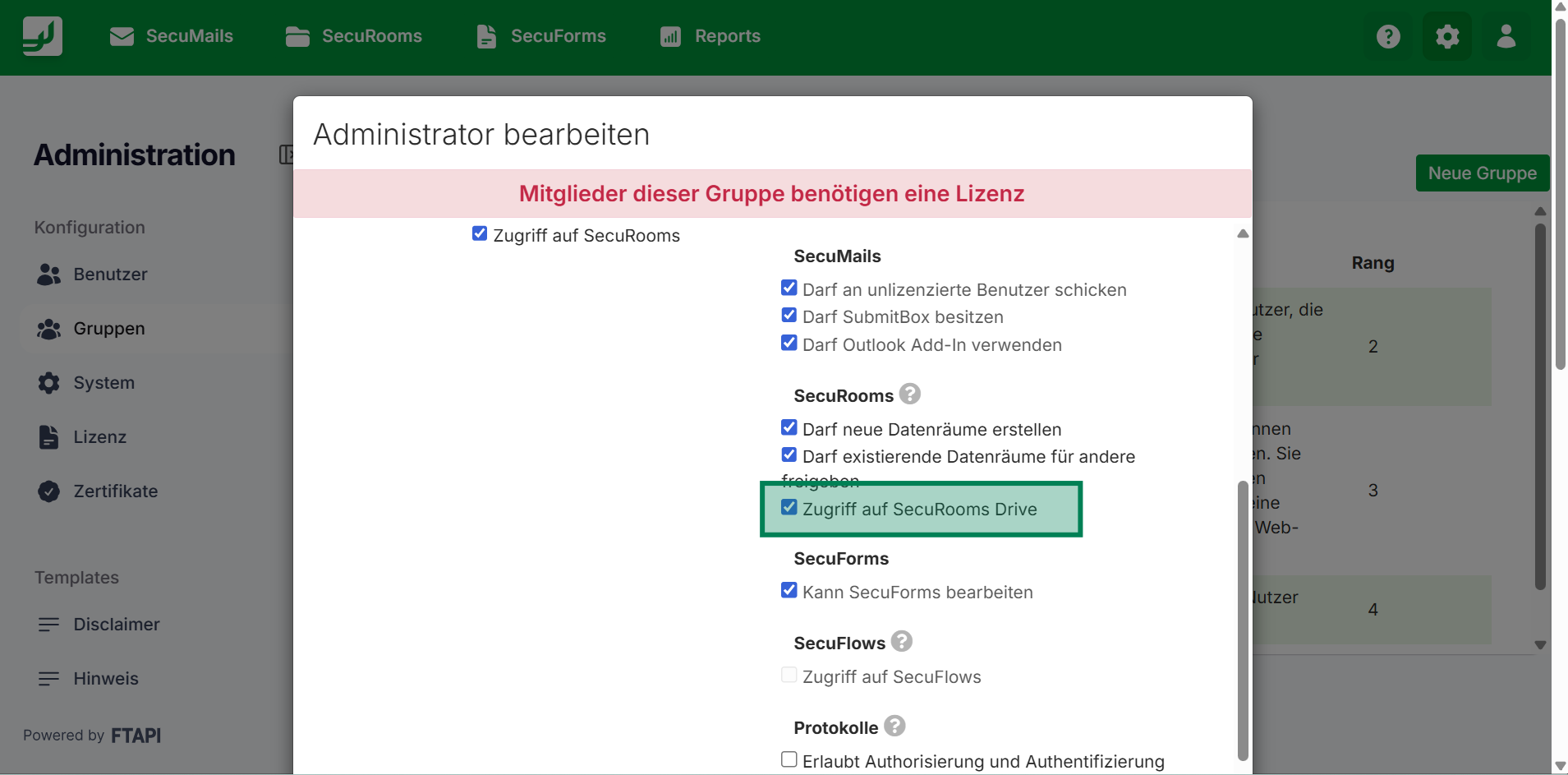
No action required for existing users of SecuRooms Drive: Secutransfer 4.64.0 automatically activated “Access to SecuRooms Drive” for all groups where at least one of the two existing permissions was already activated, so that there are no restrictions for active users.
- No longer miss SecuRooms Drive with autostart
SecuRooms Drive now automatically adds itself to the Windows autostart during installation and is immediately ready the next time a user logs in. Previously, a manual first start was necessary before the autostart took effect. This eliminates a common stumbling block when onboarding new users. - Data room selection directly via the taskbar icon
Which data rooms SecuRooms Drive synchronizes can now be selected and changed at any time via the SecuRooms Drive icon in the taskbar notification area (bottom right next to the clock). Users who work with multiple data rooms can thus quickly switch between synchronization profiles without interrupting their workflow.
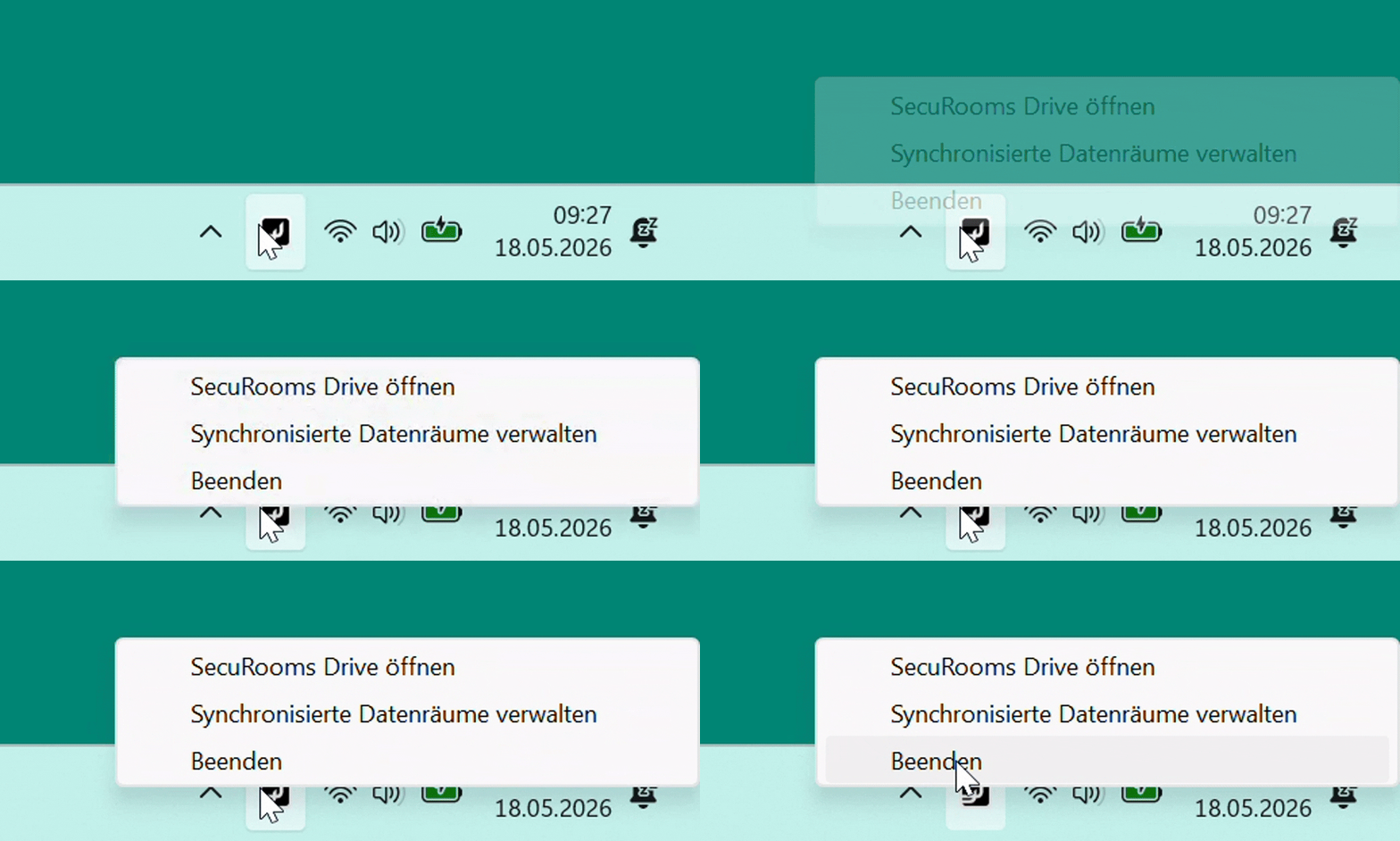
ℹ️ For quick access from the screenshot, simply drag the SecuRooms Drive from the system tray into your taskbar.
- SecuRooms Drive can also be found in Windows search under “FTAPI”
For better discoverability, SecuRooms Drive now appears in Windows search results as soon as users search forFTAPI.
Fixed
- Pasting large files does not trigger multiple uploads: If large files were copied into the Drive folder via copy & paste, the application started multiple upload processes for the same file. Now, exactly one upload is triggered per pasted file.
- Application no longer closes unexpectedly when disconnecting the account: When disconnecting a linked account, SecuRooms Drive closed unintentionally. Disconnecting now runs stably.
- Synchronization folder must be empty during initial setup: To prevent files from different accounts from being mixed in the same folder, the selected synchronization folder must be empty when connecting an account for the first time.
- Login with 2FA via authenticator app possible again: If two-factor authentication via app was activated, the login to SecuRooms Drive failed. The error is fixed with Secutransfer 4.64.0.
Version 0.6.1
New
- Uninterrupted synchronization, even when the computer is inactive: SecuRooms Drive now remains logged in permanently and continues to synchronize your data reliably, regardless of whether the laptop is closed, the PC is shut down, or in energy-saving mode. The next time you start, your data rooms will be up to date immediately.
Version 0.6.0
New
- Faster start due to persistent data: SecuRooms Drive synchronizes much faster upon login & reopening, as local data is now retained upon logout and does not have to be re-transferred. Anyone who wants to consciously remove the data from the device can do so at any time via "Disconnect account" (see version 0.5.0).
Fixed
- Correct timestamp in the web interface: For data that is edited or newly uploaded via SecuRooms Drive, the correct timestamp is now displayed in the SecuRooms web interface.
SecuRooms Drive 🤝 Outlook Add-in
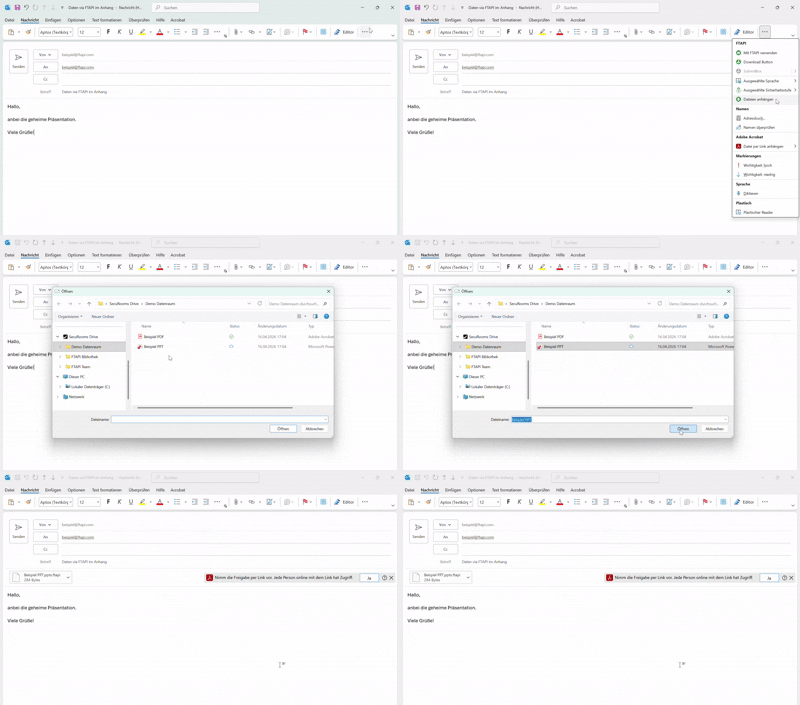
Sending secure files from SecuRooms via email was previously always an extra step. Not anymore:
With SecuRooms Drive, you have your secure data rooms directly as a drive on your computer, and there, SecuRooms Drive and the Outlook Add-in interact directly: Whether via drag & drop, file attachment, or directly via the share function from within the Drive: Your data room contents now land in Outlook in seconds, without further clicks and without leaving the secure environment.
Version 0.5.0
New
- “Logout” is now called “Disconnect account”: The new term makes it clear what happens when logging out: All synchronized data is removed from the device. If your session expires after 48 hours of inactivity and you then want to log in with a different account, you must actively confirm this so that no data is removed unnoticed.
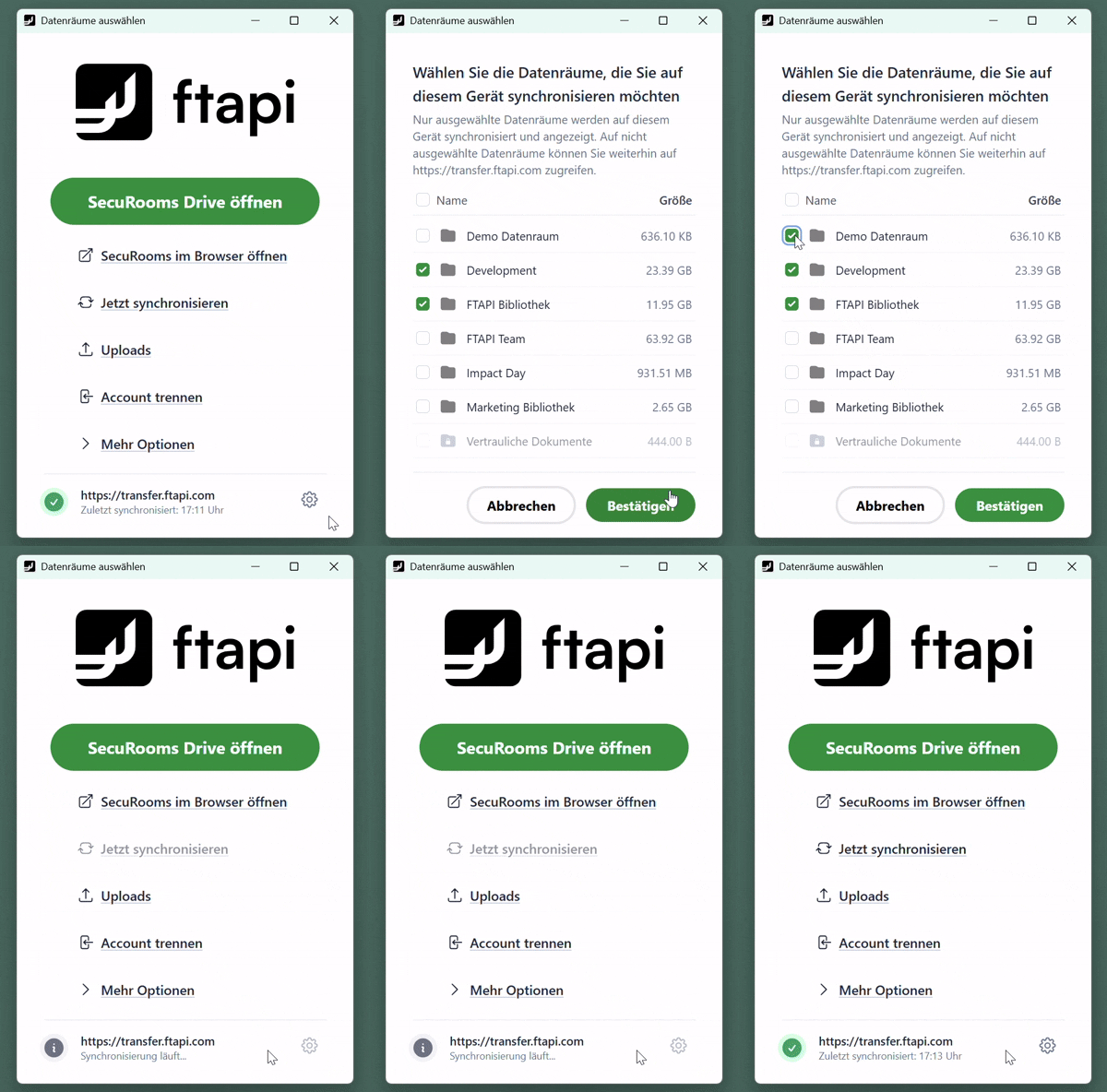
- Only load the data rooms you really need: From now on, you choose yourself during login which data rooms should be synchronized locally. This keeps your explorer clear and noticeably shortens the loading time – because only the content you work with is loaded. Your selection can be adjusted at any time via the gear icon in the settings.
Note: Encrypted data rooms are displayed in the overview but cannot currently be selected. We are already working on making these available via SecuRooms Drive as well.
Fixed
- Deleted files disappear reliably: Files that you delete in a data room are no longer displayed in SecuRooms Drive after the next sync.
- Start uploads and continue working: The upload window opens reliably when an upload starts – and you can simply close it afterwards and continue working normally.
- Legal notices open only once: A click on the legal notices in the footer now opens the window exactly once – no more unwanted multiple opening.
Version 0.4.0
New
- Notification for data loss protection: You will now receive a notification when you exit SecuRooms Drive or log out. This notification reminds you that all local files will be deleted when exiting SecuRooms Drive.
- New design of the SecuRooms Drive icon: With the new design, you can always recognize the SecuRooms Drive icon well, regardless of whether you use Windows in light or dark design.
Fixed
- Via the “Open SecuRooms Drive” button in the display window, you now get to the SecuRooms Drive overview in your Windows file explorer and no longer into a folder.
- You can see all uploaded files in the file explorer at any time, even if a recurring synchronization is running between a large number of uploaded files.
- You will receive a notification when your session has expired and a re-login is required.
- The content of newly created data rooms is now synchronized without any problems.
Version 0.3.0
New
- Work seamlessly with the extended session duration: SecuRooms Drive now maintains the login for up to 48 hours. After logging in, you do not need to re-enter your login data within this period if you close and reopen the app. After the time has expired or if you log out, you must log in again with your login data.
- Legal notices in the footer: In the footer of the application window, you can now access the privacy policy and the legal notice directly, for full transparency & legal certainty.
Fixed
- SecuRooms Drive now processes the upload of large folder structures much faster. A failure of the upload after a long waiting time no longer occurs.
- When logging in via SAML, you will now receive the feedback as usual from FTAPI that the authentication and thus the login was successful.
Version 0.2.0
New
- The user interface has a new page where uploads as well as their progress, status, and errors can be viewed.
Fixed
- Large folder structures or a large number of files can be deleted again without any problems.
Version 0.1.0
SecuRooms Drive is now available! 🎉
Here you will find all important content: