
📋 Outlook Add-In (classic): Configuration and settings for users
Accessing settings
You can access the settings via the Outlook menu bar under the FTAPI tab by clicking on Settings.

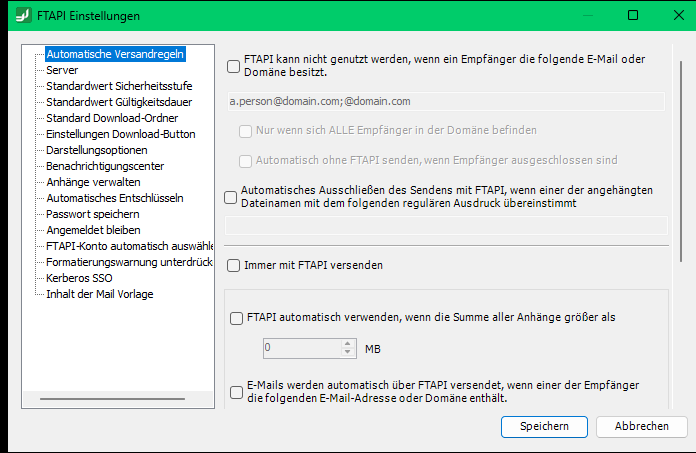
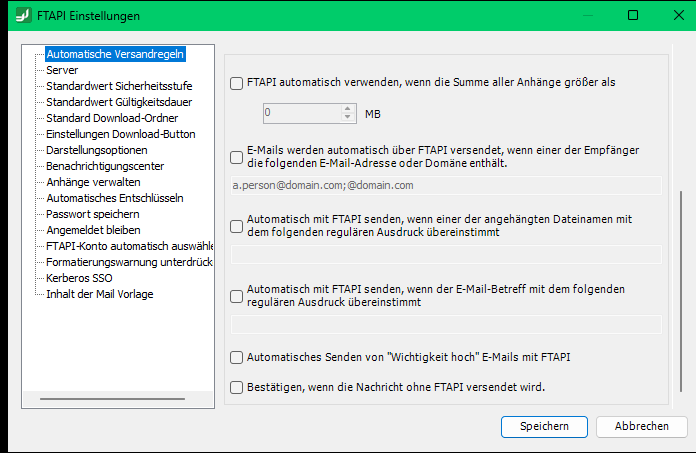
Automatic shipping rules
Define conditions under which FTAPI becomes active automatically. As soon as one of these conditions is met, the add-in converts the email into a secure delivery.
Example: Activate automatic shipping for file sizes of 1 MB or more. Every email with an attachment of this size or larger will then be sent automatically as an FTAPI delivery.
Server
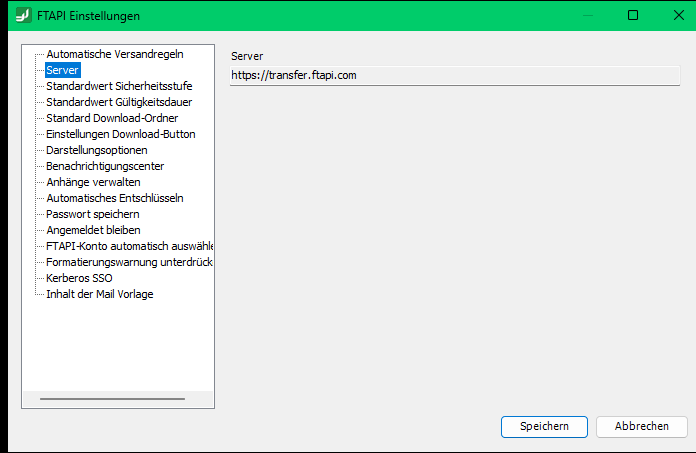
Here you can see which FTAPI server you are currently connected to. If this is not the desired server, log out and then log in to the correct server.
Default security level
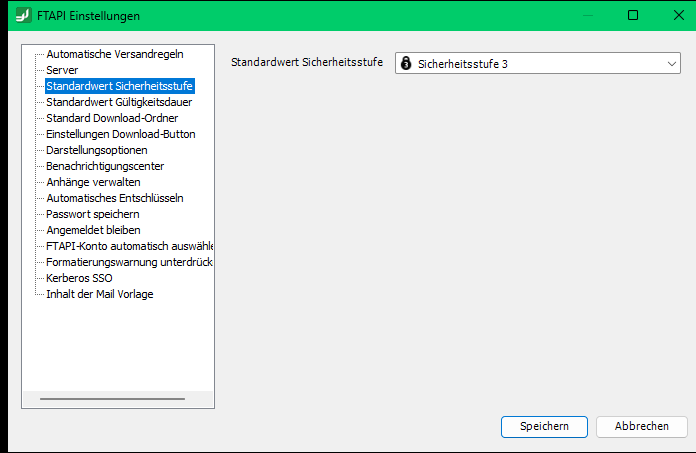
Set a default security level that is automatically preselected for every new delivery. You can change the level for each individual delivery manually at any time.
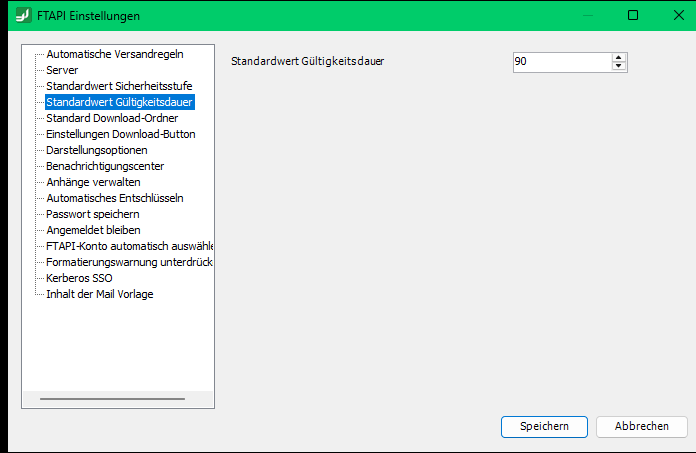
Default validity period
Define a general validity period for new deliveries. This is automatically preselected but can be adjusted individually for each delivery. If a fixed expiration date is enforced on the server side, it cannot be overwritten here.
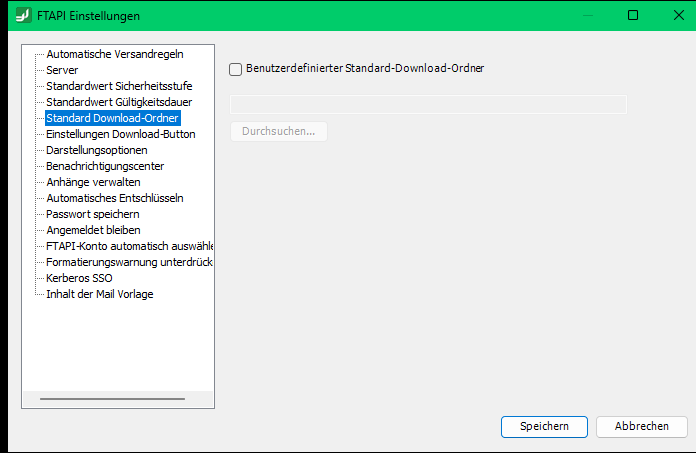
Default download folder
Specify the path where files are saved when you download them using the download button in the Outlook Add-In. The default path is:
C:\Users\<Username>\Downloads
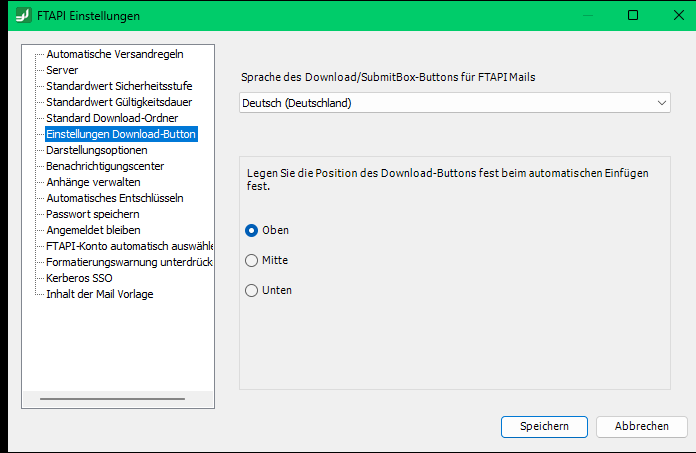
Download button settings
Determine whether the download and SubmitBox button inserted into the email is labeled in German or English. You can also select the position of the button in the email: Top corresponds to the beginning of the email, Middle to the area between the message text and signature, Bottom to the end of the email.
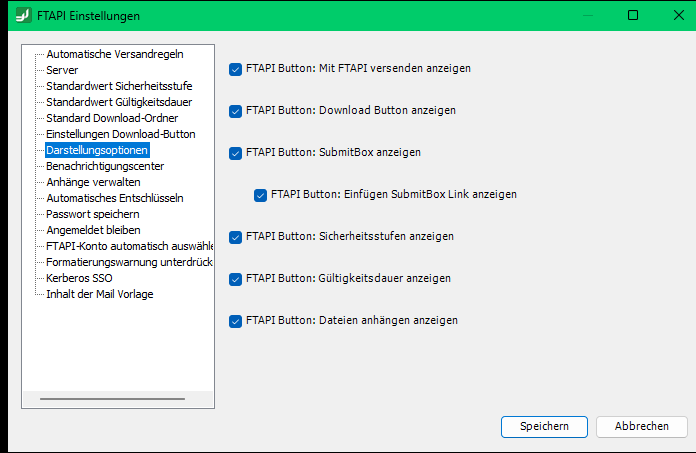
Display options
Select which FTAPI buttons are displayed in the Outlook menu bar when composing a new email.
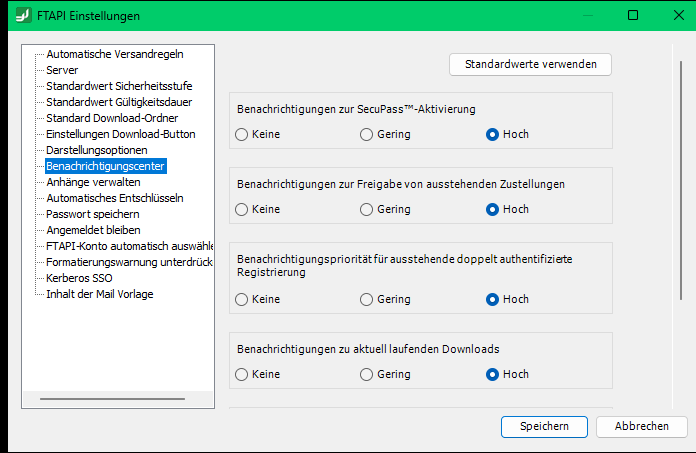
Notification center
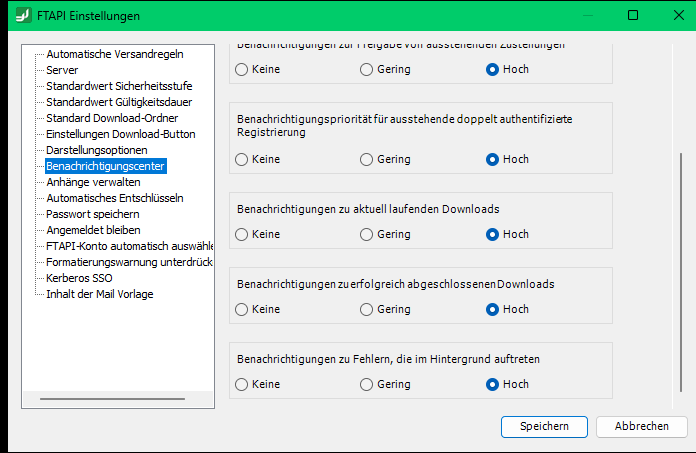
Control the priority of notifications for different event types.
High: The notification center opens automatically as soon as a new notification of the respective type is available.
Low: The notification appears in the center, but it does not open automatically.
None: No notification is generated for this event type.
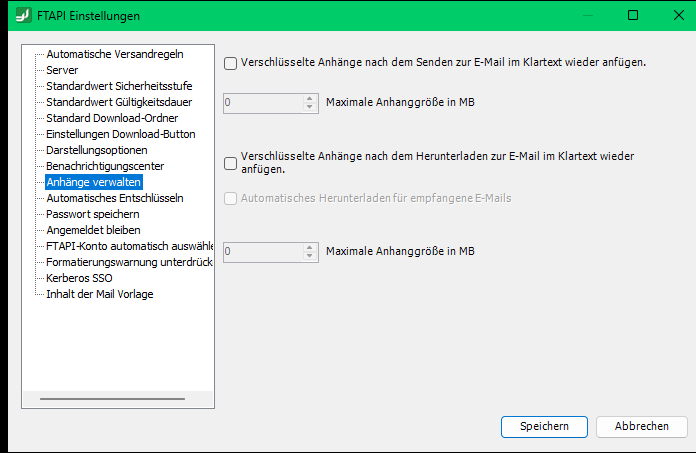
Manage attachments (archiving)
Specify separately for sending and downloading whether attachments should be re-attached unencrypted to the email in the Outlook folder after the respective process. This setting is relevant for internal company archiving software. The size limit determines the file volume up to which attachments are re-attached. The function is available for all security levels.
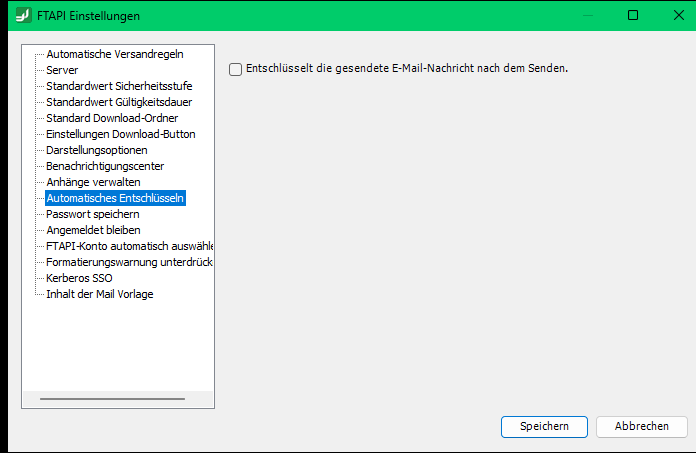
Automatic decryption
Determine whether sent messages are decrypted locally after sending and saved in your Outlook folder in plain text.
Password & Login
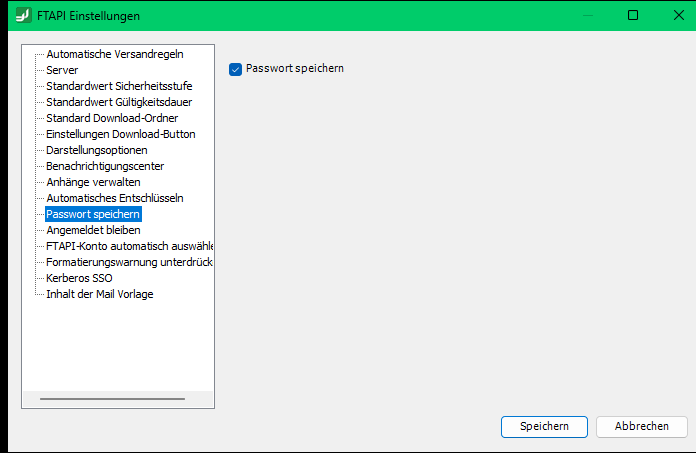
Save password: Determines whether your password remains saved in the profile.
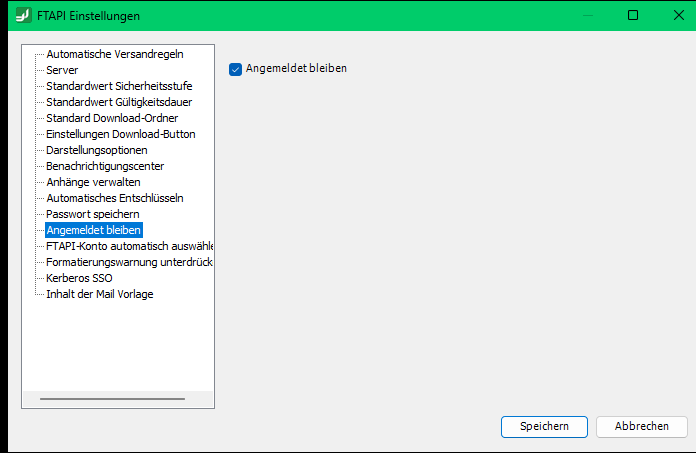
Stay logged in: Ensures that you are automatically logged in every time you restart Outlook.
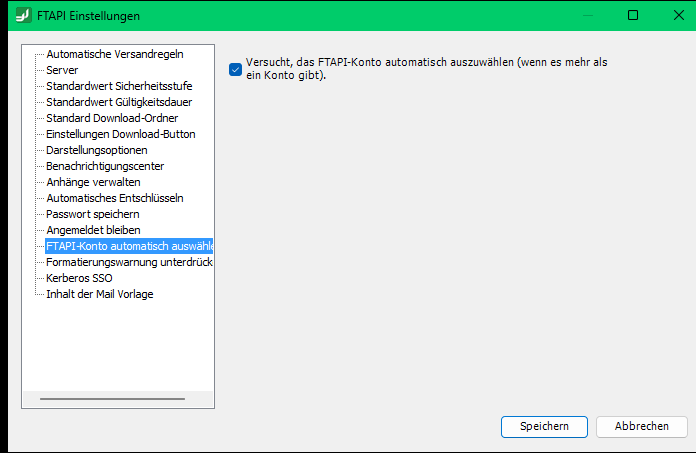
Select account automatically: Automatically selects a default user account if you have access to multiple mailboxes.
Further options
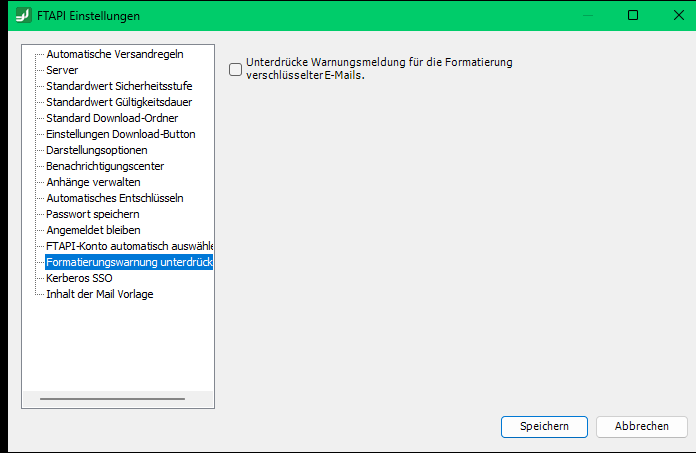
Suppress formatting warning: Deactivates the warning message that appears at security level 4 before removing formatting and inline attachments.
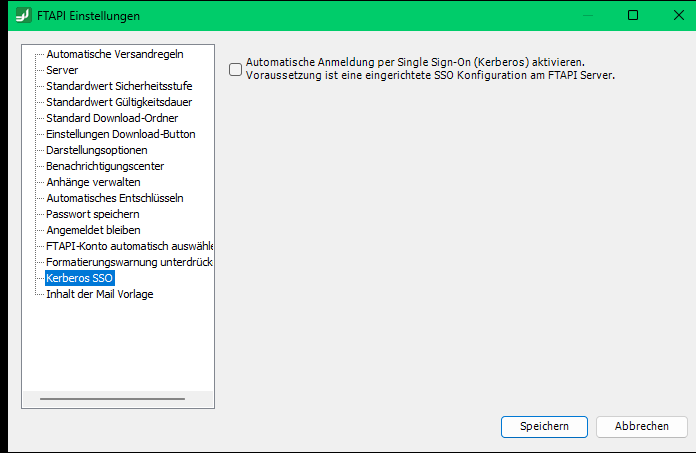
Kerberos Single-Sign-On: Activates automatic login via SSO. This requires an established SSO configuration on the FTAPI server.
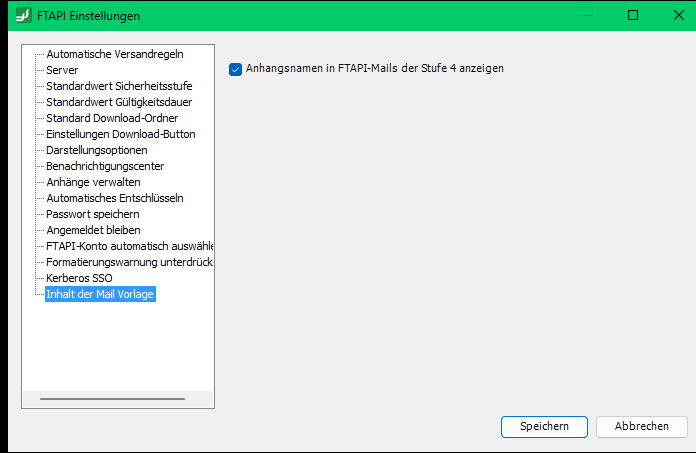
Mail template content: Controls whether attachment names in security level 4 FTAPI deliveries are visible before decryption.
Related articles
❓ Login: Login failed despite correct password (SAML/Standard)