
🎓 System Settings Part 1
In the web interface, you can access the "System" area by clicking on the "Administration" tab and then selecting "System" in the configuration menu on the left.
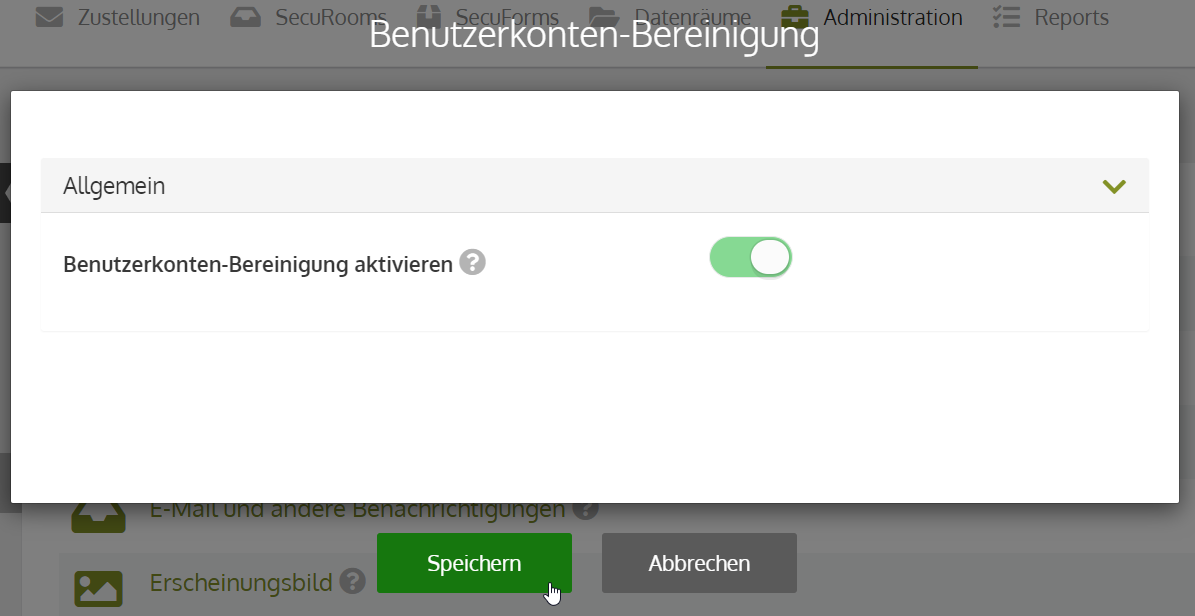
User Account Cleanup
The user account cleanup is a helpful setting to keep the system and the registered users up to date. When enabled, you can define for individual user groups after what period of time user accounts should be deactivated or deleted.
This setting is particularly useful for the "Guests" user group. Often, there is only a one-time contact with people from this user group. Automated deactivation or deletion after period X keeps the number of users to be administered to a minimum.
The specific parameters for user account cleanup are configured in the group settings (= separate onboarding lesson). In any case, user account cleanup must first be enabled globally in the system settings so that the option becomes available in the group settings.
Cleanup Policies
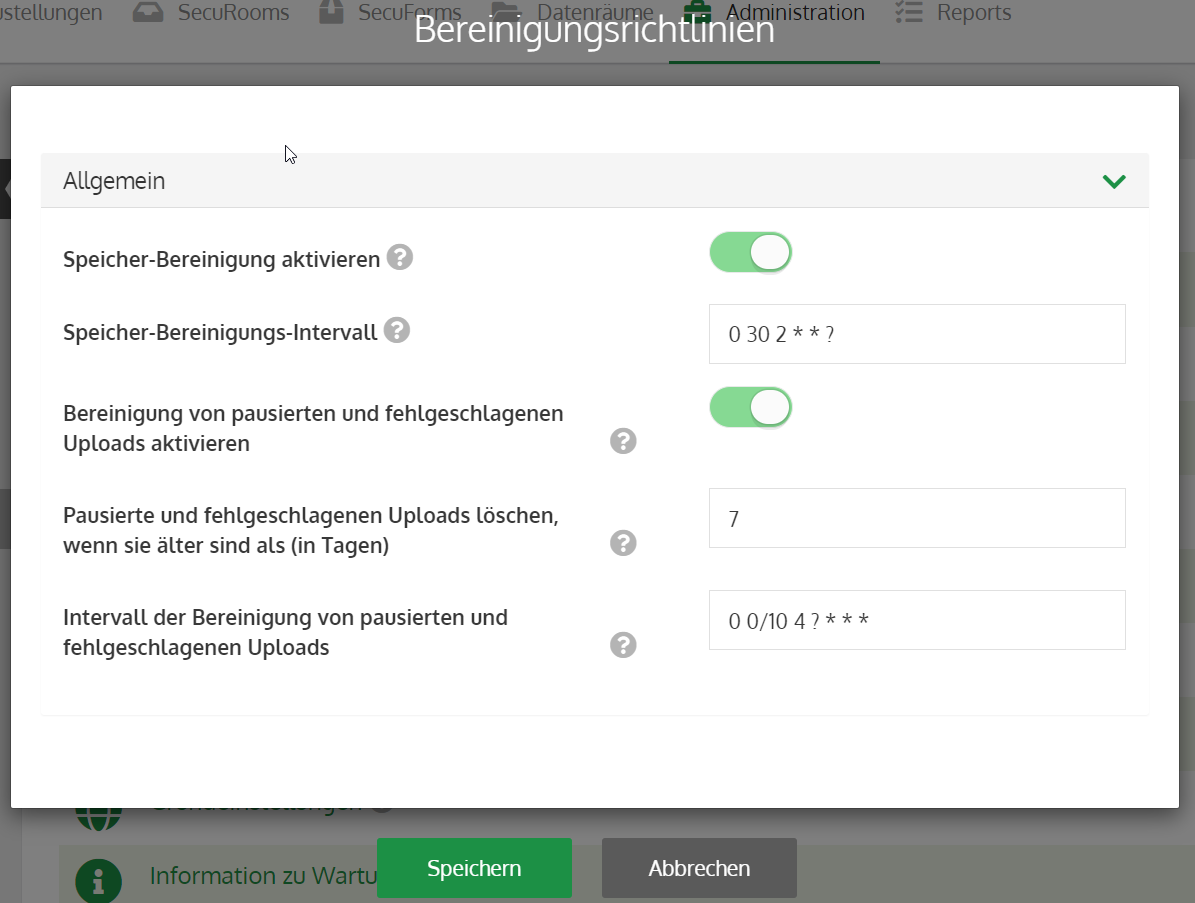
To protect your system from storage overload, you can set up automatic storage cleanups.
- Enable storage cleanup:
If enabled, a storage cleanup is performed for submissions. - Storage cleanup interval:
The interval for the storage cleanup is defined here using regex. The default is 0 30 2 * * ? = every day at 3:00 AM. - Enable cleanup of paused and failed submissions and data room uploads:
If enabled, failed submissions or data room uploads are deleted after a specified number of days. Disabled by default. - Delete paused and failed submissions and data room uploads if they are older than (in days):
Specify the number of days after which failed submissions and data room uploads are deleted. - Interval for cleaning up paused and failed submissions and data room uploads:
Interval specification for when the cleanup takes place. The default is 0 0/10 4 ? * = every day at 4:00 AM.
Article on using time-based expressions - CronJob. >>To the article.
Brute Force Protection
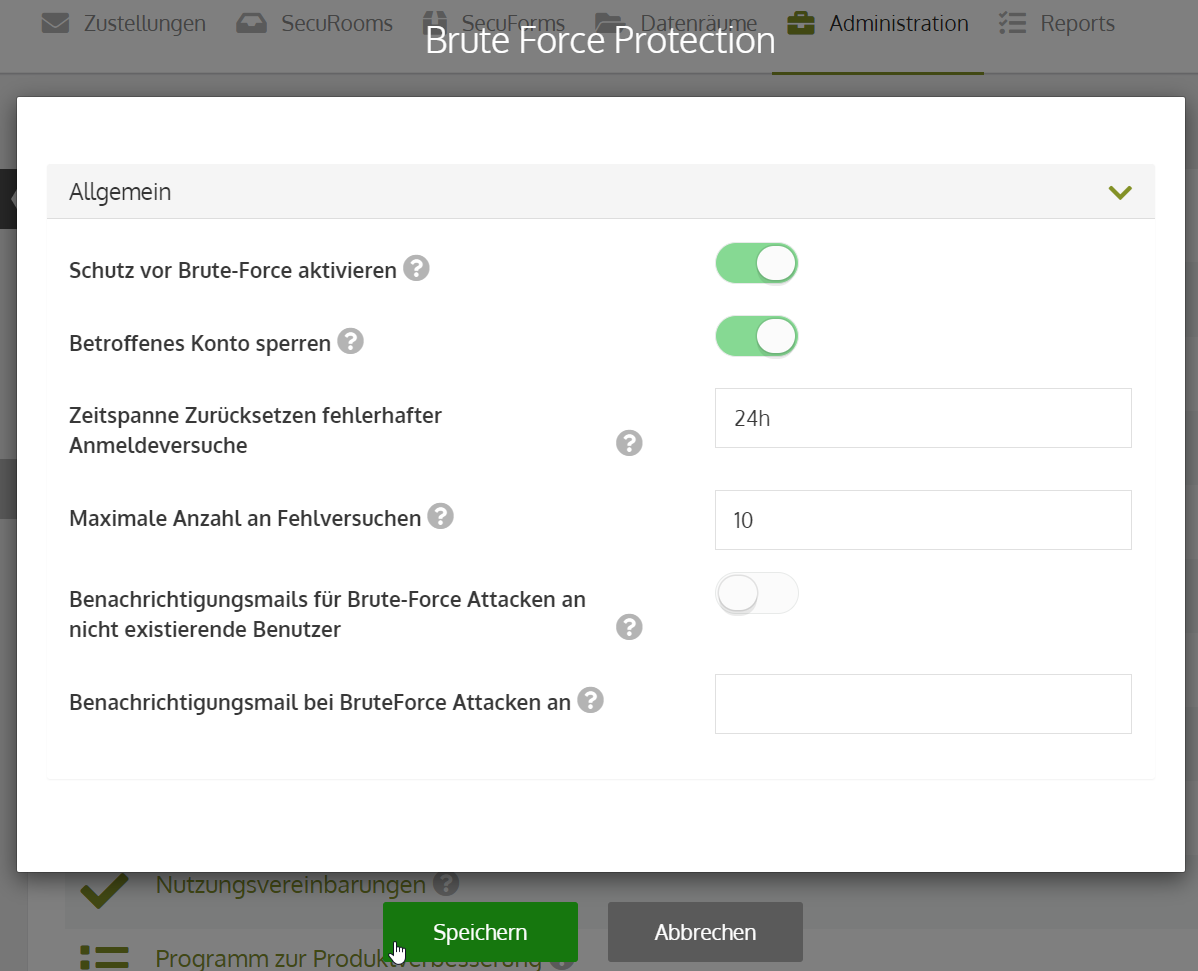
Brute Force Protection is a security feature that protects user accounts from unauthorized access by third parties.
The following settings are available:
- Enable Brute Force Protection: If enabled, Brute Force Protection applies to all user accounts registered in the system. Enabled by default.
- Lock affected account: If enabled, user accounts are locked as soon as a brute force attack is detected. Enabled by default.
- Time span to reset failed login attempts: Time unit after which the number of failed login attempts is reset; the default is "24 h".
- Maximum number of failed attempts: Maximum number of failed login attempts before Brute Force Protection intervenes and the account is locked.
- Notification emails for brute force attacks on non-existent users: If enabled, a notification is sent to the email address specified in point 6 every time a login attempt occurs for non-existent user accounts.
- Notification email for brute force attacks to: The specified email address receives a notification email after every brute force attack.
Email and other notifications
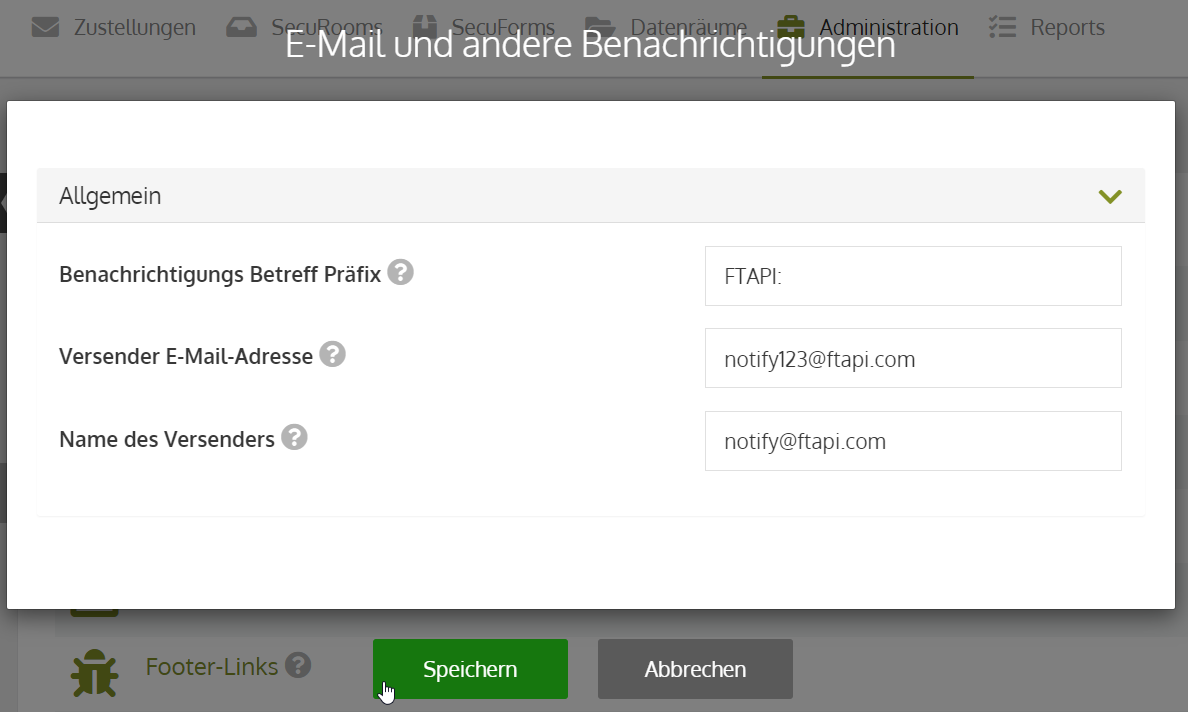
Under this menu item, you can configure settings for notifications generated by the FTAPI system:
- Notification subject prefix:
This is the text that is written at the beginning of the subject line of every email sent from the FTAPI server. - Sender email address:
The sender address that should appear in the email for system notifications. This does not have to match the SMTP username or even exist.
The default is "notify123@ftapi.com".
- Sender name: The name of the sender that should appear in the email for system notifications. This can be any name and does not have to match the SMTP username.
Appearance
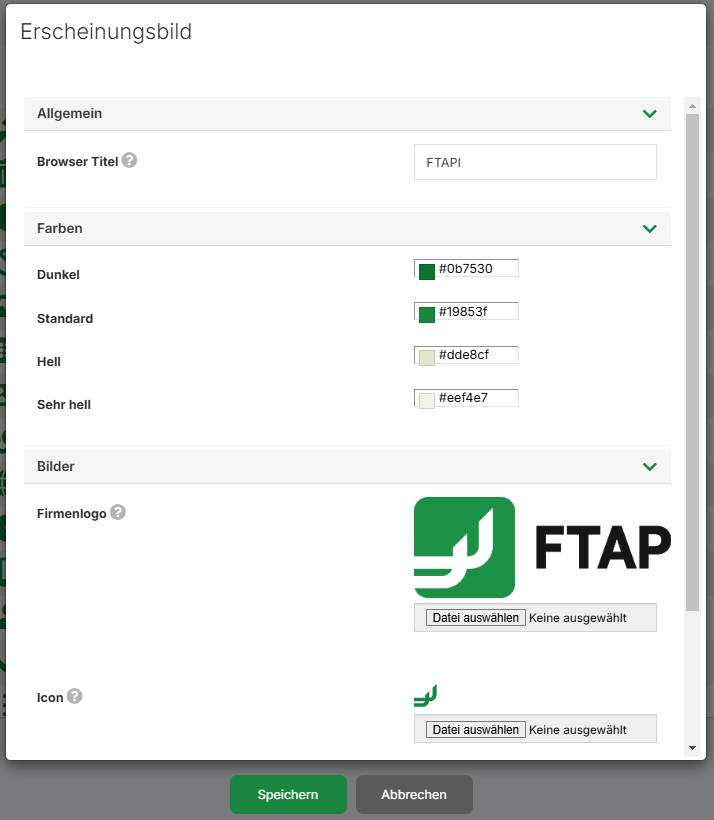
Under this item, the FTAPI system can be designed to be CI-compliant.
General:
- Browser title:
Title that appears in the browser.
Colors:
- Dark:
Color for buttons and icons in the web interface. - Standard:
Color for elements when "hovering" over them. - Light:
Color for row elements (e.g., submissions). - Very light:
Color that rows take on when "hovered" over.
Images:
- Company logo image:
Company logo displayed in the header of the web interface.
Recommended size: 260px x 100px SVG, PNG or JPEG - Favorite icon image:
Icon that appears in the browser window.
Recommended size: 64px x 64px SVG or PNG (GIF and ICO formats are also possible)
Footer Links
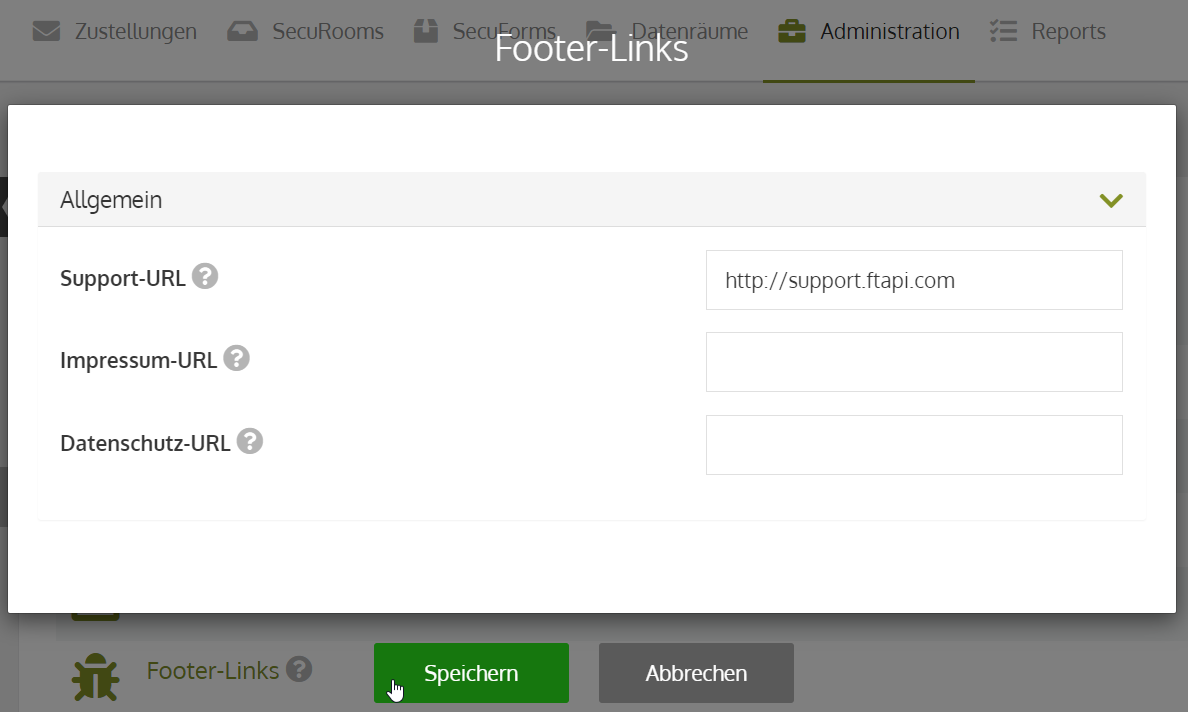
Under this setting, the footer area for the FTAPI system can be customized. When clicking on the elements in the footer, the user is directed to the stored URL.
The following three links are available in the footer area:
- Support
- Imprint
- Privacy Policy
Under "Support", the URL to the FTAPI Help Center is stored by default. The URL can be easily replaced. Please do not forget to click "Save" after making a change.
For Imprint and Privacy Policy, no URL is stored by default, which is why they do not appear in the footer. As soon as a URL is stored, the respective area will appear in the footer.
Basic Settings
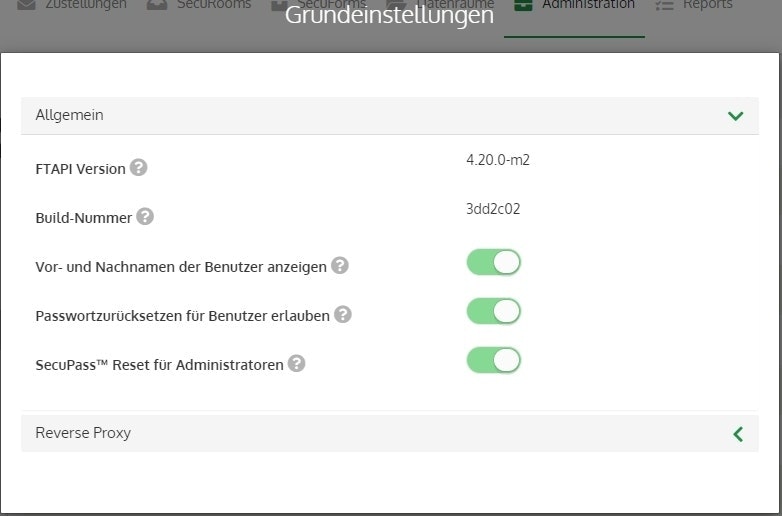
In the basic settings, you will find general settings and information about the FTAPI system.
- FTAPI version:
The current version number of the FTAPI system. For cloud systems, the latest version is always installed. - Build number:
In addition to the FTAPI version number, the build number. - Display user first and last names:
If enabled, the user is displayed with their first and last name, provided this information was stored during account creation. - Allow password reset for users:
If enabled, users can independently request a link from the system to reset their password. - SecuPass reset for administrators:
If enabled, administrators can reset the SecuPass key for users.
CAUTION: All submissions encrypted with the SecuPass key (security levels 3 and 4) will be irrevocably lost with a SecuPass reset!
Information on maintenance work
Maintenance work on the system is always performed by FTAPI in the evening (from 6:00 PM, UTC +1). Exceptions are any necessary security updates.
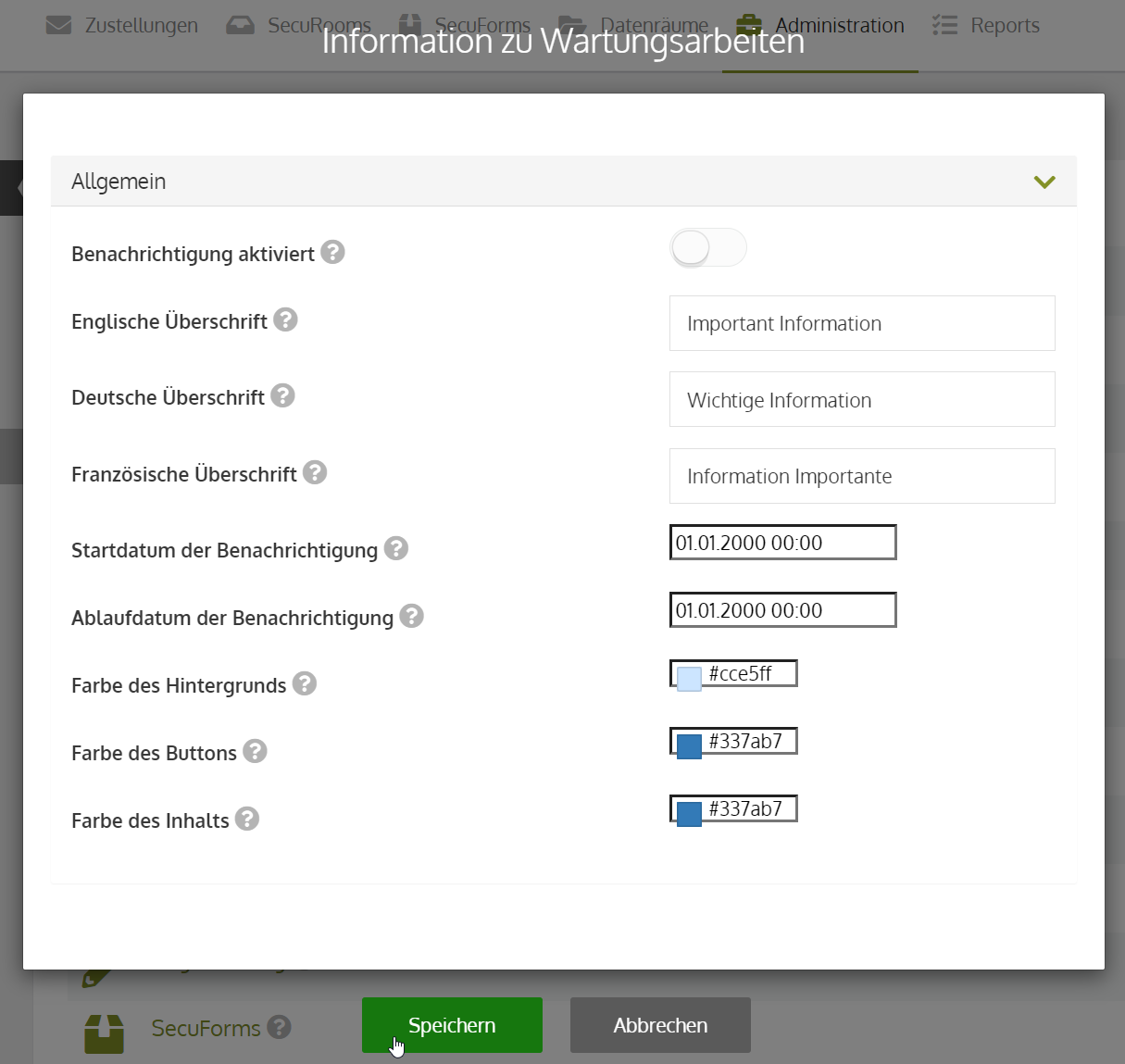
If employees need to be actively informed about upcoming maintenance work, this can be done via the following setting:
- Notification enabled:
Enables/disables the notification. - English heading:
Title of the notification in English. - German heading:
Title of the notification in German. - French heading:
Title of the notification in French. - Start date of notification:
Time from which the notification is displayed. - Expiry date of notification:
Time from which the notification is hidden. - Background color:
Background color of the notification. - Button color:
Button color for closing the notification. - Content color:
Color of the text.
Part 1 completed!
Congratulations, Part 1 of the system settings has been successfully completed!
< Previous chapter To the overview Next chapter >