
📋 Outlook Add-In (new): Configuring automatic sending rules
Configuring sending rules
Applies to: New Outlook (Windows, OWA).
Note: These settings apply only to the new Outlook. If you are using classic Outlook (desktop version), you can find the corresponding options in our Help Center under Outlook (classic): Sending rules.
In short: With sending rules, you control when emails are automatically sent securely via FTAPI. Choose one of three modes: Always send with FTAPI, never send with FTAPI, or rule-based sending with FTAPI.
Prerequisites
- FTAPI Add-in for new Outlook is installed and activated.
- Group-level Administrator permissions are available.
Opening sending rules
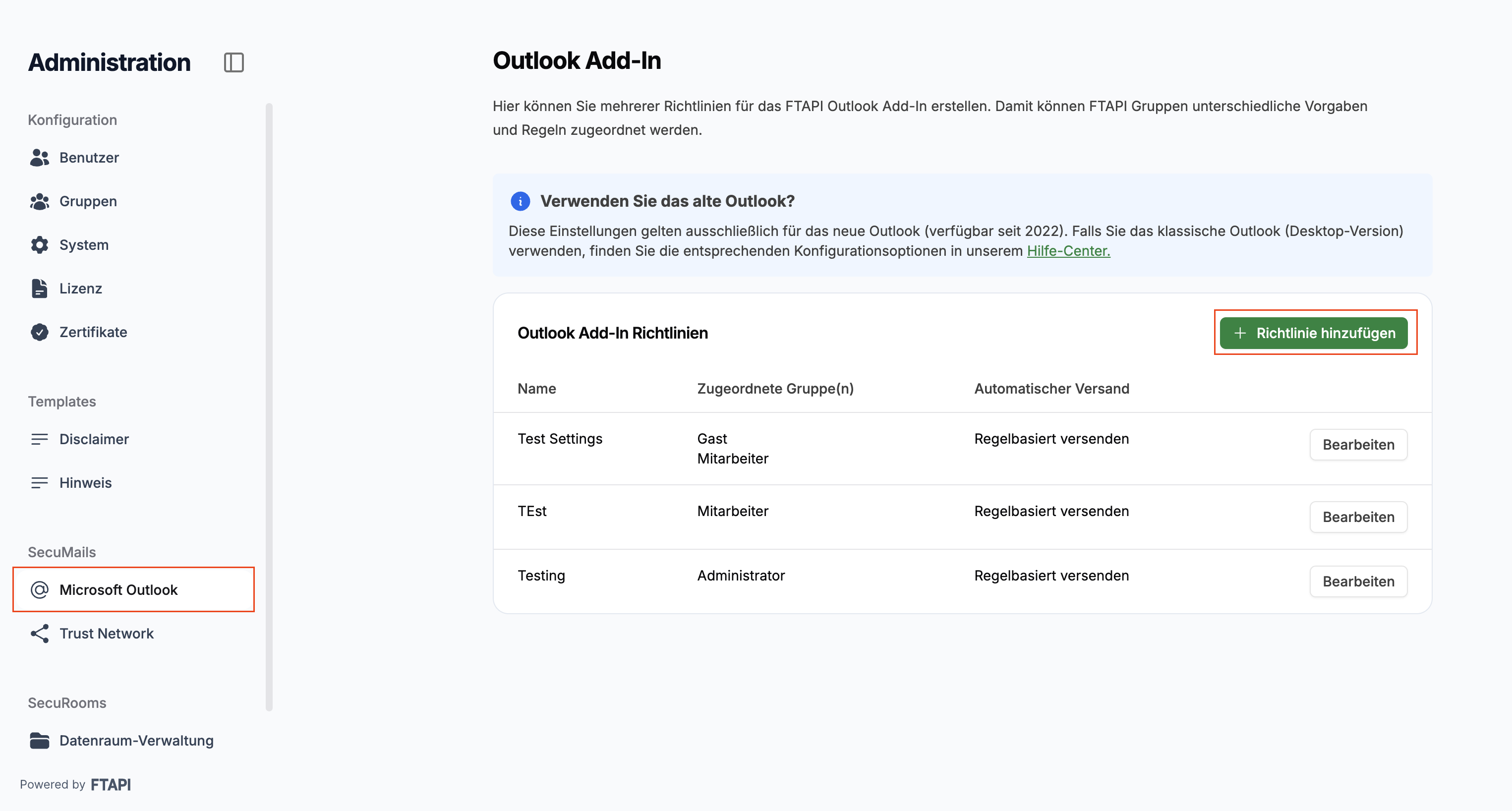
- Log in to your FTAPI instance in the browser
- Navigate to Administration
- Select the Microsoft Outlook option in the left menu navigation
- Click the Add policy button
Function overview (modes)
You can choose between three modes. The selected mode applies globally and determines the behavior during sending.
Always active
All emails (with and without attachments) are automatically sent securely via FTAPI.
Never active
No email is automatically sent via FTAPI (manual triggering remains possible).
Rule-based
Sending occurs based on your individually defined rules.
If no rule applies, emails are not automatically sent via FTAPI.
Setting up rule-based sending
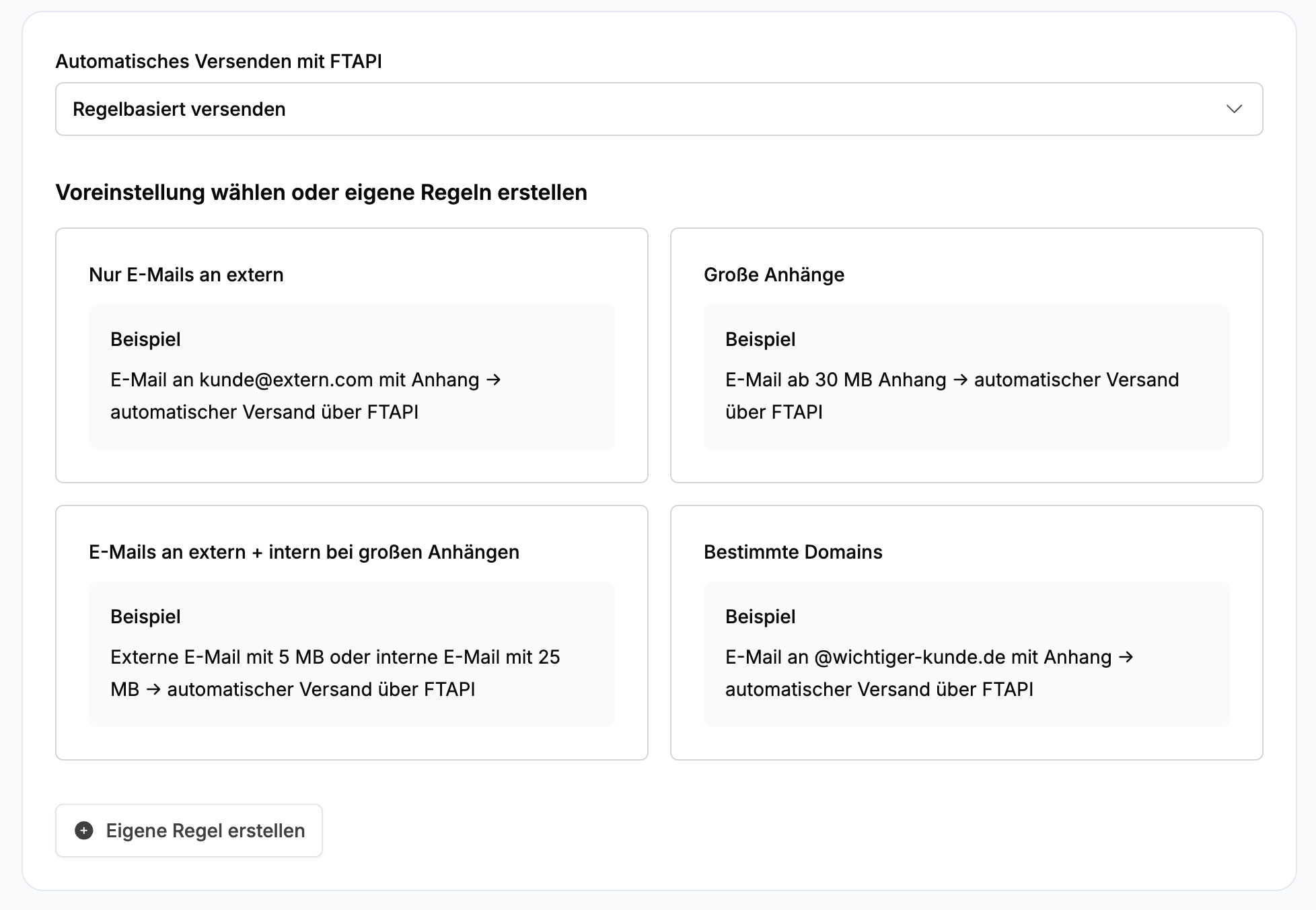
- In the Automatic sending with FTAPI section, select the Rule-based option.
- Select a template that applies to you or create your own rule.
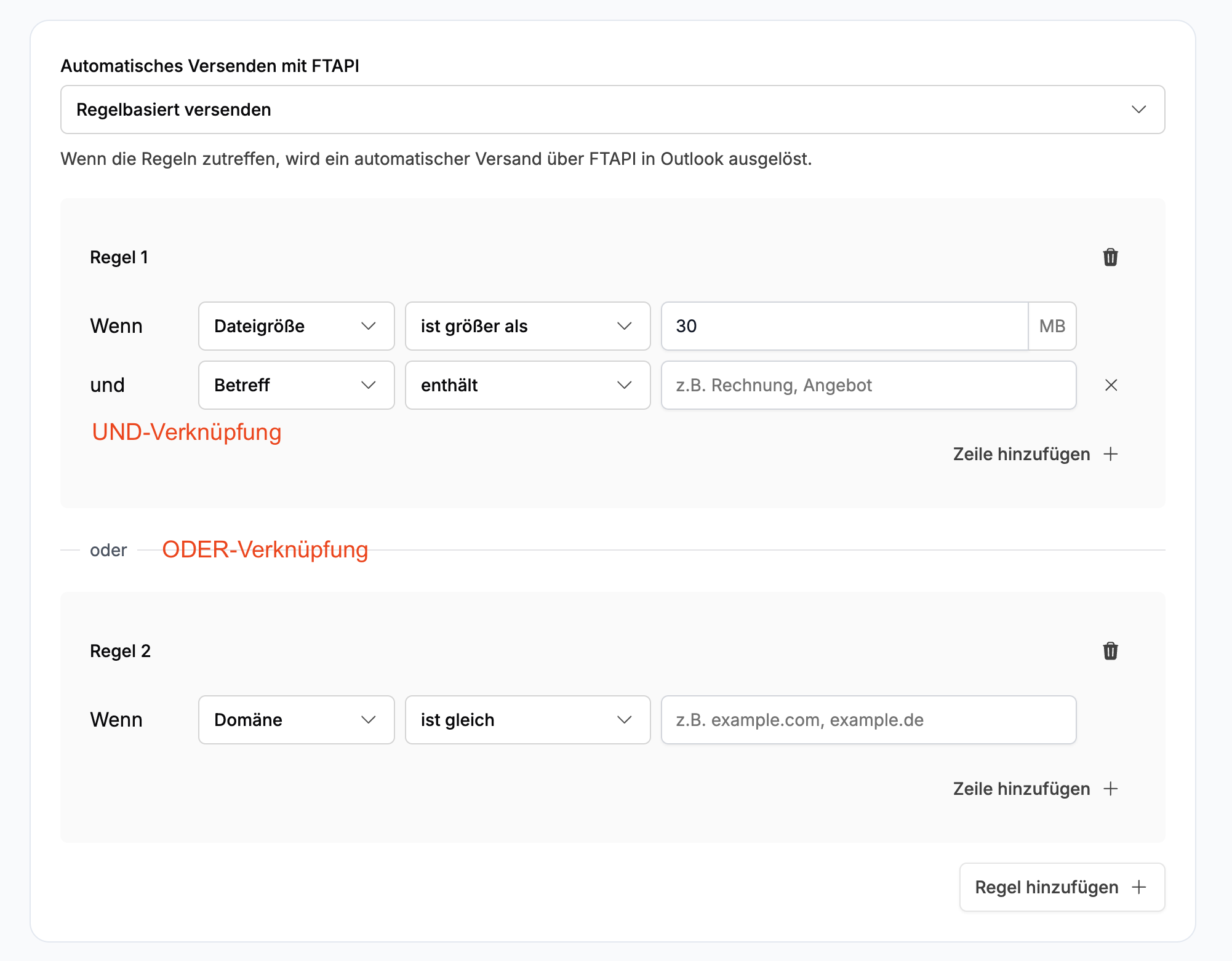
Logic
- Multiple conditions within one rule are linked with AND (all conditions must be met).
- Multiple rules are linked with OR (at least one rule must be met).
Available condition types
1) Domain — checks the recipient address
- Operators: is equal to, is not equal to.
- Input format: Only the domain, e.g. mycompany.com (without @).
- Separate multiple values with a comma.
Examples:
- Condition: Domain is not equal to mycompany.com
Result: Emails to mycompany.com are not sent via FTAPI; for all other domains, emails are sent automatically via FTAPI. - Condition: Domain is equal to yourcompany.com, theircompany.com
Result: Emails to these domains are automatically sent via FTAPI.
2) File size — checks the size of attachments
- Operator: is greater than, is less than.
- Unit: Megabyte (MB).
- The total size of the attachments is checked.
Examples:
- Condition: File size is greater than 2 MB
Result: Emails with attachments over 2 MB are automatically sent via FTAPI.
Condition: File size is greater than 0 MB
Result: All emails with an attachment are automatically sent via FTAPI.
3) Subject — checks for keywords in the subject line
- Operators: contains, does not contain.
- Note: Case-insensitive.
Examples:
- Condition: Subject contains important
Result: Emails with this word in the subject are automatically sent. - Condition: Subject does not contain internal
Result: Emails with this word in the subject are not automatically sent.
Combinations of conditions and rules
Multiple conditions (AND logic)
All conditions of the rule must be met.
Example 1
- File size is greater than 2 MB
- Subject contains important
→ Only emails with attachments over 2 MB and the word "important" in the subject are automatically sent.
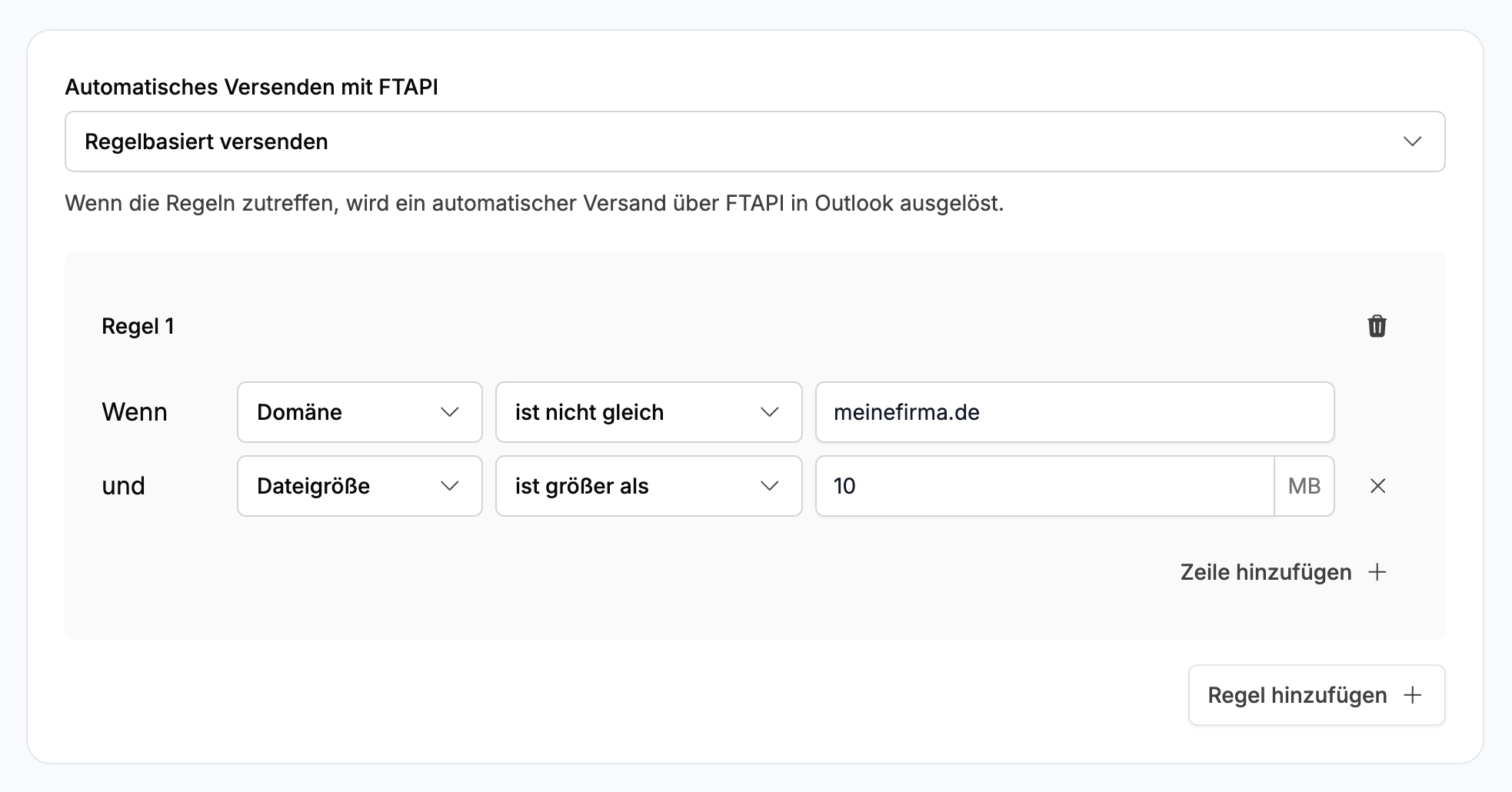
Example 2
- Domain is not equal to mycompany.com
- File size greater than 10 MB
→ Only emails to other domains and with attachments over 10 MB are automatically sent.
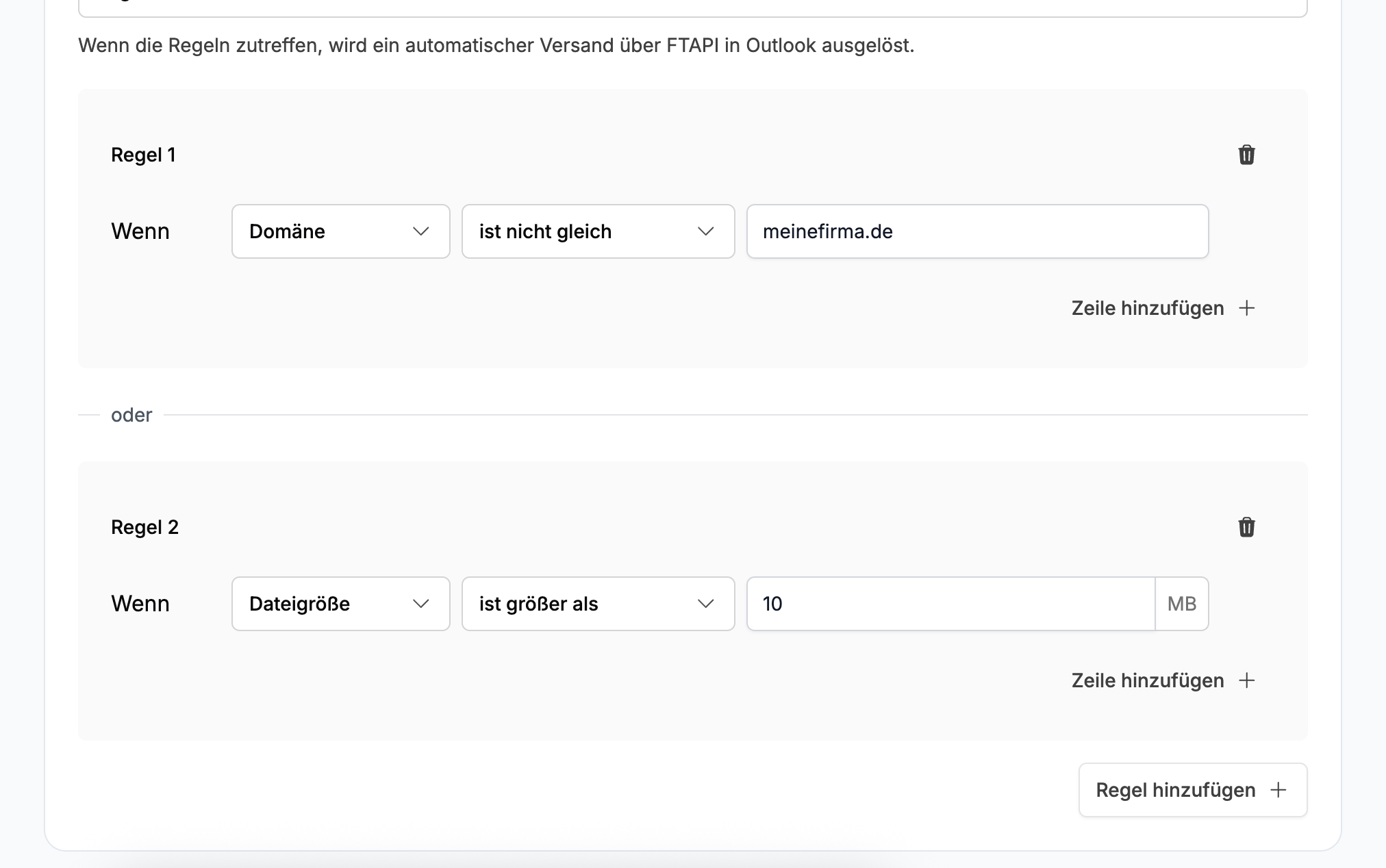
Multiple rules (OR logic)
At least one rule must be met.
Example 1
- Rule 1: File size greater than 2 MB
- Rule 2: Subject contains important
→ Sending occurs if one of the two conditions is met.
Example 2
- Rule 1: Domain is not equal to mycompany.com
- Rule 2: File size greater than 10 MB
→ Emails to mycompany.com are not automatically sent – unless the attachments are greater than 10 MB.
Tips & Best Practices
- Exclude internal communication: With Domain is equal to mycompany.com, you prevent automatic FTAPI deliveries to internal addresses.
- Secure large attachments: Set File size greater than 10 MB to automatically protect large shipments.
- Secure attachments generally: With File size greater than 0 MB, you automatically secure all emails with an attachment.
Use keywords: Define clear terms ("confidential", "NDA", "offer") to identify business-critical emails.