
📋 SecuRooms Drive: User Guide
Prerequisites
To use the SecuRooms Drive, it must be deployed to your computer by your internal FTAPI admin.
If SecuRooms Drive has been installed on your computer and you meet the following conditions, you can log in and get started right away:
- You have a user account on the SecuRooms server.
- You possess a valid FTAPI SecuRooms license.
Access to SecuRooms Driveis enabled for your user group.
Login
- During installation, SecuRooms Drive is automatically added to the Windows startup and will open automatically upon your next login after installation. Alternatively, search for
FTAPI SecuRooms Drivein your applications and start the application with a double-click. - Click the
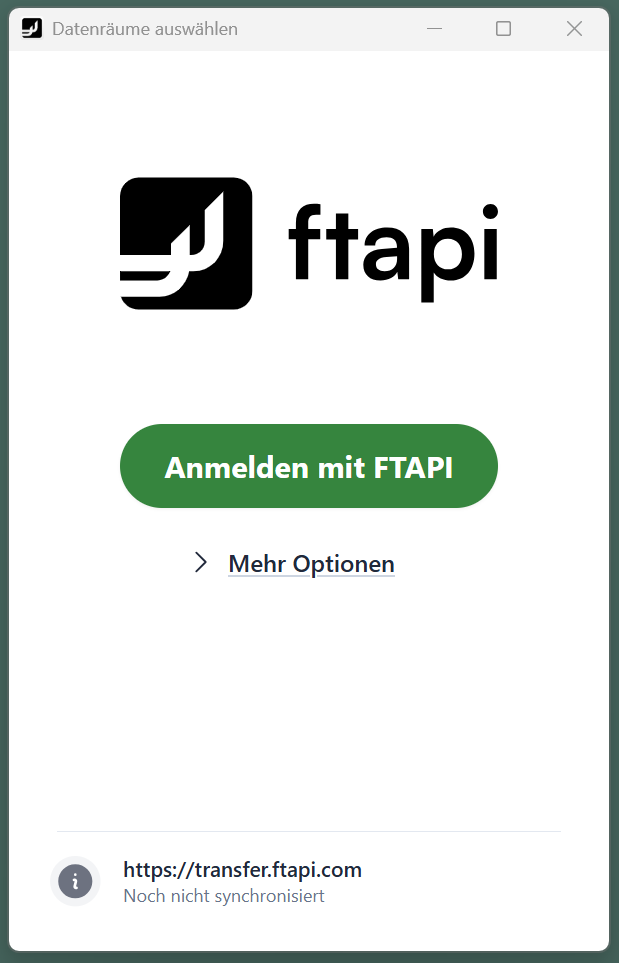
Login with FTAPIbutton in the application window to start the login process.
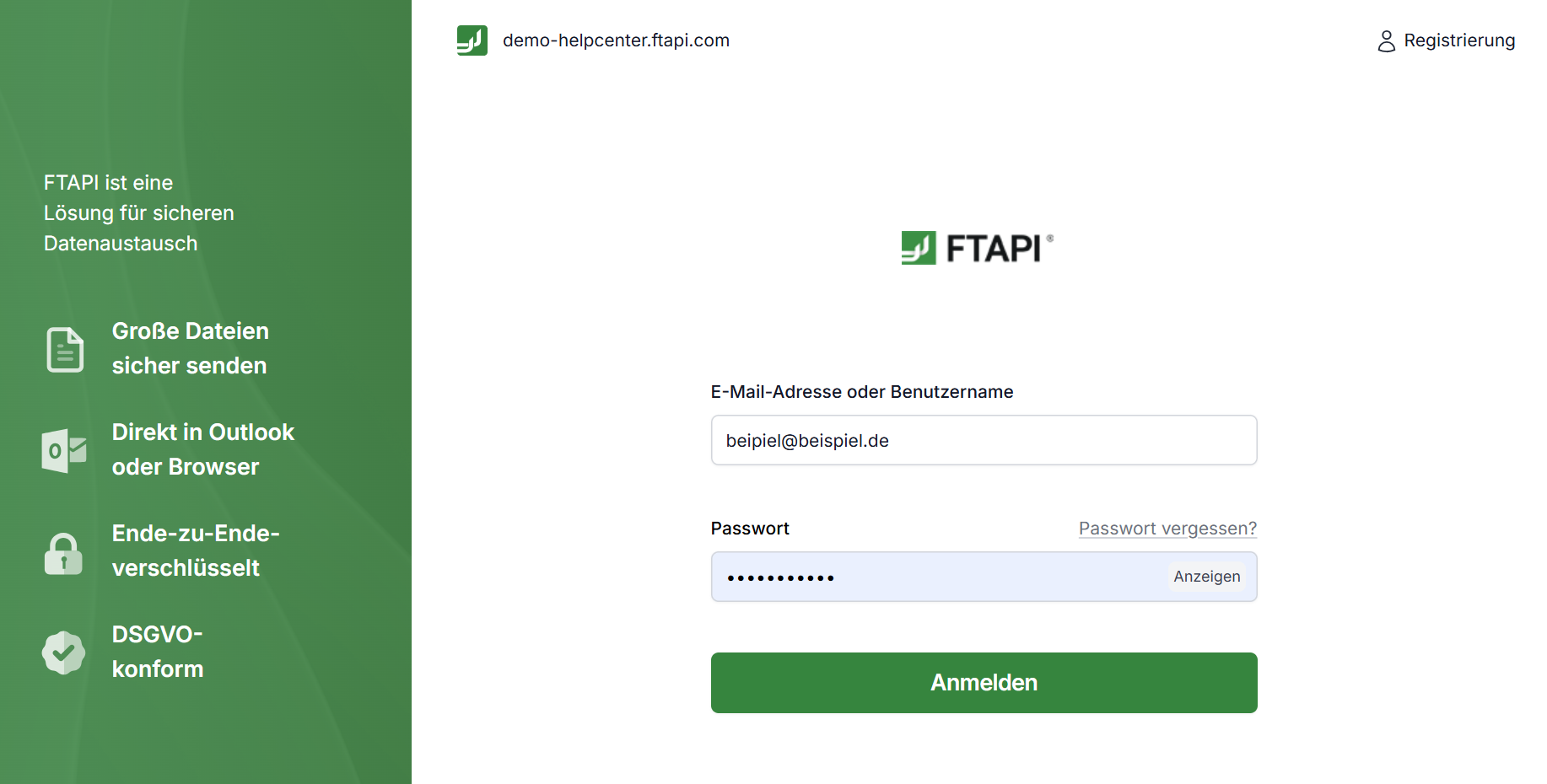
3. You will be redirected to your usual login interface in the browser. Log in to FTAPI there as usual.
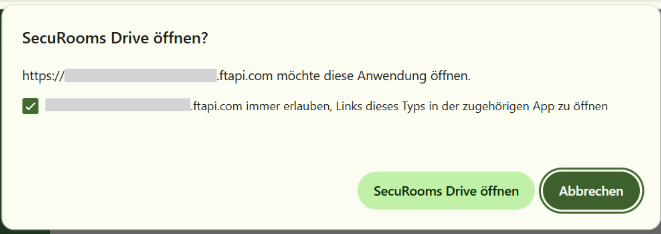
4. Confirm in the browser notification that you want to open the SecuRooms Drive.
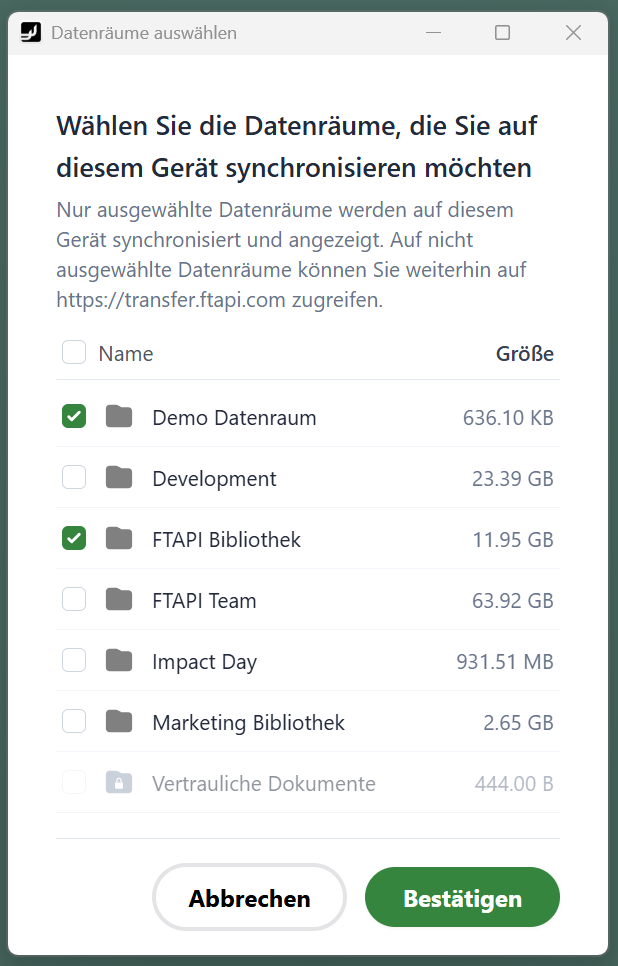
5. Back in the application window, select which data rooms should be synchronized on the device. You can adjust this selection at any time.
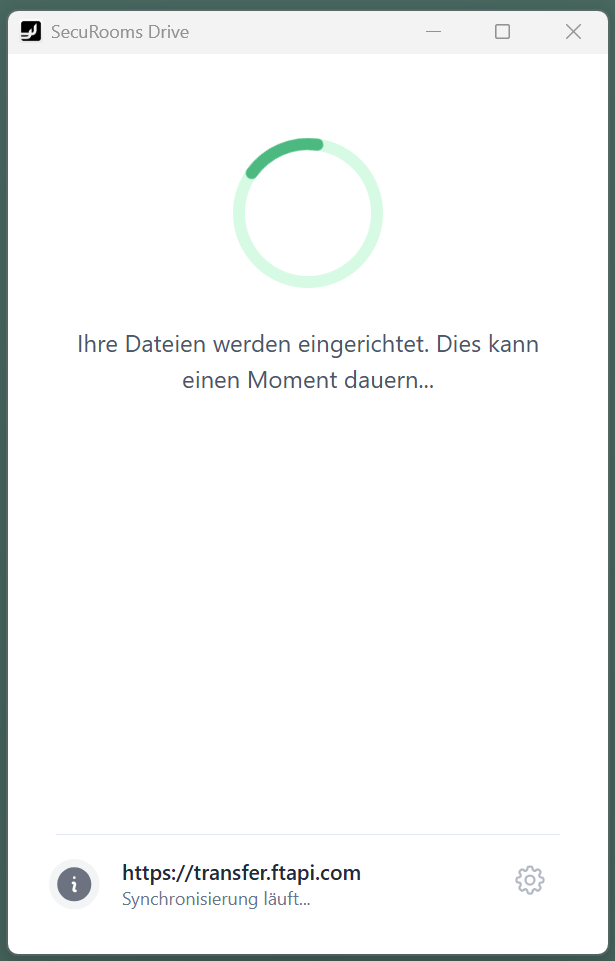
6. Wait a moment while your SecuRooms Drive is being set up.
7. Then you can get started with the SecuRooms Drive by clicking the Open SecuRooms Drive button.
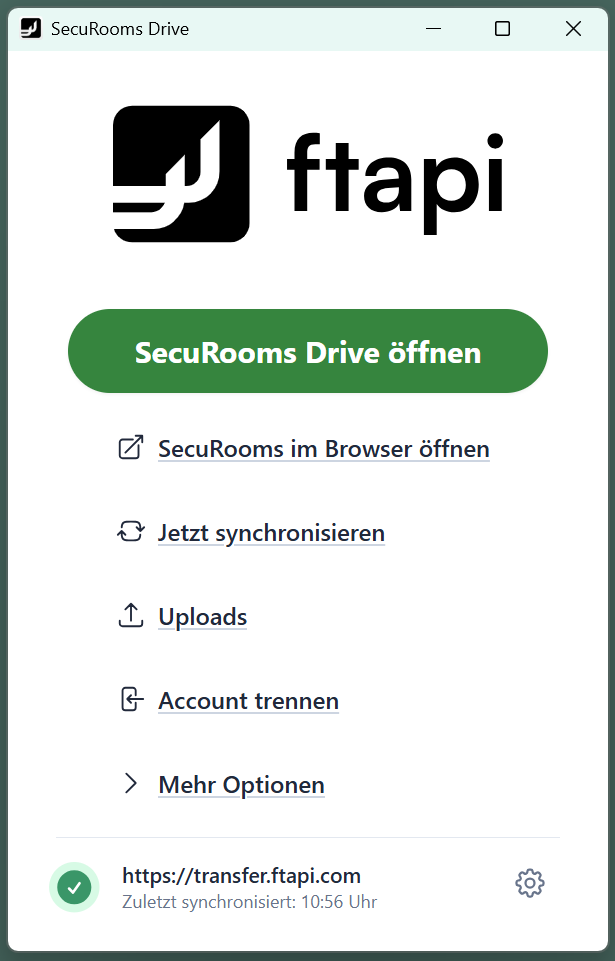
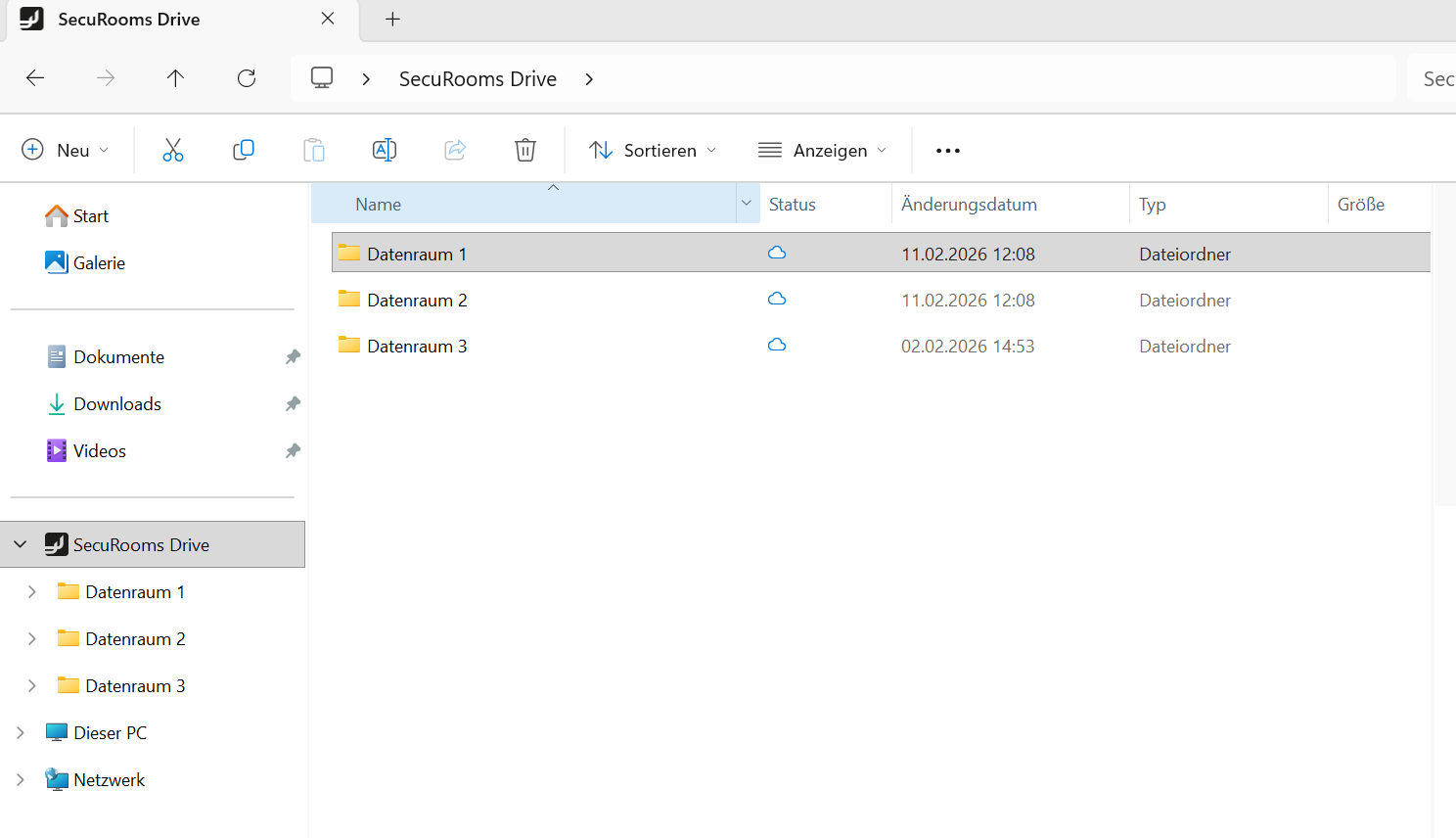
8. Clicking the Open SecuRooms Drive button opens the SecuRooms Drive in your file explorer. You have successfully logged in and can now start editing your files in the data room.
SecuRooms Drive Application Window
You have the following options in the SecuRooms Drive application window:
- Open SecuRooms Drive: The SecuRooms Drive opens on your desktop.
- Open SecuRooms in browser: Takes you to the SecuRooms browser version.
- Sync now: Here you can manually trigger the synchronization of the SecuRooms Drive from the browser to your local file system (otherwise this happens automatically every 15 minutes). This is not necessary from the local file system to the browser, as changes are always synchronized immediately here. You can see in the footer when the SecuRooms Drive was last synchronized.
- Uploads: Synchronization from the local file system to the browser occurs immediately as described above. Uploads take some time, especially with larger files. You can therefore view the status of the upload here at any time.
- Disconnect account: All synchronized data will be removed from the device. If your session expires after 5 days of inactivity and you want to log in with a different account afterwards, you must actively confirm this so that no data is removed unnoticed.
- More options:
- Support: Takes you directly to the FTAPI Help Center, where you are currently located.
- Legal Notice: Takes you to the legal notice.
- Privacy Policy: Takes you to the privacy policy.
- Version number: Here you can see which version of the SecuRooms Drive you are using. Information on the scope of functions of the various versions can be found in the Changelog.
- In the footer, you can also see which server you have connected to the SecuRooms Drive and when it was last synchronized.
- You will also find the gear icon there, which you can use to select which data rooms you want to have available locally.
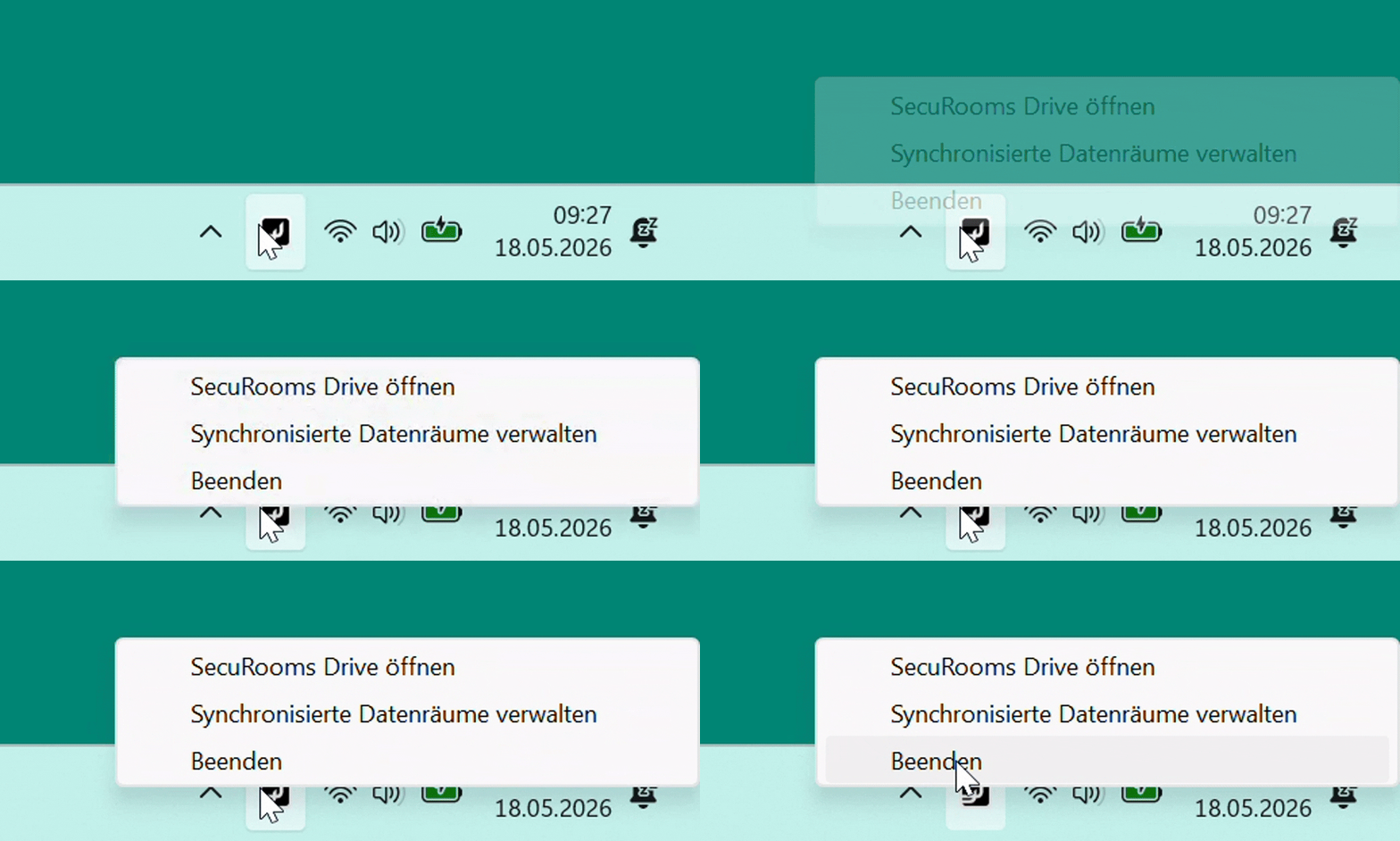
💡Tip: Which data rooms SecuRooms Drive synchronizes can be selected and changed at any time even more easily via the SecuRooms Drive icon in the taskbar notification area (bottom right next to the clock). Users who work with multiple data rooms can thus quickly switch between synchronization profiles without interrupting their workflow.
ℹ️ For quick access from the screenshot, simply drag the SecuRooms Drive from the system tray into your taskbar.
Data Room & File Status
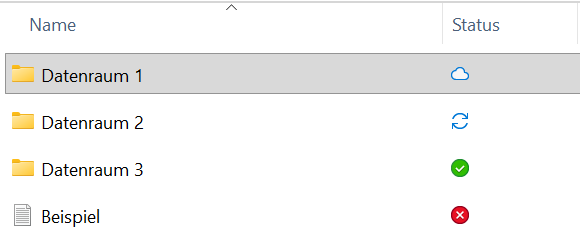
In your Windows Explorer, the status indicates where a data room, folder, or file is located and how you can work with it.
| Icon | Status | Description |
|---|---|---|
 | Available when online | The blue cloud icon indicates that the file or folder is only available online. These files do not take up space on the local system but are not accessible without an internet connection (content cannot be viewed). Tip: You can download the content via right-click -> Always keep on this device. |
 | Synchronization pending | Files that are currently being synchronized. When the process is complete, the icon will be replaced by one of the other icons. |
 | Always available on this device | The green circle icon indicates that the file/folder has been pinned and is always available locally. It is not automatically converted back into an online file by the system. New versions are downloaded automatically. Tip: You can reset the status via right-click -> Free up space. |
 | Error | The file contains an error and can only be opened locally. The file is not being synchronized. |
Make files available locally or free up space
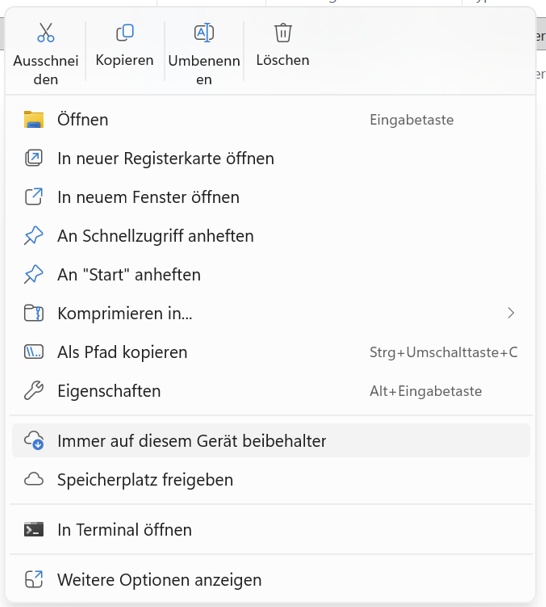
Right-click on a file or folder to change the local status:
- Select
Always keep on this deviceto make content permanently available offline. - Select
Free up spaceto convert the file back into an online-only file and save local storage.
Example context menu:
Features
In the first version of SecuRooms Drive, the following features are available to you:
SecuRooms directly on the desktop
During the first login, you select which data rooms should be synchronized to your device and subsequently see these data rooms directly in your local file system. If you want to see other data rooms locally, adjust your selection at any time via the gear icon in the application window.
Session duration
SecuRooms Drive keeps your login active permanently as long as the app is open. If you close the app, the session is maintained for up to 5 days – if you open the app again within this period, you will be logged in automatically and do not need to enter your credentials again. After more than 5 days, a new login is required.
Synchronized data rooms
The following data rooms are synchronized automatically:
- All unencrypted data rooms,
- in which you have editor or owner rights.
Adjustments to the structure
You can edit files and folders within the data rooms (add, delete, rename, move).
Automatic synchronization
- From PC to SecuRooms: If you create, rename, or delete files on the PC, this is immediately applied to the online storage.
- From SecuRooms to PC: Every 15 minutes, the program checks if there are any online updates and updates your local status. You can also start this comparison yourself at any time by clicking
Sync now.
SecuRooms Drive 🤝 Outlook Add-in
Sending secure files from SecuRooms via email is now much easier:
With the SecuRooms Drive, you now have your secure data rooms directly as a drive on your computer, where the SecuRooms Drive and the Outlook Add-in interact directly:
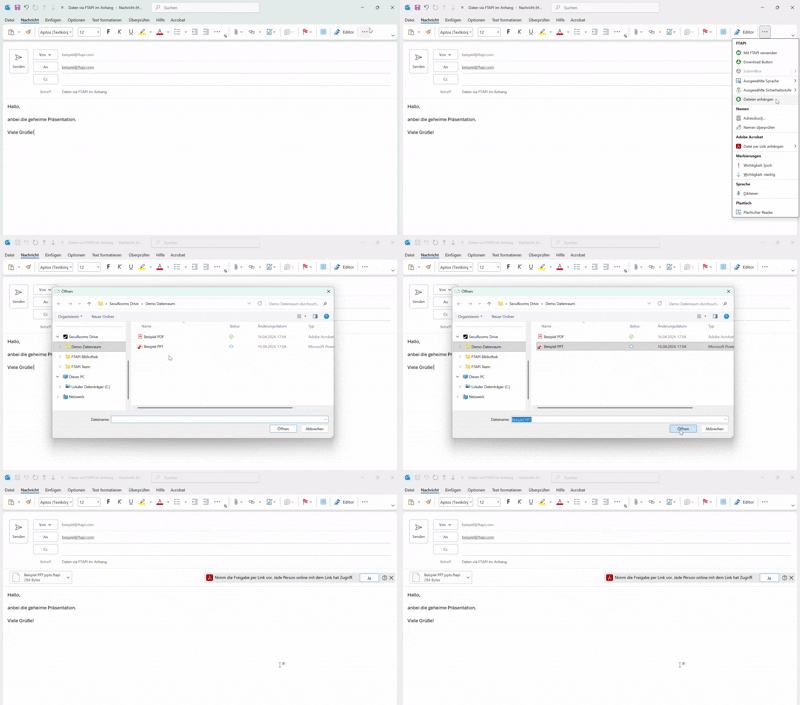
- via file attachment using the Outlook Add-in
- via drag & drop from the Drive into a SecuMail
- or directly via the share function from within the Drive
Your data room contents now land in Outlook in seconds, without further clicks and without leaving the secure environment.
Limitations
Creating, deleting, or renaming entire data rooms
Creating, deleting, or renaming entire data rooms directly on the PC is not possible; these actions must still be performed in the browser version.
Which files are not synchronised
SecuRooms Drive does not synchronise every file in the synchronised folder with the data room. Two groups are excluded.
Files with certain file extensions
Files with the extensions .ini, .tmp and .temp are not synchronised. These are helper files created by Windows and by individual programs, and they serve no purpose in the data room.
Files with an eight-character name and no file extension
So that Excel files synchronise correctly, SecuRooms Drive recognises and ignores the temporary files Excel creates while saving. These temporary files have no file extension and a name of exactly eight characters, made up of the digits 0 to 9 and the letters A to F, for example 730B2000 or 8D4A0100.
Your own files are affected if they match exactly this pattern: no file extension, exactly eight characters, only the characters 0 to 9 and A to F. A file named A1B2C3D4 is therefore not uploaded to the data room. Files with a file extension are never affected, and neither are names with other letters or a different length.
If you want such a file in the data room, give it a file extension or rename it.
Related Articles
❓ SecuRooms Drive: Overview
📋 SecuRooms Drive: Rollout and Installation