
📋 SubmitBox: Customizing global template, layout, and form fields
Global admin settings for the SubmitBox
The following global settings can be configured for the SubmitBox by the FTAPI admin: layout and general settings, security settings, and footer links.
Layout and general settings for the SubmitBox
To configure global settings and customize the layout of the SubmitBox, please proceed as follows:
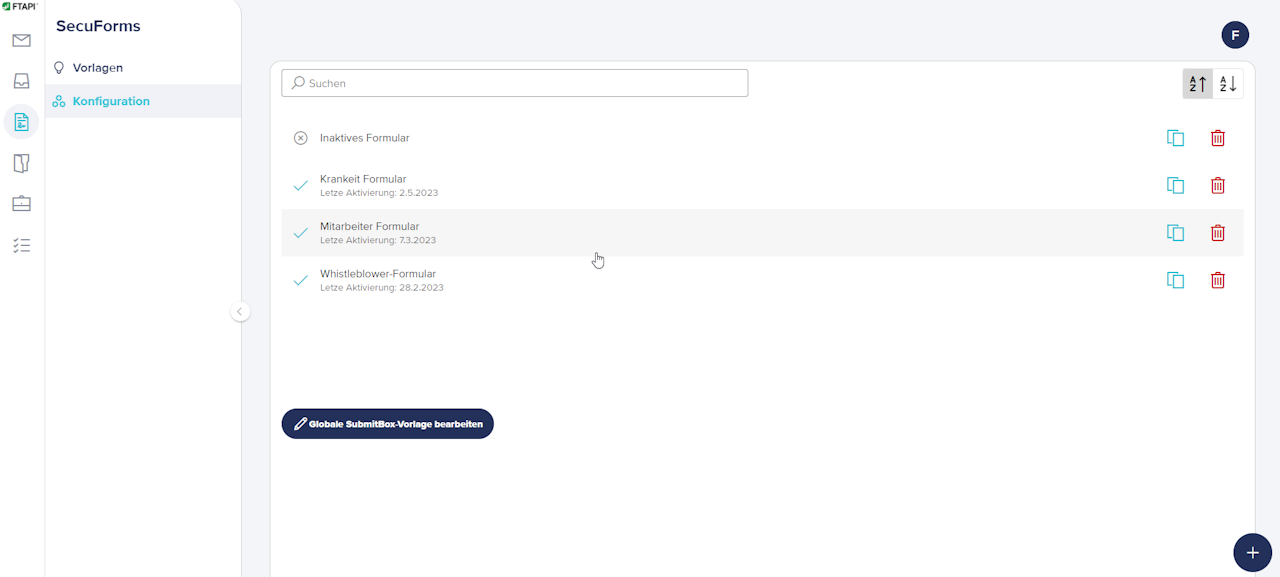
First, click on the "SecuForms" tab in the top navigation bar and then select the "Configuration" option from the menu on the left. Scroll down until you see the button "Edit global SubmitBox template". Please click this button to edit the SubmitBox globally.
Settings
The following settings can now be configured globally for all SubmitBox instances in your organization:
Enable Captcha:
The submitter can only transmit their data via the SubmitBox once they have entered the Captcha.
Processed by FTAPI-Processes:
This option is only relevant if you want to implement an automated data workflow (= FTAPI SecuFlows) for SubmitBox submissions.
Layout
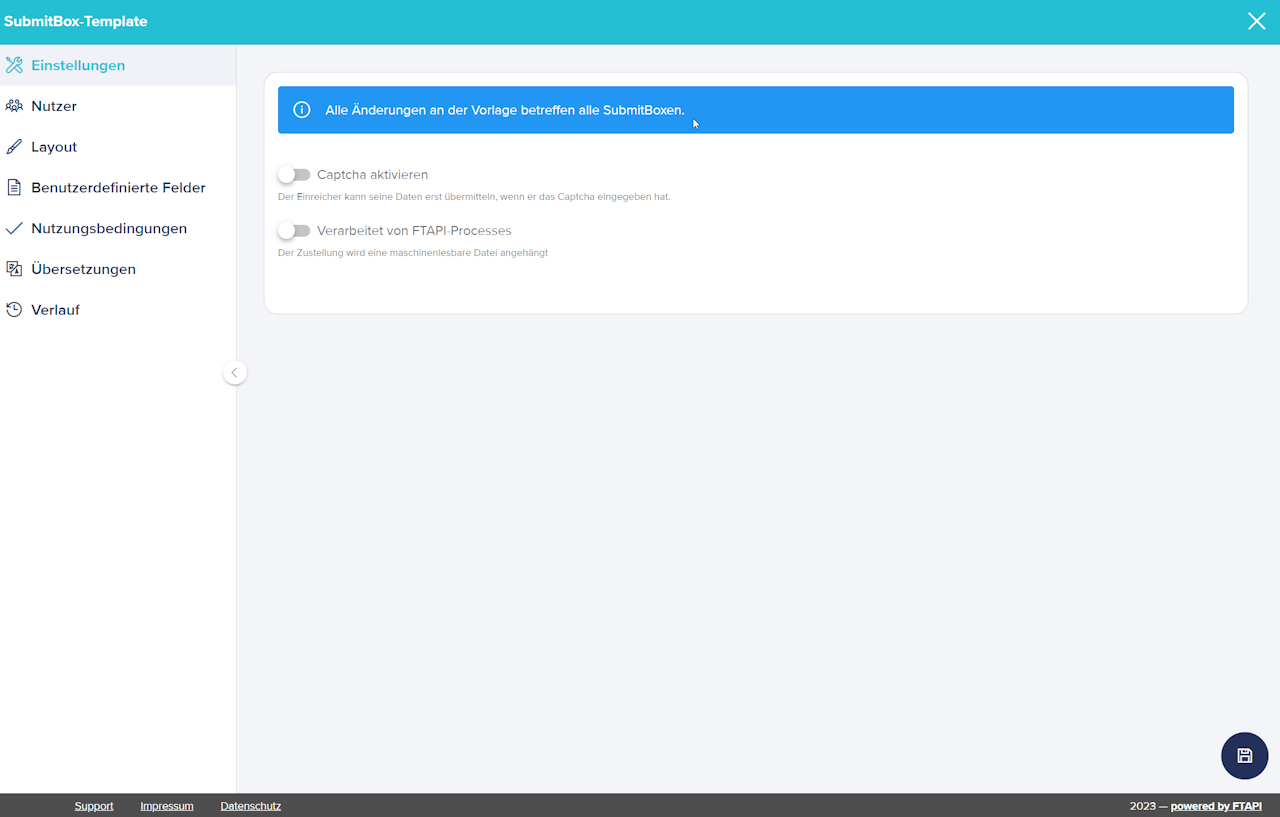
Notification text for senders with active notification:
If enabled via custom fields, you can define the text here for the confirmation email that the submitter receives.
Description above the form:
Here you can define the description that the submitter sees on the web interface below the SecuForm name.
Title upon successful submission:
This title appears as soon as the submitter has successfully completed a submission.
Message upon successful submission:
This message is displayed as soon as the submitter has successfully completed a submission.
Redirect URL:
You can redirect submitters to this URL after a successful submission.
Button color:
Defines the main color of the buttons.
Text color:
Defines the text color on the buttons.
Button display:
Defines the layout of the buttons (examples can be found at: https://vuetifyjs.com/en/components/buttons/ ).
Use dark theme:
Activates the "Dark" layout mode.
Transparency:
This setting allows you to adjust the transparency of the form fields relative to the background image.
Background image:
Here you can upload any background image.
Company logo:
Use this to enable the display of the company logo stored on the FTAPI server.
Enable footer:
Activates the footer.
Custom fields
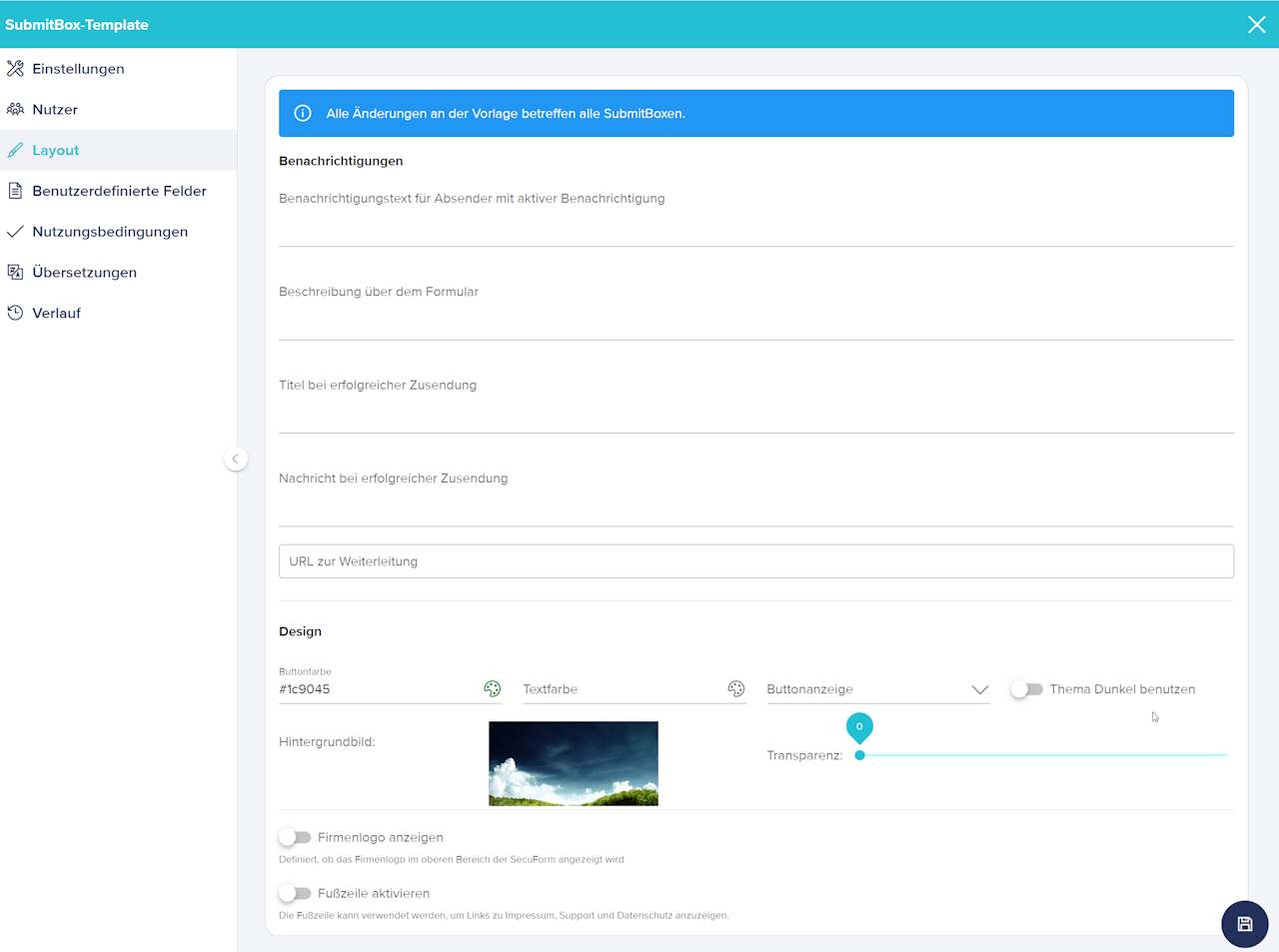
Use process pages:
The SubmitBox can be divided into multiple pages. This is particularly useful if the SubmitBox contains a large number of fields. If process pages are used, you specify which process page the custom fields should appear on when creating them.
Custom fields:
Create a new field. You can choose between various field types (see screenshot).
Terms of use
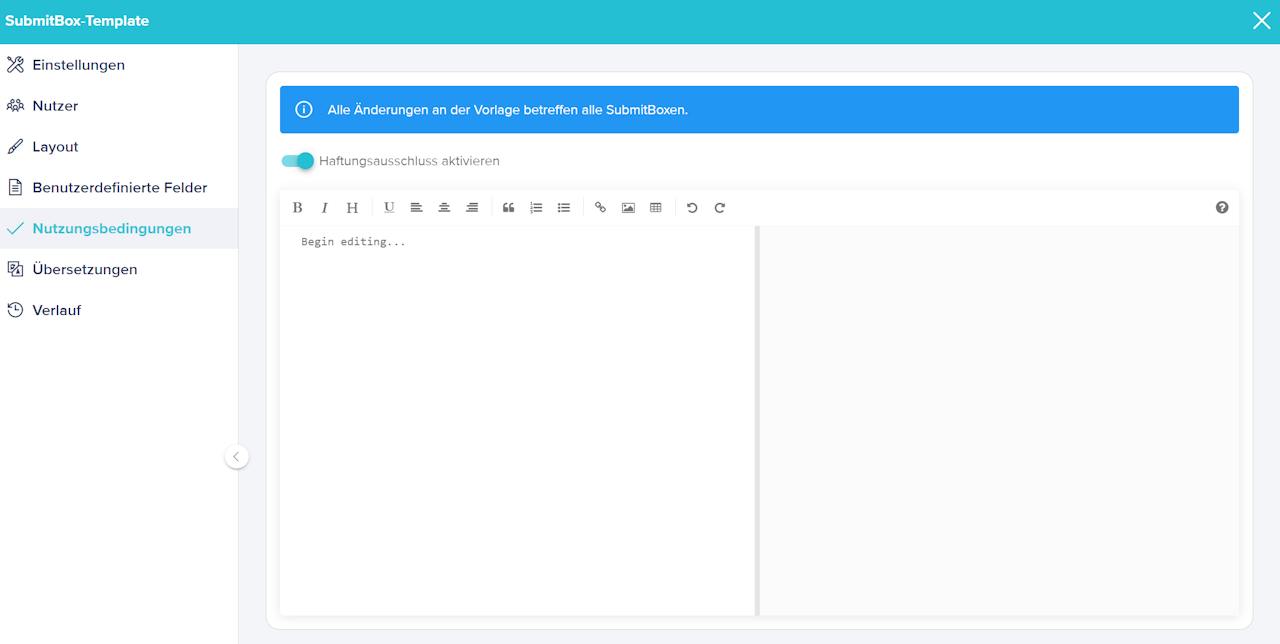
Enable disclaimer:
When activated, the disclaimer page is displayed before every submission. Only after the disclaimer is confirmed will the user reach the SubmitBox page and be able to submit files.
Translations
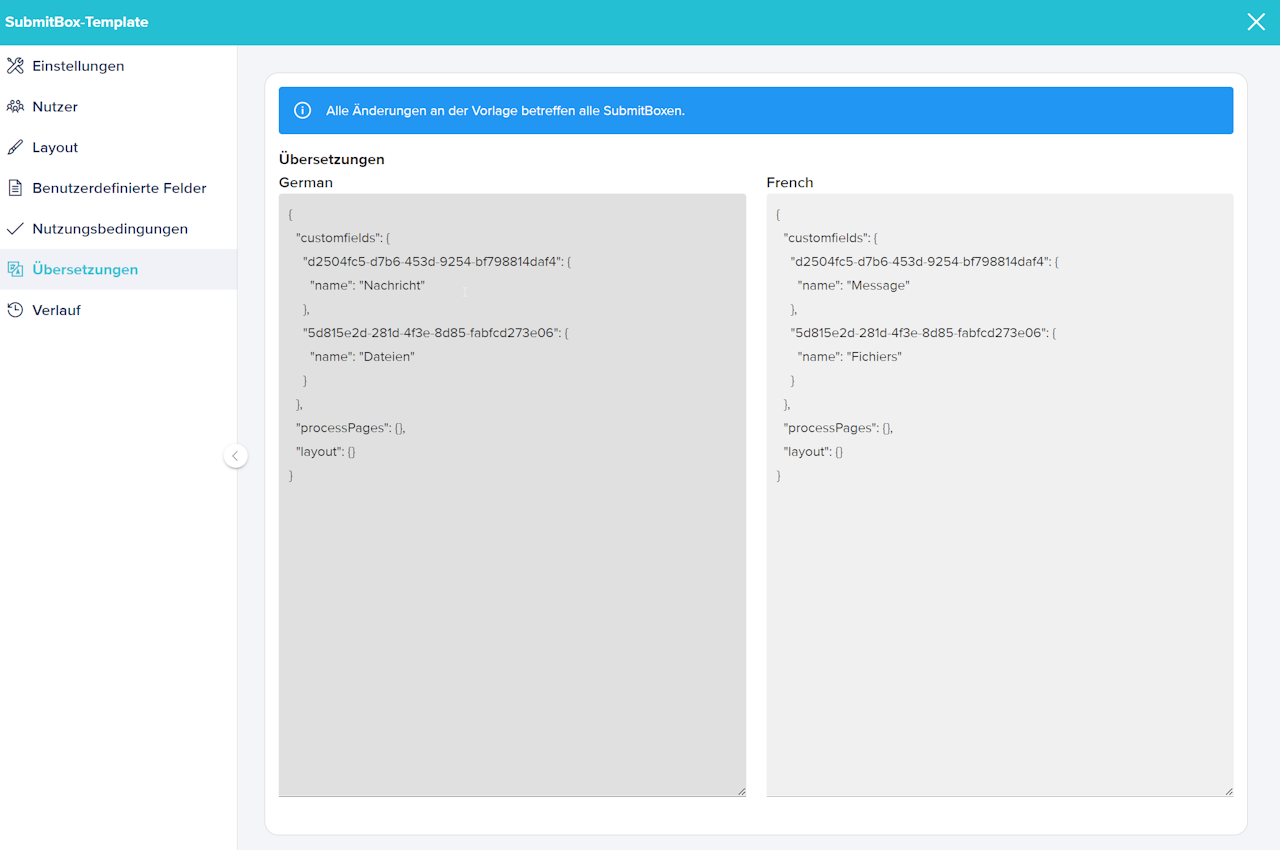
Here you can set individual translations for the fields and texts. The SubmitBox attempts to detect the browser language and display the corresponding language. The default language is English.
History
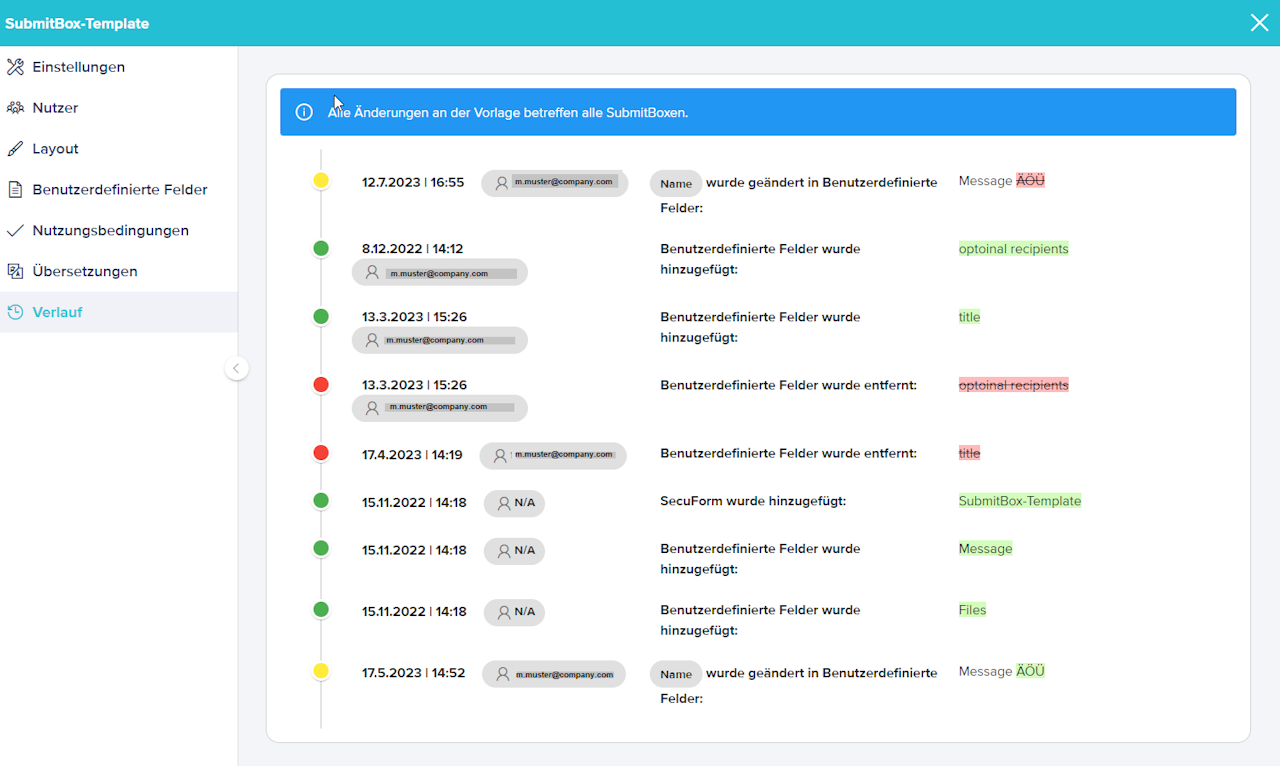
Here you can chronologically track which changes have been made to the global SubmitBox settings.
The following events are logged:
- Add / remove custom field
- Add / remove recipient
- Change of security level
- Enable / disable disclaimer
Related articles
📋 SubmitBox: Configuring de-/activation, security levels, and footer links