
🎓 System Settings Part 2
Central settings for the FTAPI system are made here. FTAPI strongly recommends checking and maintaining this section before FTAPI is rolled out to the entire organization.
In the web interface, you can access the "System" area via the "Administration" tab and then select "System" in the configuration on the left.
Usage Agreements
In consultation with the legal department, it should be clarified whether a download disclaimer is necessary when downloading files and whether a usage notice is necessary when users log in (=login disclaimer).
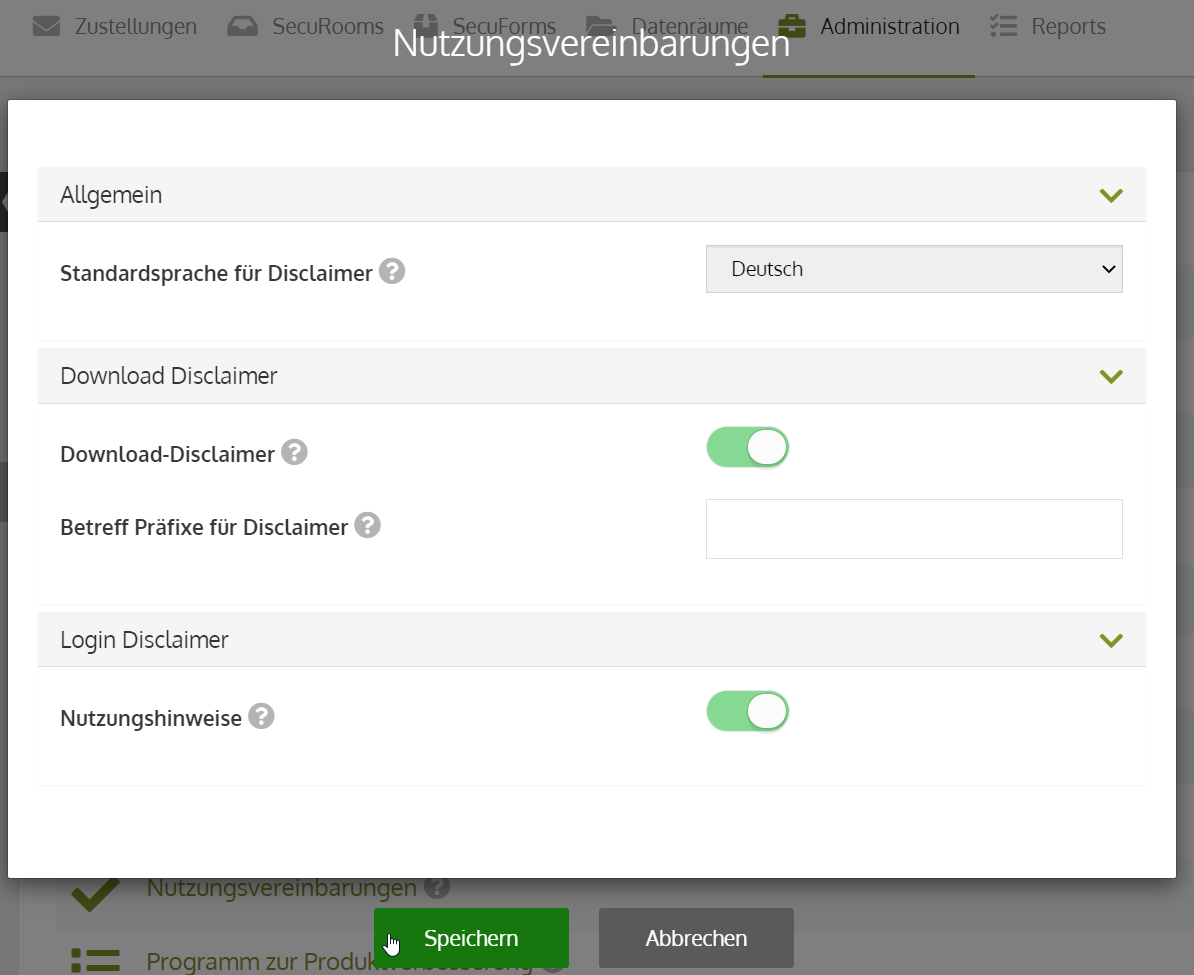
The following settings can be made for download disclaimers and login disclaimers:
- Default language for disclaimers:
Set the default language for all disclaimers. Selection: German, English, French. - Download disclaimer:
Activate or deactivate the download disclaimer. Deactivated by default. - Subject prefixes for disclaimers:
A list of prefixes can be stored here that serve as a condition for displaying the download disclaimer. At least one of the defined prefixes must be in the subject of a delivery for the download disclaimer to appear. - Usage notices:
If activated, users must agree to the usage agreements once when logging in.
Registration
Under "Registration", you can determine whether a new user is created when sending to external persons and which user group this new user is assigned to. In addition, you can determine whether self-registration in the system is possible.
General:
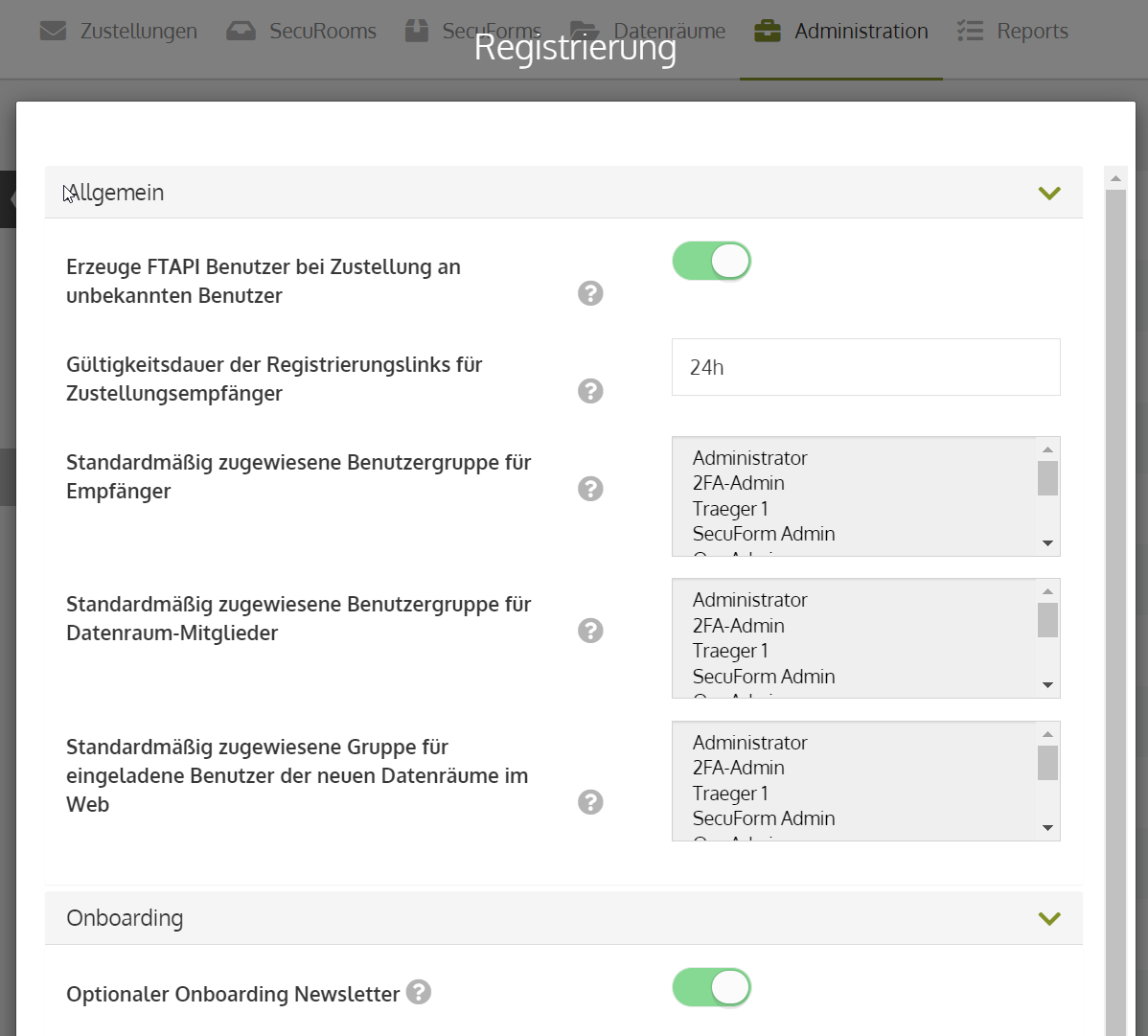
- Create FTAPI user when delivering to an unknown user:
If activated, a user is automatically created when sending deliveries to external persons. - Validity period of registration links for delivery recipients: Time unit for how long the registration link is valid for new users. Default value = 24 h.
- Default assigned user group for recipients:
This determines which user group users added to the system via auto-registration fall into.
Self-registration:
- Allow self-registration:
If activated, self-registration by (external) users in the system is possible. - Allow anonymous self-registration:
If activated, no confirmation of the e-mail address is necessary during registration. (Use case: whistleblower form) - E-mail address as username:
If activated, the e-mail address is stored as the username for all persons who register in the system via self-registration. - Auto-registration e-mail whitelist:
Restriction for which e-mail addresses (or domains) auto-registration is allowed. - Auto-registration e-mail blacklist:
Auto-registration is not possible for all e-mail addresses (or domains) stored here. - E-mail schema for LDAP users:
Definition of which e-mail addresses (or domains) are always created as LDAP users. - Default assigned user group for auto-registration:
User group to which users are assigned after successful self-registration. - Additional information:
Fields that are additionally displayed during registration. The default is: firstname, lastname, phone, position company. - Additional mandatory information:
Here you can determine which fields must be filled out by the user.
Note: If 2FA is activated, "phone" must be entered as a mandatory field, for example. - Validity period of the activation link for self-registrations:
Time unit for how long the registration link is valid for self-registration. Default value = 24 h.
SecuForms
The following global settings can be made for the "SecuForms" product:
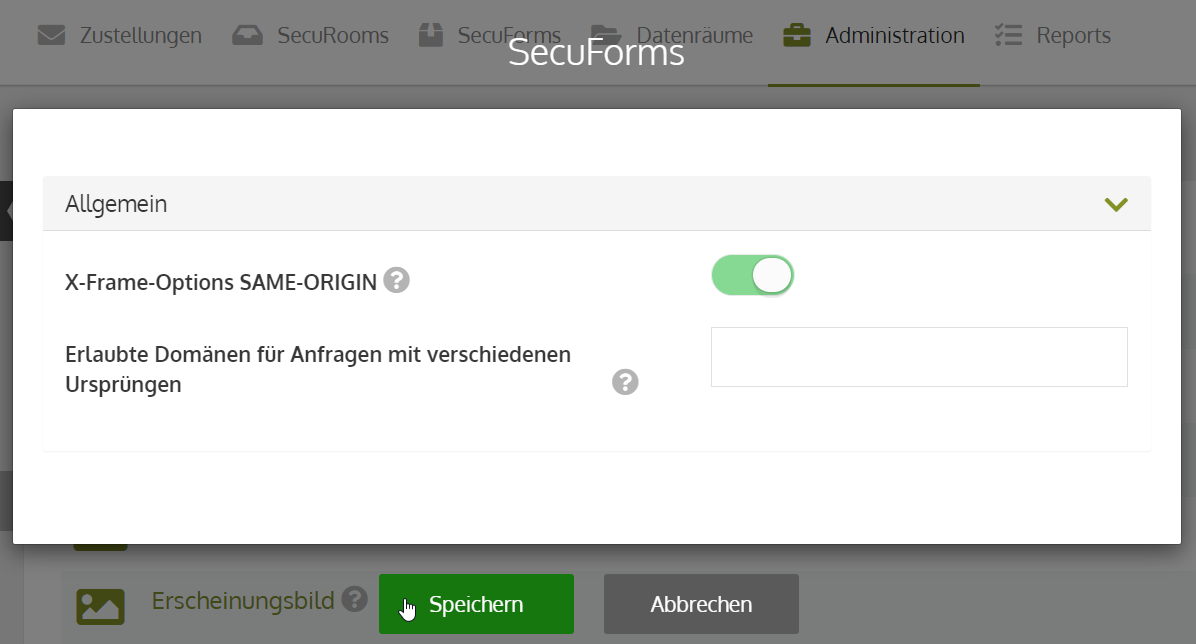
1. X-Frame SAME-Origin
If activated, the X-Frame options for the SecuForm/URLs are set to SAME-Origin. If you want to embed SecuForms on other websites, deactivate this field.
2. Allowed domains for cross-origin requests
The respective allowed hosts must be stored in the following format: https://domain.com
If you want to store additional domains, they must be separated by a comma (e.g.: https://extern.com,https:other.com)
Please note that no spaces are allowed between the domains.
SecuRooms
The following global settings can be made for the "SecuRooms" product:
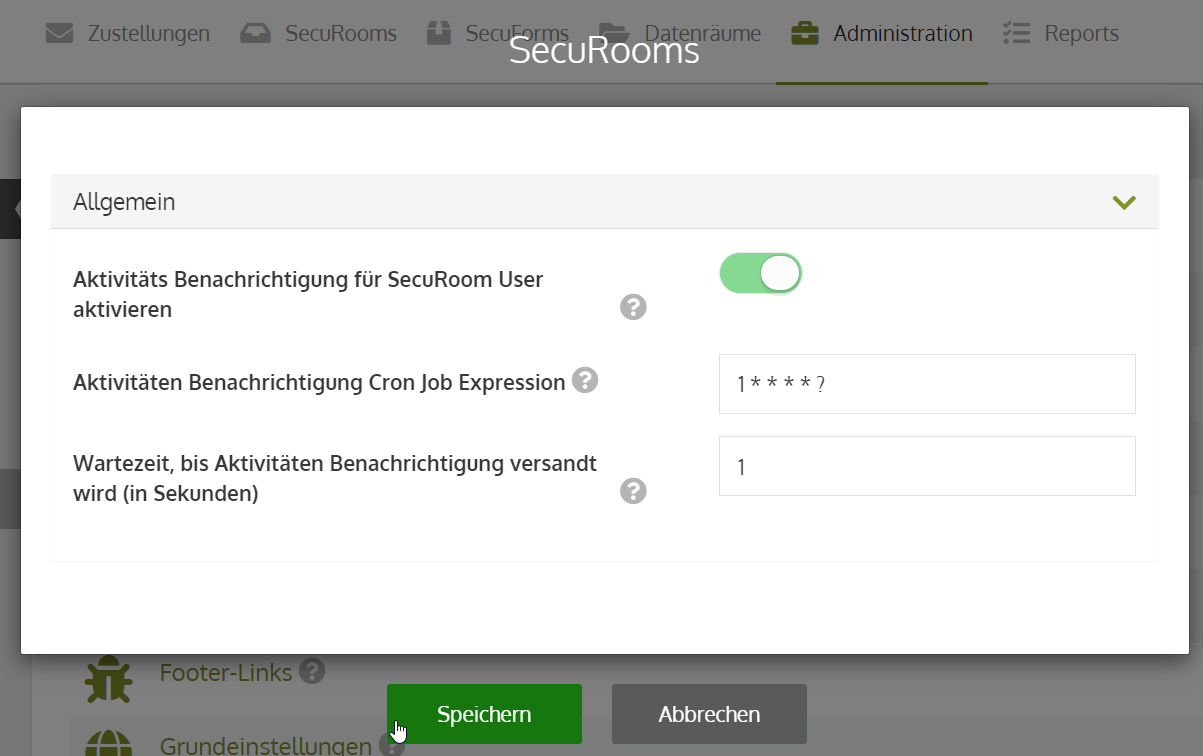
- Activate activity notification for SecuRoom users:
If activated, users are informed about changes in data rooms via e-mail (e-mail notification only occurs for data rooms in which the user is also a member). - Activity notification Cron Job expression:
Cron expression that determines the cycle in which it is checked whether there are new activities in data rooms. - Waiting time until activity notification is sent (in seconds):
Time span to wait before a new e-mail notification is sent out.
Article on using time-based expressions (= CronJob): Click here for the chapter
Security Policies
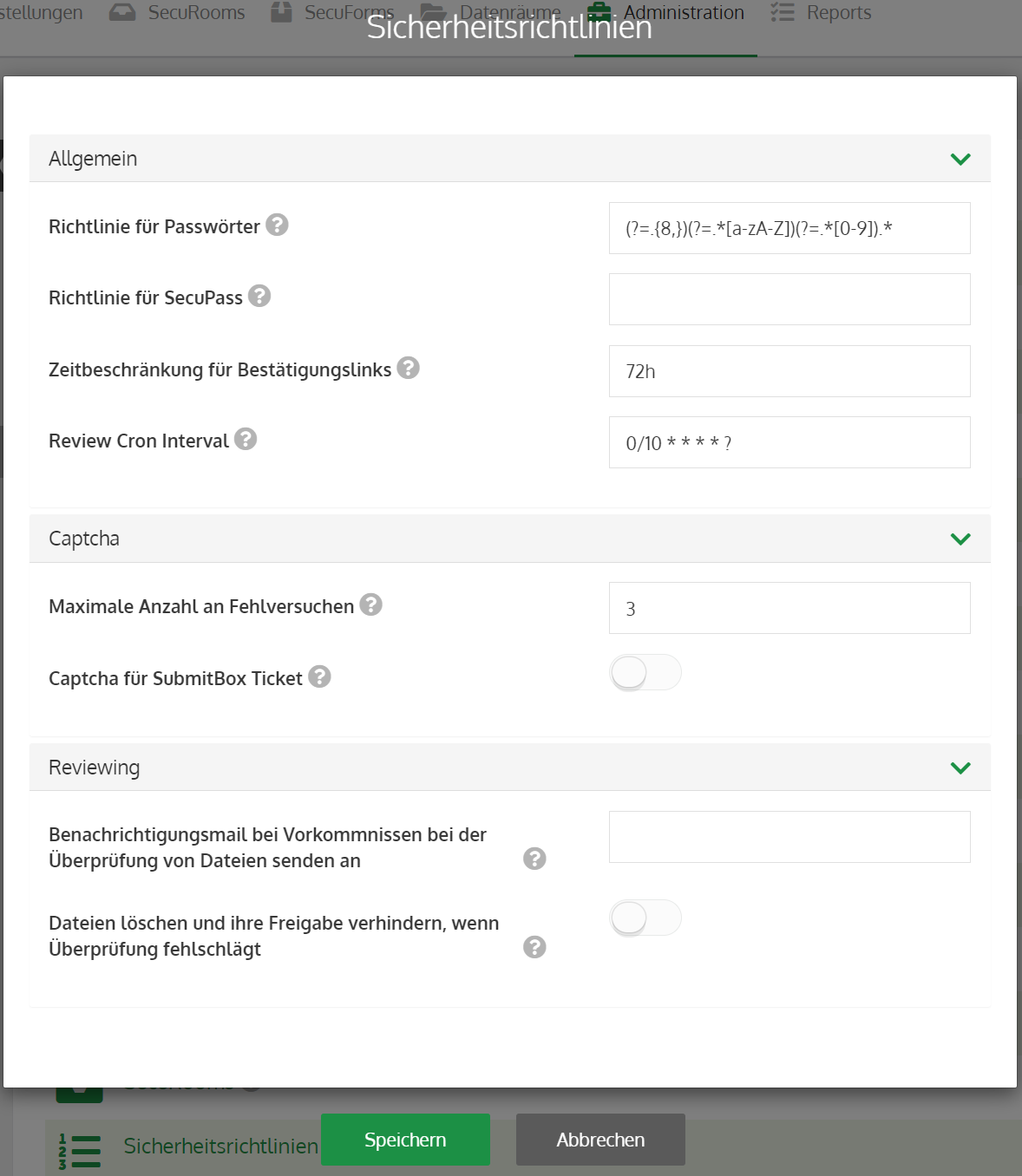
Under this point, global security policies for passwords can be assigned and advanced security settings can be made.
General:
- Password policy: Assignment of security policies for passwords, using Regex.
- SecuPass policy: Assignment of security policies for the SecuPass key, using Regex.
- Time limit for confirmation links: Time span within which confirmation links are valid for users.
- Review Cron Interval: Interval for the check by the virus scanner (if activated for the system). Specified as a CronJob expression.
Article on using time-based expressions - CronJob.
To the article.
Captcha:
- Maximum number of failed attempts: Number of failed attempts at login before the Captcha query is required. The default value is '3'.
- Captcha for SubmitBox ticket: If activated, a Captcha query occurs globally for all SubmitBoxes in the organization upon submission. This is deactivated by default.
Reviewing:
These settings are only valid if the Virus Scanner add-on has been booked.
- Send notification e-mail for incidents during file verification to:
If a notification is to be sent in the event of incidents, the e-mail address(es) to which the notification e-mail should be sent are stored in this field. - Delete files and prevent their release if verification fails:
If activated, all deliveries for which the virus scanner verification fails are blocked.
Does the Virus Scanner add-on sound interesting? Simply contact the Customer Success Team of FTAPI to learn more.
Deliveries
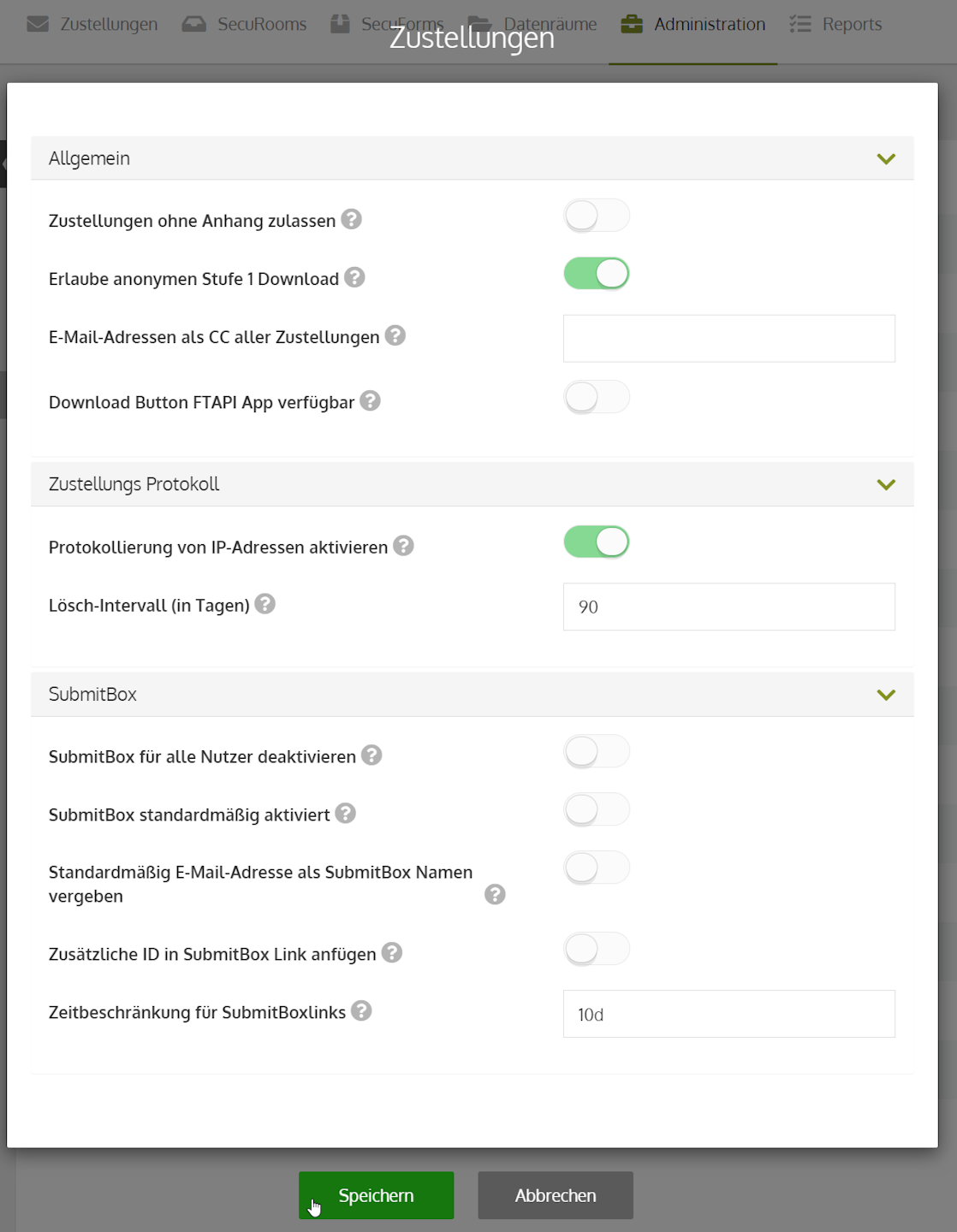
The following predefined settings can be made for deliveries sent via FTAPI:
General:
- Allow deliveries without attachment:
If activated, users can send deliveries of all security levels even without attached files. - Allow anonymous level 1 download:
If activated, a download is possible at security level 1 without providing an e-mail address. - E-mail addresses as CC for all deliveries:
All deliveries are additionally sent to the e-mail address(es) stored here. - Download button available in FTAPI App:
For very large files, external persons are shown the FTAPI App download button to be able to download the attachments.
Delivery protocol:
- Activate logging of IP addresses:
If activated, the IP address is logged for every download made. Information can be retrieved in the "Deliveries Download Report". Deactivated by default. - Deletion interval (in days):
Time period (in days) after which the logged IP addresses are deleted.
SubmitBox:
- Deactivate SubmitBox for all users: Global setting that deactivates all SubmitBoxes in the system.
- SubmitBox activated by default: Global setting that activates the SubmitBox for all users.
- Assign e-mail address as SubmitBox name by default: If activated, the front part of the e-mail address (before @) is used. If not activated, the username is used as the SubmitBox name.
- Append additional ID to SubmitBox link: For additional uniqueness and security of user SubmitBoxes, this can be activated. As a consequence, randomly generated characters are appended to the SubmitBox links.
- Time limit for SubmitBox links: Time span for received SubmitBox links. If expired, a new SubmitBox link must be requested.
Part 2 completed!
Congratulations, Part 2 of the system settings has been successfully completed!
< Previous chapter To the overview Next chapter >