
📋 Outlook Add-In (classic): GPO setup for group-based activation
Activating the add-in on a group basis
If the FTAPI Outlook Add-In has been installed by the administrator for all users, the add-in starts when Outlook is opened. If you do not want all users to be able to use the FTAPI Outlook Add-In, this can be controlled via a Group Policy (GPO).
The automatic startup of an add-in in Outlook is controlled in the system registry via the "LoadBehavior" variable. A value of "3" means that the add-in starts together with Outlook, while a value of "0" leaves the add-in inactive. Inactive Outlook Add-Ins can still be activated manually by the user.
- Open the Group Policy Management and create a new Group Policy Object
- Navigate to: User Configuration > Preferences > Windows Settings > Registry
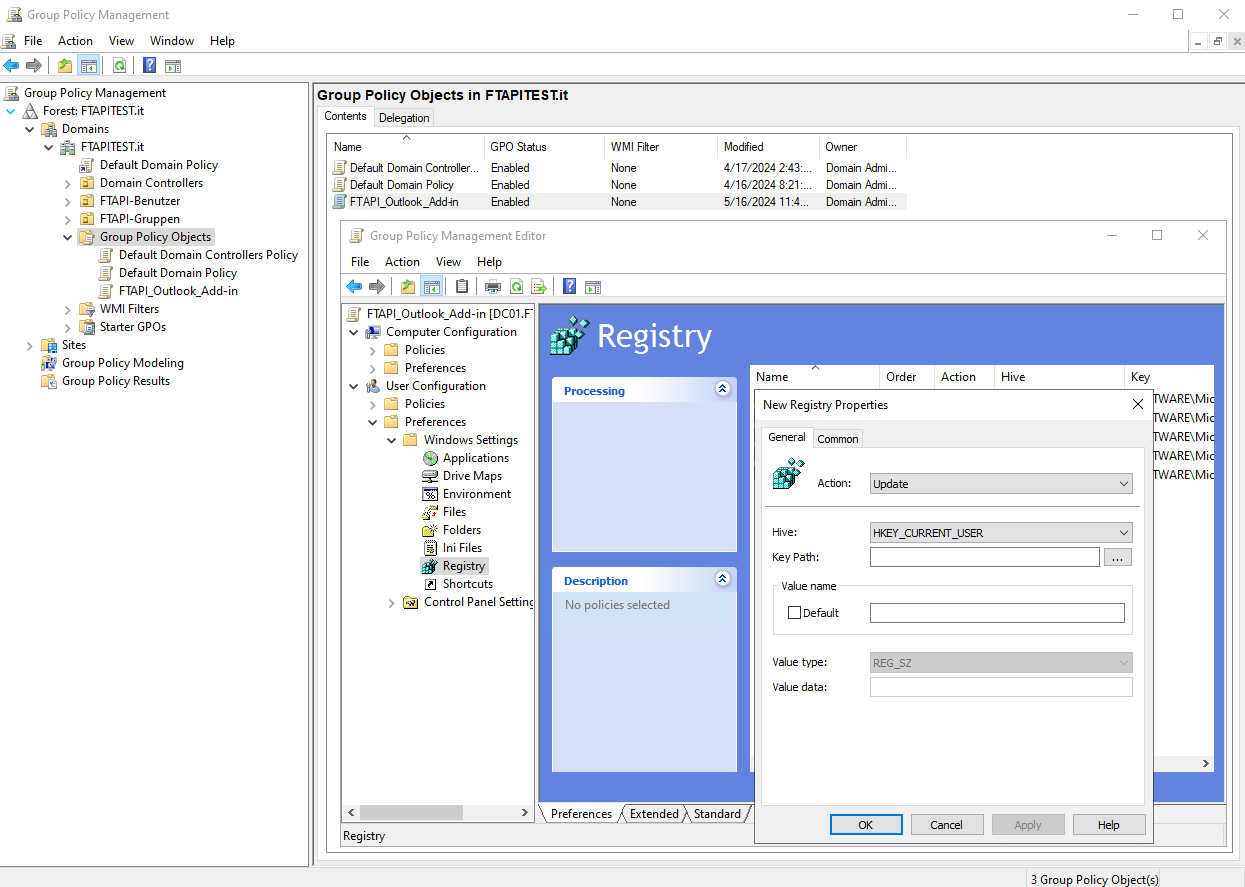
- Create the following registry elements one after the other
Hive HKEY_CURRENT_USER
Key path SOFTWARE\Microsoft\Office\Outlook\Addins\FTAPI Outlook Add-In\
| Name | Order | Action | Type | Value data |
| Description | 1 | Replace | REG_SZ | FTAPI Outlook Add-In |
| FriendlyName | 2 | Replace | REG_SZ | FTAPI Outlook Add-In |
| Manifest | 3 | Replace | REG_SZ | C:\Program Files (x86)\FTAPI\Outlook Add-In\FTAPIOutlookAddin2013.vsto| vstolocal |
| LoadBehavior | 4 | Replace | REG_DWORD | 00000000 |
| LoadBehavior | 5 | Replace | REG_DWORD | 00000003 |
Item-level targeting
To control the setting of these registry values on a group basis, you must define the security groups that should process this entry.
- Navigate to: Common tab > Item-level targeting > New Item > Security Group
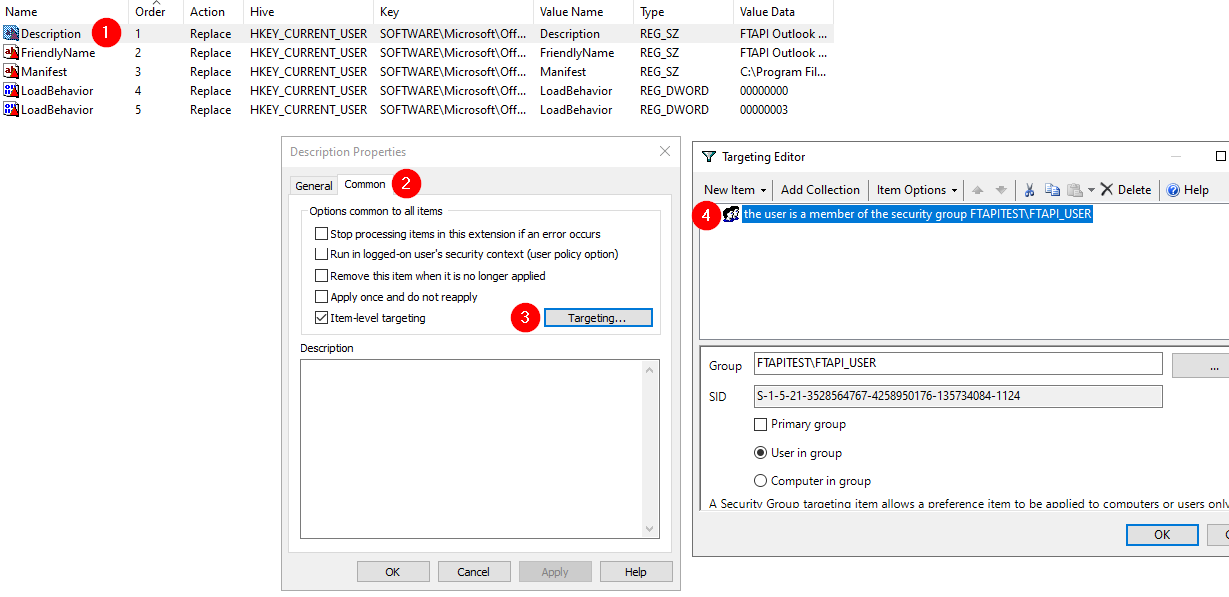
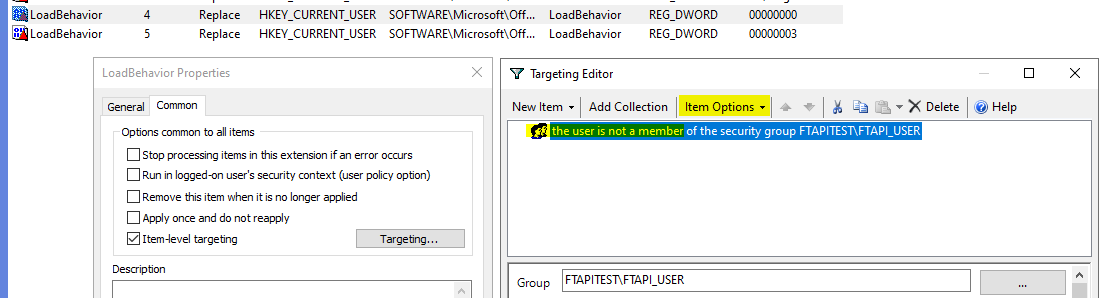
Through the "LoadBehavior" entry (order 5th position), members of the group receive the value "3". The "LoadBehavior" entry (order 4th position) must be configured differently here. Non-members of the target group have the value "0" set here due to negation.
Note: Since this is a user configuration, but the Group Policy is placed in a computer OU, it may be necessary to enable the loopback processing mode.
Now link the GPO to the computer OU for which the settings should apply. When a user logs on, the registry entries are now set based on the group memberships.