
📋 SecuPass: Approval process for E2E deliveries to new recipients
Why is this process necessary?
Sending messages and files with FTAPI security levels 3 and 4 uses SecuPass technology to ensure consistent end-to-end encryption (E2EE). This means that data is encrypted on your device before it is sent and is only decrypted by the recipient. No one in between—not even FTAPI—can access the content.
For this secure key exchange to work, a one-time, multi-stage process is required when sending to a new, unregistered user for the first time. This article guides you through the individual steps.
The approval process step by step
Step 1: Delivery by the sender
The process begins when a sender sends a delivery with security level 3 (encrypted files) or 4 (encrypted files and message) to an external recipient who does not yet have an FTAPI account.
Step 2: Registration by the recipient
The recipient receives an email notification about the incoming delivery. A link in the email directs them to the registration page, where they must set a password for their new FTAPI account. This process is comparable to creating a new account for an online service.
Step 3: Activation of SecuPass by the recipient
After successful registration and initial login, the recipient must activate their personal SecuPass. This is mandatory for receiving end-to-end encrypted data.
- In the FTAPI account, the user is notified of the necessary activation.

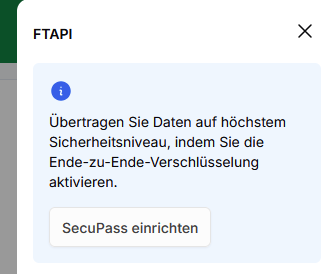
- Clicking on
Set up SecuPassopens a page where the user sets and confirms their personalSecuPasspassword. This step is only necessary once per user.
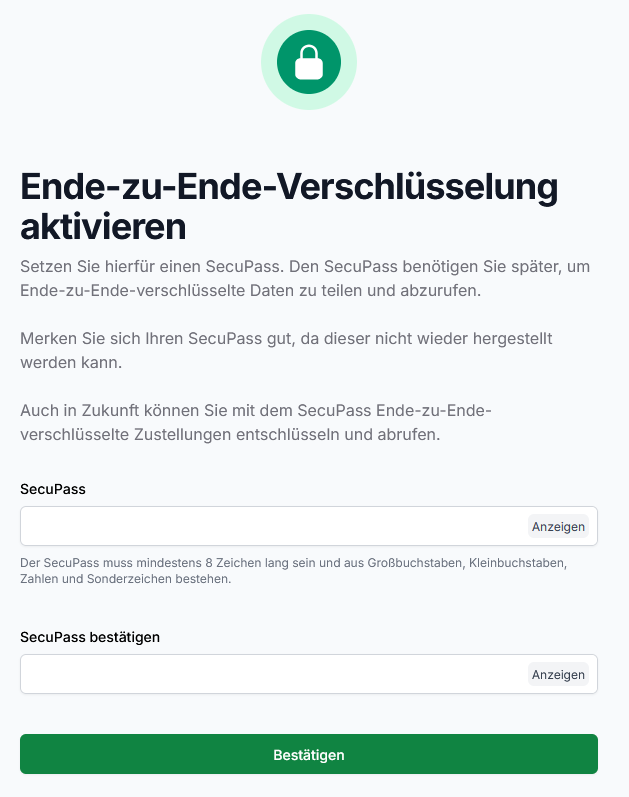
Step 4: Final approval by the sender
As soon as the recipient has activated their SecuPass, the original sender receives a notification in their FTAPI interface. The sender must now give final approval for the delivery. To do this, the sender enters their own SecuPass again.
This crucial step is more than just a confirmation. It securely and inseparably links the delivery to the recipient's account. Only then can this specific person open the encrypted data.
Step 5: Download by the recipient
After the final approval by the sender, the recipient receives another email notification. They can now log in, access the delivery, and securely download and decrypt the encrypted files.
Important note: What happens during a SecuPass reset?
A forgotten
SecuPasscannot be recovered, but can only be reset by an administrator. A reset results in the user permanently losing access to all previous level 3 & 4 deliveries as well as all end-to-end encrypted data rooms. The data is irretrievably lost for this user and must be provided again by the respective sender or data room owner.