
📋 G.Data Virus Scanner: Configuring MIME types for allowed file types
Overview
Use the MIME type configuration to define which file types are allowed system-wide for data exchange via FTAPI. The check is not only based on the file extension but analyzes the actual file type. This setting applies to all product areas: SecuMails, SecuRooms, SecuForms, and SubmitBox.
Prerequisites
Important: This setting is only available if the G.Data virus scanner is activated.
Configuration location
You can find the MIME type configuration at the following path:
Administration → System → Security → Reviewing (Virus scanner) → Allowed MIME types
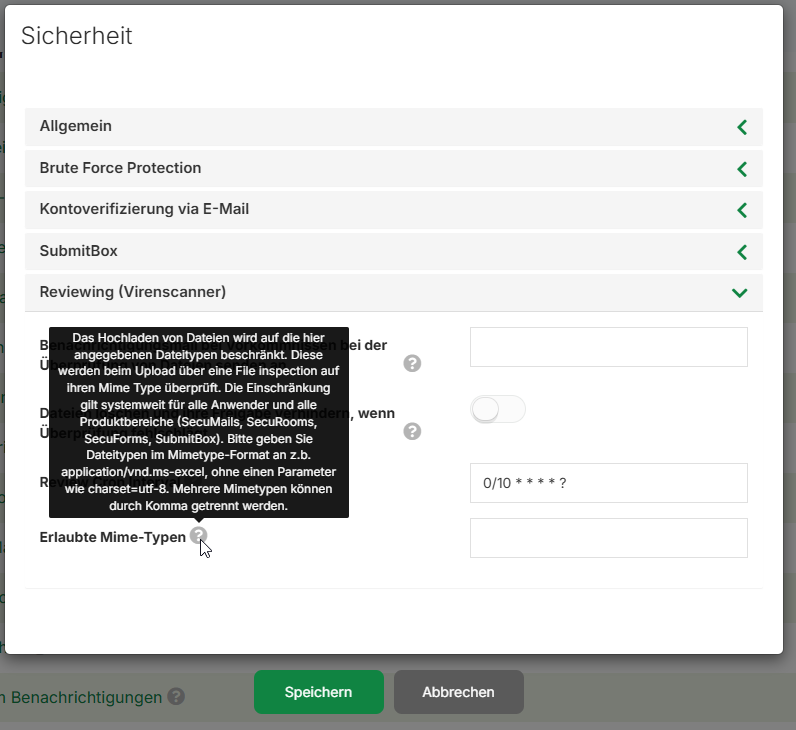
Configuring MIME types
Input format
Enter MIME types in the standardized format, for example application/pdf or image/jpeg. Separate multiple MIME types with a comma.
Important: Do not use parameters such as charset=utf-8. Enter only the base MIME type.
Correct input:
application/pdf, image/jpeg, image/png, text/plainHow the whitelist works
Uploading files is restricted to the file types specified here. During upload, these are checked for their MIME type via file inspection. The restriction applies system-wide to all users and all product areas.
Important: MIME types that are not listed cannot be uploaded.
Windows-specific MIME types
On Windows, different MIME types are used for certain file formats. This can lead to files being blocked even if the standardized MIME type is stored in the whitelist.
Important: For Windows systems, always enter both MIME type variants to ensure that files are accepted correctly.
Most common example: ZIP files
There are two MIME types for ZIP files:
- Standard:
application/zip - Windows:
application/x-zip-compressed
Correct input for ZIP files:
application/zip, application/x-zip-compressedIf a file is not accepted despite the stored MIME type, please check whether Windows uses a different MIME type for this file format. In this case, add both variants to the whitelist.
Empty field
If you leave the field empty, no MIME type check will take place. In this case, files are only checked by the virus scanner but are not restricted by their file type. All file formats are then allowed.
Technical references
For the correct specification of MIME types, use the following references:
IANA Media Types Registry – Official list of all standardized MIME types in the correct format
G.Data VaaS supported file types – Overview of the file formats supported by the G.Data virus scanner
Limitations of the MIME type check
The MIME type check does not work for the following scenarios:
End-to-end encrypted deliveries and files in encrypted data rooms cannot be checked because the content cannot be analyzed.
Archive formats such as ZIP files are not scanned by the G.Data virus scanner, regardless of whether they are password-protected or not.
Interaction with blacklist
If you exclude certain file types via a blacklist at the group level, this takes precedence over the system-wide whitelist. Blocked file types remain blocked even if they are listed in the allowed MIME types.
Troubleshooting: File type is blocked
If a file type is blocked by the MIME type check, you have the following options:
1. Add MIME type to the whitelist
Check the G.Data list of supported file types to see if the desired MIME type is supported. If so, add it to the whitelist.
2. Send encrypted (Security level 3 or 4)
Use end-to-end encrypted data rooms or deliveries. In this case, the MIME type check does not apply because the content is encrypted.
3. Upload files as a ZIP archive
Compress unsupported file formats into a ZIP archive. Please note, however, that ZIP files themselves cannot be scanned by the virus scanner.
4. Temporary deactivation
For urgent individual cases, you can temporarily empty the MIME type field, perform the upload, and then reactivate the whitelist.
Note: Permanent deactivation of the MIME type check is not recommended for security reasons.
Related articles
❓ Security: Premium virus scanner G.Data and MIME type check
📋 Premium virus scanner: MIME type check