
📋 SSO: Renewing SAML credentials for a Relying Party (RP)
SAML certificate expiration warning and metadata change
If the Relying Party certificate is set to expire in less than 35 days, all members of the "Administrator" group (or groups with the "System Administration" permission enabled) will receive an email notification every Monday at 8:00 AM.
The notification includes the certificate's expiration date and the number of days remaining until expiration.
If the Relying Party certificate expires, SSO via SAML will no longer function. Renew the certificate before it expires to ensure uninterrupted SAML authentication.
Steps to renew the certificate
- Log in to the WebUI with your admin account.
- Navigate to the admin configuration at
<YOUR_SERVER>/webui/admin/listConfig.html - Select the menu Single Sign-On SAML 2.0.
The following interface will appear:
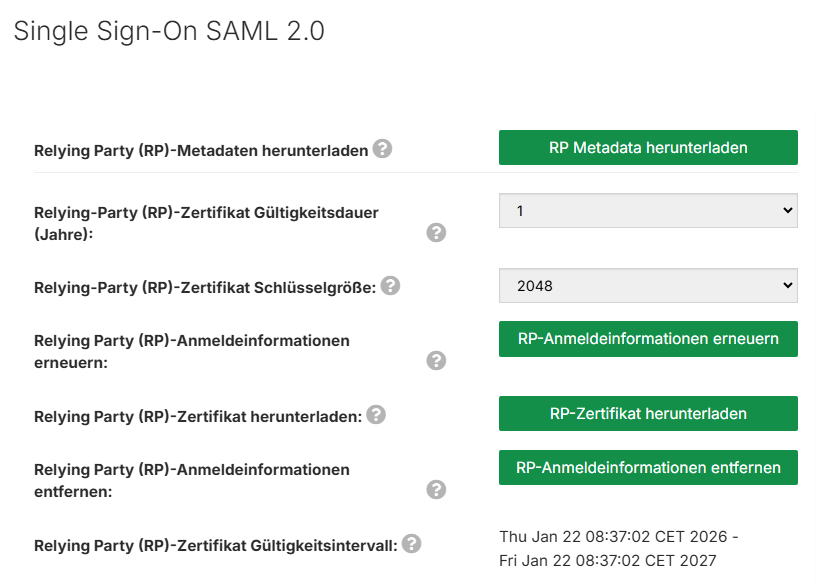
Set the validity period of the Relying Party certificate to the desired value:
- 1 (default), 2, or 3 years.
Set the key size of the Relying Party certificate:
4096 Bit(default) or2048 Bit(for legacy systems).
Click the Renew RP credentials button. The system will generate the new certificate, which may take a few seconds. Once completed, the Relying Party certificate validity interval will display the new validity period.
Click Save.
If necessary, click the Download RP certificate button to download the certificate.
Related articles
📋Changing metadata at the Identity Provider for SSO via SAML
📋Creating user accounts manually, automatically, or via AD
📋Adjusting token lifetime on the ADFS server via PowerShell and console